B2B Router PA Integration Guide in Cirrus Shield
This guide explains how to integrate the B2B Router PA into your Cirrus Shield environment.
Registration and Activation
- Access the registration link:
[https://app.b2brouter.net/fr/register](https://app.b2brouter.net/fr/register)Enter your email address and choose a password to create your B2B Router account.
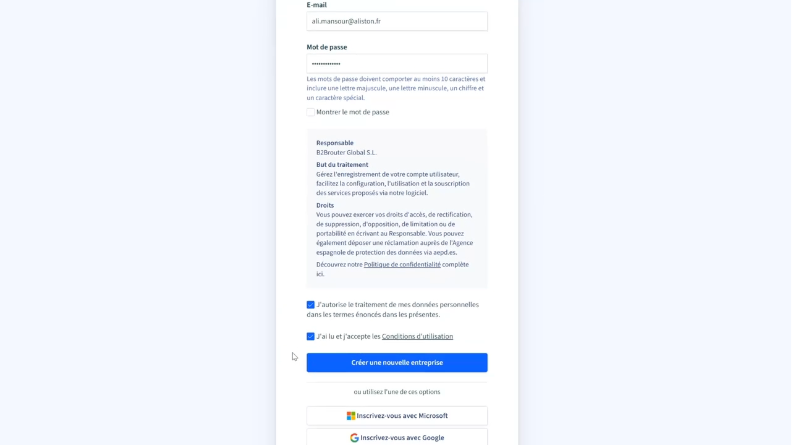
- Check the confirmation email sent to the address you provided. Click the activation link to activate your account.
Company Creation
- After activating your account, create a new company in B2B Router by entering the company name, country, and identification type (SIREN). The SIREN consists of nine digits.
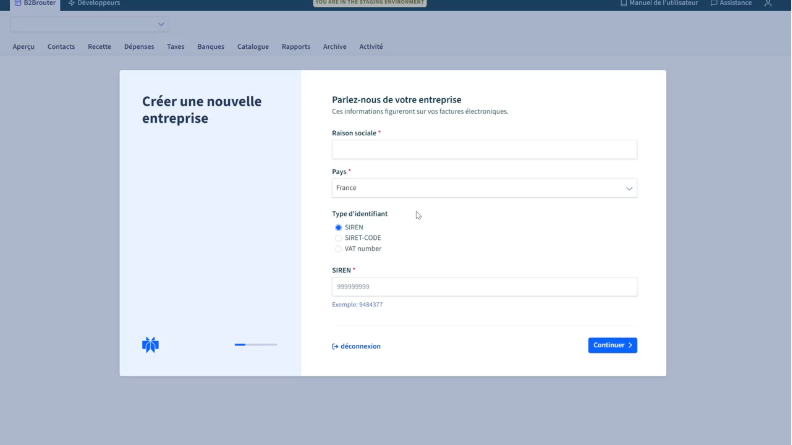
- Fill in the additional information and click “Continue”.
- Select the option “Integration of B2B Router with my system” and click “Continue”.
Integration and Subscription
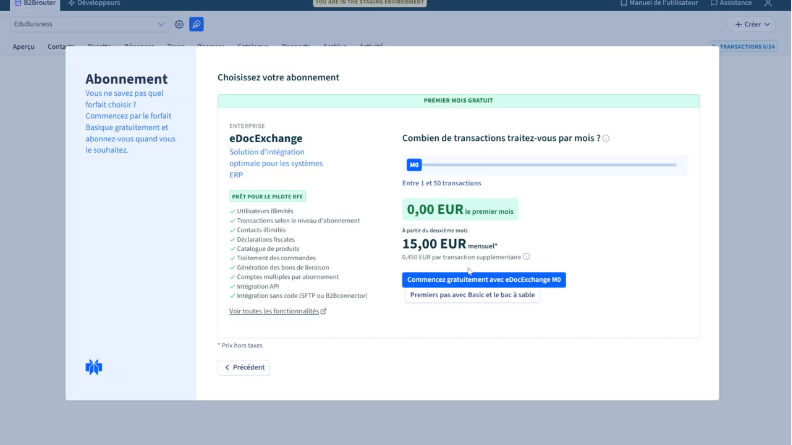
- Subscribe to B2B Router’s eDocExchange. Configure your subscription payment.
Organization Settings
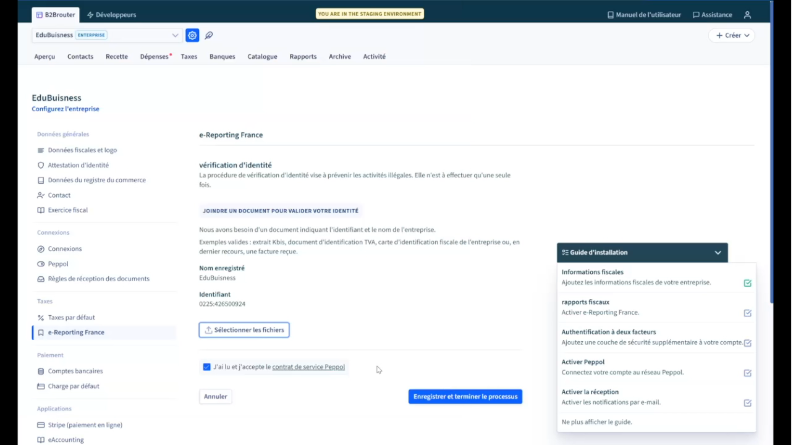
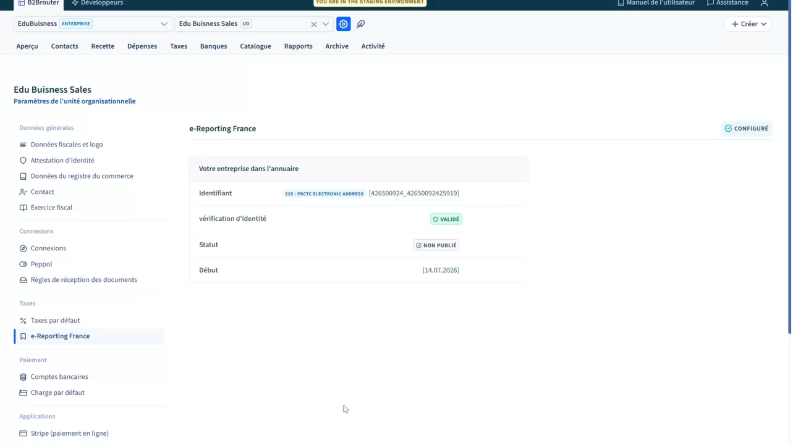
Go to the e-Reporting France section in your company’s settings to configure your organization’s settings. Upload an identification document to validate your company’s identity (VAT or fiscal identification card).
- Click “Participate in the pilot project to activate electronic reporting in France.”
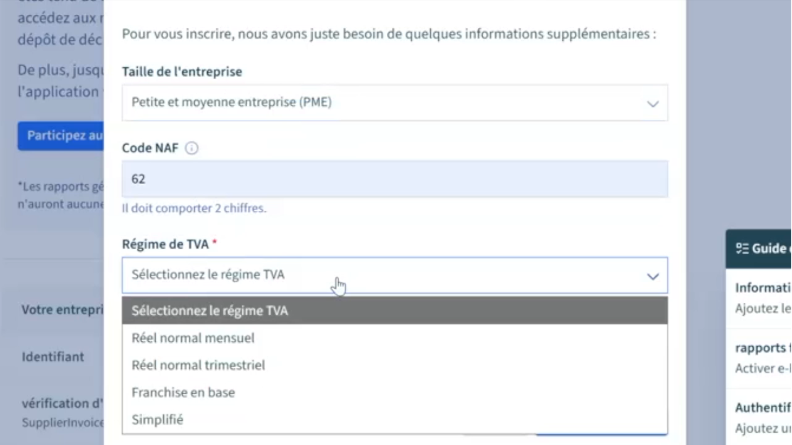
- Indicate your company size, NAF code, and VAT regime.
Adding Organizational Units
10. Return to your company settings and click “Add organization”.
- Fill in the information for your organizational unit that will receive and issue your invoices.
- Identify your organizational unit with a SIRET corresponding to the company’s SIREN.
- If you have multiple entities, create multiple organizational units, each with a SIRET associated with your SIREN.
- Verify that French eReporting is configured automatically for the organizational unit. Wait about 24 hours for the DGFIP directory status to be published.
Configuration in Cirrus Shield
- In Cirrus Shield, go to “Configuration” and click “Connected Application”. Verify that the “PA Integration” application is present.
- Go to “Extensions” and install the PA Integration plugin. Once installed, click “Details”. The Client Secret and Client ID should populate automatically.

⚠️ Please note: opening this page generates a new secret. Since a client secret cannot be displayed again once created, the secret shown on the plugin’s page is regenerated every time you open this page. This means the plugin’s previous secret stops working immediately, and any connection already established by the external application with the old secret will need to reconnect with the new one. Avoid unnecessarily opening the plugin’s detail page if the integration is actively in use — only do so when you actually need to (re)configure the external side of the integration.

To get the API key, go to the “Developers” section of your company in B2B Router and copy the API key.
- Paste the API key into the Cirrus Shield configuration page and click “Save”. Wait for the confirmation message before leaving the page.

