Microsoft Outlook is a personal information manager from Microsoft for electronic email messages. It includes other functions such calendaring, task management, contact and event management.
Cirrus Shield offers an integration with Outlook through a Plugin that needs to be installed.
This tool has been integrated to allow a synchronization of your contacts and events between Cirrus Shield and Outlook. Aside from the synchronization, you can customize the synchronized items as well the direction of synchronization between the two applications.
Since version 1.0.49, the plugin can also add an Outlook email, with its attachments, to the Cirrus Shield records it concerns (see section 6).
Shown below, is an illustration that explains the architecture of the Outlook Plugin that helps you to avoid duplication of your work and maximize your productivity.

1- Prerequisites in Cirrus Shield
Before installing the plugin, a Cirrus Shield administrator prepares the organization once, for all its users. This takes a few minutes and is not repeated on each PC.
1.1 Create the Connected App
- In Cirrus Shield, open Setup, then Applications connectées, and click +.
- Give the app a name (for example “Outlook Plugin”) and set Type de client to Public.
- Enter the redirect URI
http://127.0.0.1:53682/. - Tick the scopes api:read, api:write and api:delete, and check that Actif is ticked.
- Save, then copy the ID client shown on the app’s page. This is the Client ID the installer asks for: give it to the people who install the plugin.
Then give each person who installs the plugin:
- the Client ID of this Connected App;
- the server of your organization: Cirrus Shield (www.cirrus-shield.net) or Beta (beta.cirrus-shield.net).
A Client ID only works on the server of its organization.
1.2 Check the objects used by the plugin
For contact and event sync:
By default, the event, contact, task and prospect objects have an “OutlookId” field which optimizes the mapping between Cirrus Shield and the OL Plugin. If you want to map an object different from these 4 mentioned, it is recommended to add a technical field of type text in Cirrus Shield with a Label “OutlookId”
If this field is not created it will still be possible to synchronize, but you will receive the following alert each time you save the settings in the plugin:
For better performance, it is recommended to add the “OutlookId” field for the object you are mapping with the Outlook Plugin.
For “Add an email”:
- Email object, body field. The field that holds the email’s content (Message body) must be a rich text field. Otherwise emails show raw HTML code instead of formatted text.
- Make sure the Email_Relation object (“Email Link”) exists in your organization. If it does not, contact Cirrus Shield support. This object links an email to any number of contacts, leads, accounts and opportunities.
- To let users add emails to other objects (for example Candidat), add them to the Related Record field of Email Relation.
- Add the Emails and Email Relations related lists to the page layouts of these objects.
By default, the email’s main record is a Contact and attachments up to 10 MB are added. These settings can be changed by Cirrus Shield support.
2- Installation
2.1 Required Systems:
Before starting the integration process with Outlook, make sure that your system meets the requirements. Note that the Outlook Plugin works only on a Windows based system and not on a Mac or Linux systems.
For a better experience, we recommend you to use one of the following Microsoft Outlook versions in your computer:
- Outlook 2010
- Outlook 2013
- Outlook 2016
- Outlook 2019
- Outlook 365
The plugin works with Outlook classic only (not the “new Outlook”, Outlook on the web or Outlook for Mac), and needs the .NET Framework 4.8, which is already installed on an up-to-date Windows 10 or 11.
2.2 Supported languages by Cirrus Shield:
Cirrus Shield supports the following languages:
- English (USA, UK)
- French (France)
Note that the Plugin adapt automatically the language of the system. Contact us if you have any other language that you want to integrate.
2.3 Install the Outlook Plugin
Before installing, ask your Cirrus Shield administrator for your organization’s Client ID, and whether your organization is on Cirrus Shield or Beta (see section 1, Prerequisites in Cirrus Shield). The installer asks for both. Installing requires administrator rights on the PC.
Start by downloading the Plugin by clicking on the following button:
Close Outlook, unzip the downloaded file and run CirrusShield.OutlookPluginSetup-1.0.49.msi, then follow the wizard:
Step 1

Step 2

Step 3: choose the server and enter the Client ID
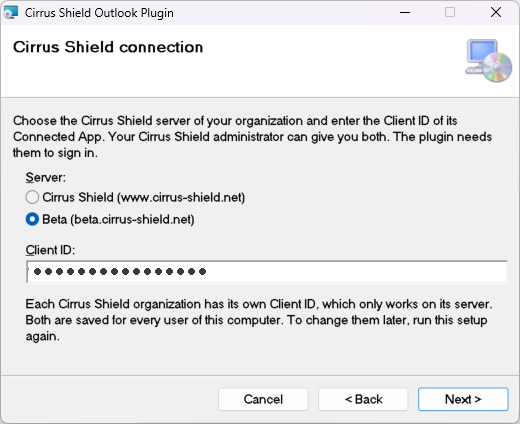
If you do not have your Client ID, see section 1, Prerequisites in Cirrus Shield.
Step 4

Step 5

Step 6

Once the Plugin has been settled, open the application Microsoft Outlook. You will find Cirrus Shield in the ribbon at the top and the icon of Cirrus Shield in the system tray of your computer. Both shown below:
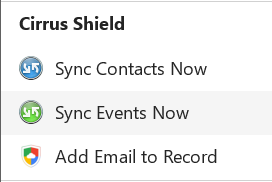
The Cirrus Shield group in the Outlook ribbon

The Cirrus Shield icon in the system tray
2.4 Several PCs, or changing the server or the Client ID
The installer saves the server and the Client ID for every user of the PC. Users cannot change them.
To change them later, run the installer again and choose Repair. The “Cirrus Shield connection” page appears again with the current values; change them and click Next.
Optional, for IT teams installing on many PCs at once: a silent installation (Intune, Group Policy, scripts) takes both values on the command line:
msiexec /i CirrusShield.OutlookPluginSetup-1.0.49.msi OAUTHCLIENTID=<client id> SERVER=beta /qnSERVER is production (the default) or beta. Without a Client ID, a silent installation stops, unless one is already on the PC (for an upgrade).
The client id is stored in HKEY_LOCAL_MACHINE\Software\CirrusShield\OutlookPlugin\v1, where users cannot change it, and is kept when the plugin is upgraded.
3- Connection to Cirrus Shield Environment
Once you are in the Outlook application, click on the setting button found in the ribbon where Cirrus Shield is displayed.
Click Sign in to Cirrus Shield. Cirrus Shield opens in your web browser: sign in there as usual (your password is never typed or stored in Outlook). When the browser says that sign-in is complete, go back to Outlook. The Sign In tab then shows your user name and the server you are connected to.
Check the “Stay signed in” box to automatically log in for the next sessions. Tick it before signing in.
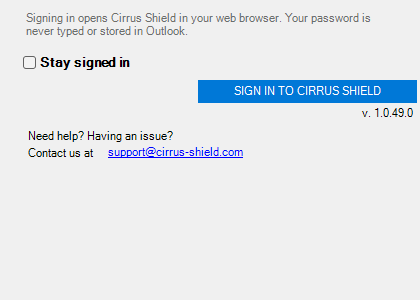
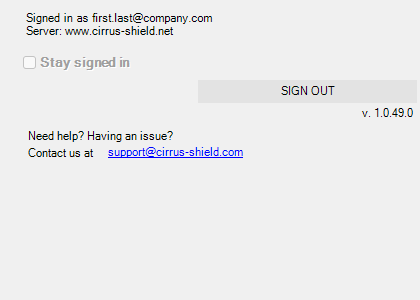
Once you are connected, the following confirmation message will appear in your notifications:

Note: You must disconnect from Outlook Plugin, reset Outlook and then reconnect to the plugin if:
- A new object or field was added in Cirrus Shield
- You are logging in with a different account
4- Contact settings and synchronizations
You can easily keep your Outlook and Cirrus Shield contacts synchronized with the Plugin Outlook with Cirrus Shield. To start with setting up all elements that need to be synchronized, click on contacts found in the settings bar.
Your Outlook configuration for contacts defines the following:
- Direction of the data flow between Outlook and Cirrus Shield
- The action taken in case of data conflicts,
- Synchronization rules and settings ( synchronization period, Outlook destination folder)
- Items that must be included in the synchronization
- Cirrus Shield Object should match with the Outlook contact Object
- Field mapping between Outlook and Cirrus Shield
4.1 Sync settings
We are going to explain each element in the images below in a chronologic way:
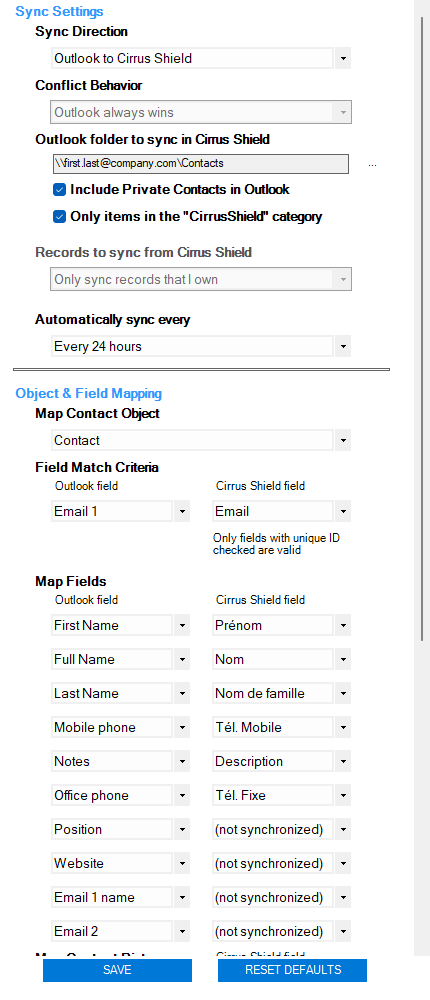
Synch Direction
Set the synchronization direction of your contacts. You can choose:
- A synchronization of your contacts from Outlook to Cirrus Shield :
Only the contacts that exists in Outlook will be created in Cirrus Shield. Thus, the contacts that exists in Cirrus Shield wont be synchronized in Outlook.
ATTENTION: ⚠ In case of conflict (if a contact has the same criteria of another one that already exists in Cirrus Shield), the contact in Cirrus Shield will be replaced by the contact from Outlook. ⚠
- A synchronization of your contacts from Cirrus Shield to Outlook :
Only the contacts that exists in Cirrus Shield will be created in Outlook. Thus, the contacts that exists in Outlook wont be synchronized in Cirrus Shield.
- Synchronization in both directions:
The contacts associated to Outlook will be synchronized in Cirrus Shield and the contacts associated to Cirrus Shield will be synchronized in Outlook.
ATTENTION: ⚠ In case of a conflict, the resolution setting below will determine how it is resolved. ⚠
Conflict Behavior
A conflict occurs in two cases :
- When synchronizing contacts between Cirrus Shield and Outlook, the system shows that the same contact (based on mutual criteria, for instance l’emailing) exists on the other side.
- When the same contact gets modified independently in Outlook and Cirrus Shield. For example, you can update a contact in Outlook and update the place where the event will take place in Cirrus Shield. When an error is detected, the version that replaces the other is chosen according to the conflict resolution setting:
-If your settings specify that Outlook is always chosen then Outlook version will replace the Cirrus Shield in both cases.
-If your settings specify that Cirrus Shield is always chosen then Cirrus Shield version will replace the Outlook one in both cases.
Outlook folder to be synchronized in Cirrus Shield
Make sure that your Outlook Folders include all the elements that you want to synchronize. Once you did that, choose the desired folder.
Include private contacts in Outlook
You can check the box “include private contacts in Outlook” to synchronize all elements that you have indentified as private contacts. If by default this box is not checked, the private contacts in the folder chosen for synchronization will not be part of the sync.
ATTENTION: ⚠ If you sync a contact, then you check in the box that this contact is private in Outlook, this contact will no longer be synchronized between Outlook and Cirrus Shield as long as the “Include private contacts in Cirrus Shield” box is unchecked ⚠.
Only items in the “CirrusShield” category
You can check the box “Only items in the “CirrusShield” category”. if the box is checked, any contact in Cirrus Shield will be under Cirrus Shield category in Outlook. Thus, any contact in the synch folder of Outlook that is not under the Cirrus Shield category wont be synchronized. After a sync, the summary panel tells you how many Outlook items were left out because they do not have the category.
NOTE: ⚠ If you sync records without including them under the Cirrus Shield category, then you check in the box “Only items in the “CirrusShield” category“, these records wont be synchronized as long as the box is checked ⚠.
Records of Cirrus Shield to be synchronized.
Start by choosing if you would like to synchronize all your records or only my records. When you choose to synchronize only your records, this means that only the records you own will be synchronized.
Synch automatically
Change the synchronization period. You can:
- Do not synchronize automatically ( the system will not perform any background synch. The only time that all elements will be synchronized is when the user click on “Sync Contacts Now”) ;
- Synch every hour
- Synch every 8 hours
- Synch every 24 hours
- Synch every week
At any time, you can sync your contacts manually by clicking on the Sync Contacts button.
4.2 Correlation of Objects and Fields
In this section, the mapping defines the correlation between the Cirrus Shield and Outlook fields when synchronizing items between the two systems.
- Choose the correlation of the contact object from the object list: Contact, Lead, or other customized objects … then the corresponding fields of the selected object.
- Define how Outlook handles multiple matches with Cirrus Shield contacts during the initial synchronization of a contact with Outlook. Select the Outlook field that should match the CIRRUS SHIELD field. The list only displays fields in CIRRUS SHIELD that are marked as “Unique ID” to avoid duplicates and mismatch errors.
- Map each Outlook contact field to a Cirrus Shield field. You can also map the contact’s image as well as its corresponding address (postal, home, professional, personal …)
Hover over a section title in the plugin to see an explanation. A field you do not want to synchronize is shown as “(not synchronized)”.
NOTE :
-Fields that are left blank will not be matched to any Cirrus Shield fields (unless they are mandatory which need to be matched).
– The Fields mapped between CIRRUS SHIELD and OL must be of the same type (the “email” field corresponding to the email of an Outlook contact must be mapped to an Email type field in Cirrus Shield.
- Lastly, select the field corresponding to the name of the company. It must be a unique ID to avoid duplicates.
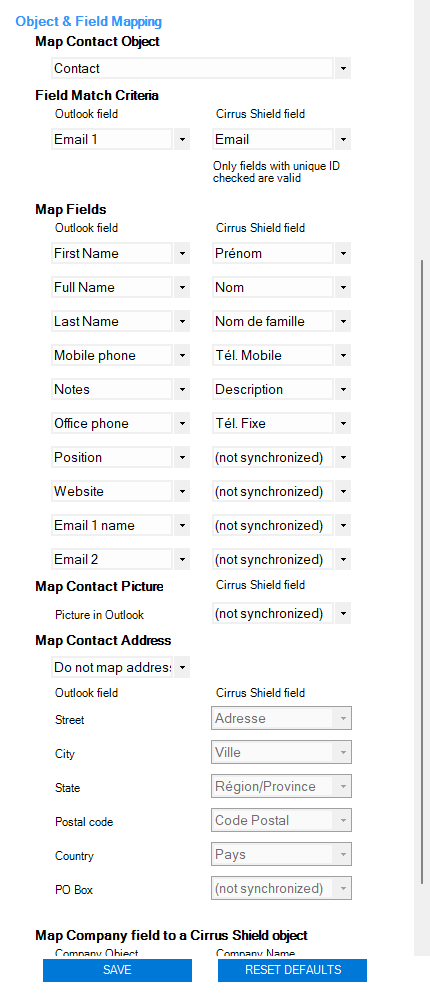
Once the mapping is done, save the configurations made. To return to the default settings, click Defaults.
4.3 Synchronization
When you click on Sync Contacts Now, a panel opens and shows the progress of the synchronization. For each direction, you can see the number of contacts that were synchronized successfully or failed. Click View to see the details of up to 100 contacts, or Open .CSV report to open the full report in Excel. When nothing was sent, the panel explains why: nothing changed since the last sync, or items were left out because they do not have the “CirrusShield” category or are private.
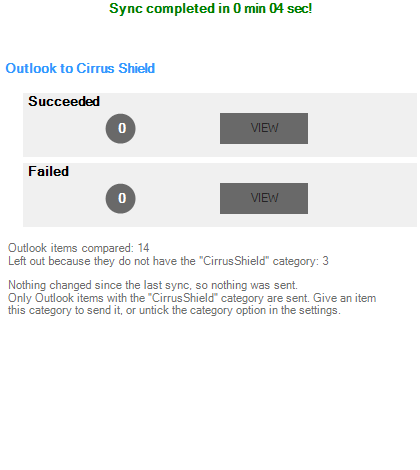
Create a contact
If a record is created in Outlook and does not exist in Cirrus Shield, it should be created in Cirrus Shield. (depending on the synchronization direction and conflicting behavior) and vice versa.
Modification of a contact :
Outlook to Cirrus Shield + Outlook always wins:
- Contact modified in Outlook -> Contact modified in Cirrus Shield
- Contact modified in Cirrus Shield -> Contact not modified in Outlook
- Contact modified in Cirrus Shield and Outlook, -> Contact modified according to the conflict behavior. Here Outlook wins.
Cirrus Shield to Outlook + Outlook always wins:
- Contact modified in Outlook -> Contact not modified in Cirrus Shield
- Contact modified in Cirrus Shield -> Contact modified in Outlook
- Contact modified in Cirrus Shield and Outlook, -> Contact modified according to the conflict behavior. Here Outlook wins.
Outlook to Cirrus Shield + Cirrus Shield always wins:
- Contact modified in Outlook = Contact modified in Cirrus Shield
- Contact modified in Cirrus Shield = Contact not modified in Outlook
- Contact modified in Cirrus Shield and Outlook, = Contact modified according to conflict behavior. Here Cirrus Shield wins.
Cirrus Shield to Outlook + Cirrus Shield always wins:
- Contact modified in Outlook = Contact not modified in Cirrus Shield
- Contact changed in Cirrus Shield = Contact changed in Outlook
- Contact changed in Cirrus Shield and Outlook = Contact changed based on conflict behavior. Here Cirrus Shield wins.
In both cases : Contact changed is based on conflict behavior.
Deleting a contact :
If Outlook always wins :
- The Contact is deleted in Outlook = The contact is deleted from CIRRUS SHIELD
- The Contact is deleted in CIRRUS SHIELD = The contact is not deleted from Outlook
- The Contact is deleted in CIRRUS SHIELD = The contact is not recreated in CIRRUS SHIELD
- The Contact is deleted in CIRRUS SHIELD & updated in Outlook = It is recreated in CIRRUS SHIELD.
If Cirrus Shield always wins :
- The contact is deleted in CIRRUS SHIELD = The contact must be deleted in Outlook
- The contact is deleted in Outlook = The contact is not deleted from CIRRUS SHIELD
- The contact is deleted in Outlook = The contact is not recreated in Outlook
- The contact is deleted in Outlook & updated in CIRRUS SHIELD = It is recreated in Outlook.
5- Event settings and synchronizations
You can easily keep your Outlook and Cirrus Shield events in sync with the Outlook Plugin with Cirrus Shield. This synchronization helps to maintain an accurate view of your availability as you create events and meeting requests from your calendar in Cirrus Shield.
To start configuring all of the elements to be synchronized, click on the Event tab in the settings bar.
The configuration defines the following:
- The direction of data flow between Outlook and Cirrus Shield.
- The action taken in the event of data conflicts
- The synchronization rules and parameters (synchronization period, Outlook destination folder)
- The Cirrus Shield object correlates with the Outlook Event object
- Field mapping between Outlook and Cirrus Shield.
5.1 Sync settings
We will explain each element in a chronolgical way of the image below:
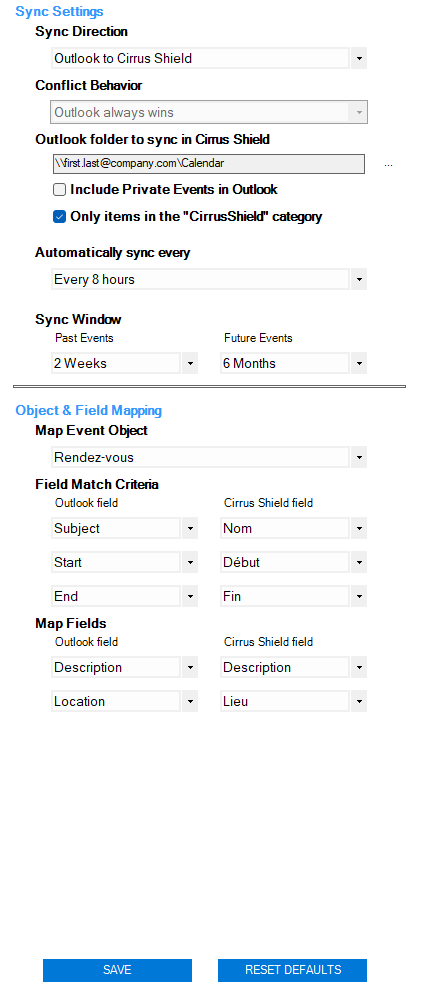
Synch Direction :
Define the direction of synchronization of your events. You can choose:
- Synchronization of events from Outlook to Cirrus Shield: Events that exist in Cirrus Shield are not synchronized in Outlook. Only events that exist in Outlook will be created in Cirrus Shield.
⚠ In case of a conflict (if an event with the same match criteria already exists in Cirrus Shield), the event in Cirrus Shield will be overwritten by the event from Outlook. ⚠
- Synchronization of events from Cirrus Shield to Outlook: Events that exist in Outlook are not synchronized in Cirrus Shield. Only events that exist in Cirrus Shield will be created in Outlook
- Synchronization in both directions: Events in Outlook will sync in Cirrus Shield and events in Cirrus Shield will sync in Outlook.
⚠ In case of a conflict, the conflict resolution setting below will determine how it is resolved. ⚠
Conflict behavior
A conflict occurs in two cases:
- When synchronizing an event between Cirrus Shield and Outlook, the system finds that the same event (based on the matching criteria which are by default the subject, the start date and the end date) exists on the other side.
- When the same event has been changed independently in Outlook and Cirrus Shield. For example, you can update the date of an event in Outlook and update the location of the event in Cirrus Shield. When a conflict is detected, the version that overwrites the other is chosen according to the conflict resolution setting:
- If your setup specifies that Outlook always wins, the Outlook version of the record replaces the Cirrus Shield version on both sides.
- If your setup specifies that Cirrus Shield always wins, the Cirrus Shield version of the record replaces the Outlook version on both sides.
Outlook folder to synchronize in Cirrus Shield
Make sure your Outlook folders include the items you want to sync, and then choose the folder you want.
Include private events in Outlook
You can check the “Include private events in Outlook” box to synchronize the items that you have marked as private in Outlook. By default this box is not checked. Private events that exist in the sync folder are not part of the sync.
⚠ WARNING: If you synchronize an event, then you check this event as private in Outlook, it will no longer be synchronized between Outlook and Cirrus Shield as long as The “Include private events in Cirrus Shield” box is unchecked ⚠
Only items in the “CirrusShield” category
You can check the box “Only items in the “CirrusShield” category”. if the box is checked, any event in Cirrus Shield will be under Cirrus Shield category in Outlook. Thus, any event in the synch folder of Outlook that is not under the Cirrus Shield category wont be synchronized.
⚠ NOTE: If you sync records without including them under the Cirrus Shield category, then you check in the box “Only items in the “CirrusShield” category“, these records wont be synchronized as long as the box is checked ⚠
Synch automatically
Change the synchronization period. You can:
- Do not synchronize automatically ( the system will not perform any background synch. The only time that all elements will be synchronized is when the user clicks on “Sync Events Now”) ;
- Synch every hour
- Synch every 8 hours
- Synch every 24 hours
- Synch every week
At any time, you can sync your events manually by clicking on the Sync Events Now button.
Synchronization Window
The synchronization window determines which events you want to synchronize. This option ensures that not all Outlook events will be included in the synchronization. This is useful in case Outlook contains a huge amount of events. This will reduce the time required for synchronization. We only need the closest events.
Choose the time interval that suits you:
- From: 2 weeks, 1 month or 3 months before today
- To: 1 month, 3 months, 6 months or 1 year after today
5.2 Correlation of Objects and Fields
In this section, the mapping defines the correlation between the Cirrus Shield and Outlook fields when synchronizing items between the two systems.
- Choose the correlation of the event object from the object list.
- Define how Outlook handles multiple matches with Cirrus Shield events during the initial synchronization of an event with Outlook. Select the Outlook field which should match the Cirrus Shield field. For events, all fields can be used. The events are matched with 3 fields at the same time: the title, the start date and the end date. This is because an event does not have a unique field that defines it (like the email for a contact for example).
- Map each Outlook event field to a Cirrus Shield field.
NOTE:
-Fields that are left blank will not be matched to any Cirrus Shield fields (unless they are mandatory which must be matched).
– The fields mapped between CIRRUS SHIELD and OL must be of the same type (the “start” field corresponding to the start date of an Outlook event must be mapped to a date / time type field in Cirrus Shield.
Once the mapping is done, save the configurations made. To return to the default settings, click Defaults.
Create an event
If an event is created in Outlook and does not exist in Cirrus Shield, it should be created in Cirrus Shield. (depending on the synchronization direction and conflicting behavior) and vice versa.
Modification of an event :
Outlook to Cirrus Shield + Outlook always wins:
- Event modified in Outlook -> Event modified in Cirrus Shield
- Event modified in Cirrus Shield -> Event not modified in Outlook
- Event modified in Cirrus Shield and Outlook, -> Event modified according to the conflict behavior. Here Outlook wins.
Cirrus Shield to Outlook + Outlook always wins:
- Event modified in Outlook -> Event not modified in Cirrus Shield
- Event modified in Cirrus Shield -> Event modified in Outlook
- Event modified in Cirrus Shield and Outlook, -> Event modified according to the conflict behavior. Here Outlook wins.
Outlook to Cirrus Shield + Cirrus Shield always wins:
- Event modified in Outlook = Event modified in Cirrus Shield
- Event modified in Cirrus Shield = Event not modified in Outlook
- Event modified in Cirrus Shield and Outlook, = Event modified according to conflict behavior. Here Cirrus Shield wins.
Cirrus Shield to Outlook + Cirrus Shield always wins
- Event modified in Outlook = Event not modified in Cirrus Shield
- Event changed in Cirrus Shield = Event changed in Outlook
- Event changed in Cirrus Shield and Outlook = Event changed based on conflict behavior. Here Cirrus Shield wins.
In both cases : Event changed is based on conflict behavior.
Deleting an event :
If Outlook always wins :
- The event is deleted in Outlook = The event is deleted from CIRRUS SHIELD
- The event is deleted in CIRRUS SHIELD = The event is not deleted from Outlook
- The event is deleted in CIRRUS SHIELD = The event is not recreated in CIRRUS SHIELD
- The event is deleted in CIRRUS SHIELD & updated in Outlook = It is recreated in CIRRUS SHIELD.
If Cirrus Shield always wins :
- The event is deleted in CIRRUS SHIELD = The event must be deleted in Outlook
- The event is deleted in Outlook = The event is not deleted from CIRRUS SHIELD
- The event is deleted in Outlook = The event is not recreated in Outlook
- The event is deleted in Outlook & updated in CIRRUS SHIELD = It is recreated in Outlook.
6- Add an email to Cirrus Shield
Select an email in Outlook and click Add Email to Record in the Cirrus Shield group of the ribbon.
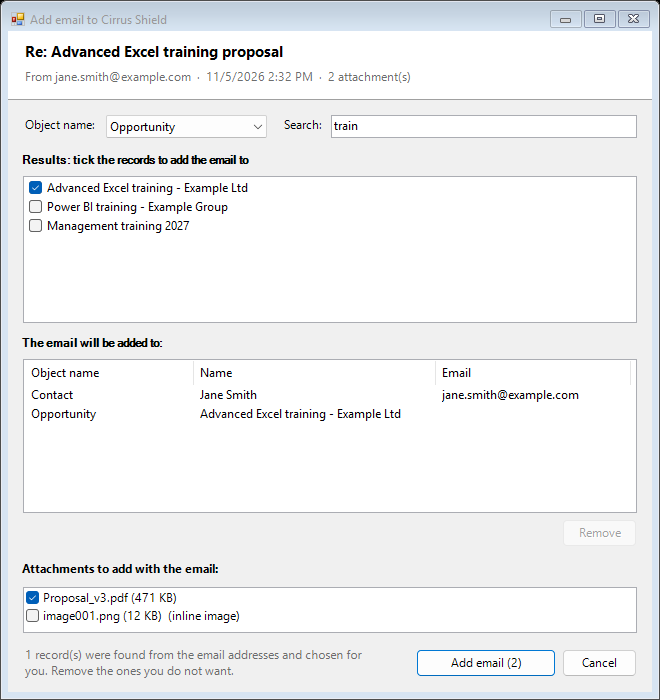
- The people in the email (sender and recipients) are found by their email address and ticked for you. They are listed under “The email will be added to”, with the address that found them in the Email column.
- To add the email to another record, choose its Object name (opportunity, lead, account…) and type at least 2 letters of its name in Search. Tick the results you want: they are added to the list. To remove a record, untick it, or select it in the list and press Delete.
- Choose the attachments. Images inside the email’s text, such as signature logos or pasted pictures, are listed as “(inline image)” and are not ticked: tick them to add them as files. They are not kept inside the email’s text in Cirrus Shield, because a rich text field cannot hold pictures. Attachments above the limit set by your administrator, or that cannot be read, are marked “(too large or unreadable, will not be added)”.
- Click Add email.
The email is created in Cirrus Shield with its subject, sender, recipients, body and date. It appears in the Emails related list of every chosen record, and its attachments are added as documents of the email. Adding the same email again does not create a copy: the existing email is reused and linked to the new records.
7- Troubleshooting
Logs:
By default, logs are enabled for the plugin and can be found on the following path:
%LOCALAPPDATA%\CirrusShield\CSOutlookPlugin\Logs (files verbose.log and errors.log)It shows the details of the plugin’s commands.
Note: This files are emptied upon each restart of Outlook.
For more advanced logs, contact us.
Error Messages and Warnings :
- OutlookId: see section 1.2, Check the objects used by the plugin.
- Limitations :
- Country values must have the same API name as the one in Cirrus Shield. Example: “Cote_d_ivoire” (API name) cannot be written “Ivory Coast”.
- Outlook can only detect and propagate more than 50 deletes in a single selection. For this, when deleting records in Outlook before synchronizing with Cirrus Shield, be careful not to delete more than 50 records in a single selection. For example : To delete 100 contacts, do not select these 100 contacts at the same time and click on the delete button. However, you must select at most 50 contacts, delete them, and then select the remaining 50 and delete them.
- When the sync direction is “Outlook to Cirrus Shield”, the conflict resolution rule defaults to “Outlook always wins”.
This means that if we have the same record in Outlook and in Cirrus Shield (Same Email for contacts, and same Name, start date and end date for events for example), the synchronization must transfer the values of this record from Outlook to Cirrus Shield. However, currently and only in this specific case, the record in Cirrus Shield will be mapped to that of Outlook but will not be overwritten
Common questions
- Sign-in fails, or the browser shows an error: the server or the Client ID chosen during installation is wrong, or the Client ID belongs to another Cirrus Shield organization. Run the installer again, choose Repair, then choose the right server and enter the right Client ID (see section 1).
- An object is missing when adding an email: your administrator must add it to the Email Relation object (see section 1.2).
- An added email shows HTML code instead of formatted text: the body field of the Email object is not a rich text field. Your administrator changes it (see section 1.2).
- The Cirrus Shield group is missing from the ribbon: in Outlook, open File > Options > Add-ins, choose COM Add-ins, click Go and tick Cirrus Shield.

