ABM Tracker records how people use your websites and delivers the results to Cirrus Shield, so your sales and marketing teams can see who visited, where they came from and what they looked at, next to the rest of your CRM data.
This guide is for the Cirrus Shield administrator who installs and configures ABM Tracker.
Contents
- How it works
- Before you start
- Access ABM Tracker
- Connect and accept the terms
- Add a website
- Visitor consent
- Website settings
- What is collected
- Monitoring delivery
- Viewing the data in Cirrus Shield
- Terms, withdrawing and changes
- Troubleshooting
- Frequently asked questions
- Glossary
1. How it works
- A small script on each of your web pages observes the visit, but only after the visitor has agreed to tracking.
- The script sends what it observed to the ABM Tracker collector.
- The collector cleans the data, adds an approximate location and the organization behind the visitor’s IP address, and writes the records into your Cirrus Shield organization.
You see the results in four Cirrus Shield objects:
| Object | One record per | Holds |
|---|---|---|
| Visitor | browser | device, language, time zone, first visit date, number of visits, consent evidence |
| Visit | browser session | start and end, duration, campaign source, landing page, IP address, location, organization |
| Visited_Page | page view | page address, time spent, how far the visitor scrolled, loading speed, page category and language |
| Visit_Event | action on a page | file download, outbound link, email or phone link, form viewed / started / submitted, video progress, your own events |
ABM Tracker does not create Contacts or Prospects (Leads) and does not read what a visitor types into a form.
2. Before you start
You need:
- Administrator access to your Cirrus Shield organization.
- Permission to edit the header or footer of every page you want to track (for WordPress, a theme or header/footer plugin).
- ABM Tracker installed in your organization by the Cirrus Shield team.
3. Access ABM Tracker
Prerequisite: you must be an administrator of your Cirrus Shield organization to access the Setup page.
- Check that the three objects Visitor, Visit and Visited_Page are present in your organization. If they are missing, contact Cirrus Shield support.
- In your organization, open Setup (profile menu, top right).
- In the setup menu, click Extensions.
- In the list of extensions, find ABM Tracker and click Détails. If you cannot find it, install it without changing any of its settings.
The ABM Tracker configuration page opens. On first use, it asks you to connect (see section 4).
4. Connect and accept the terms
Connect
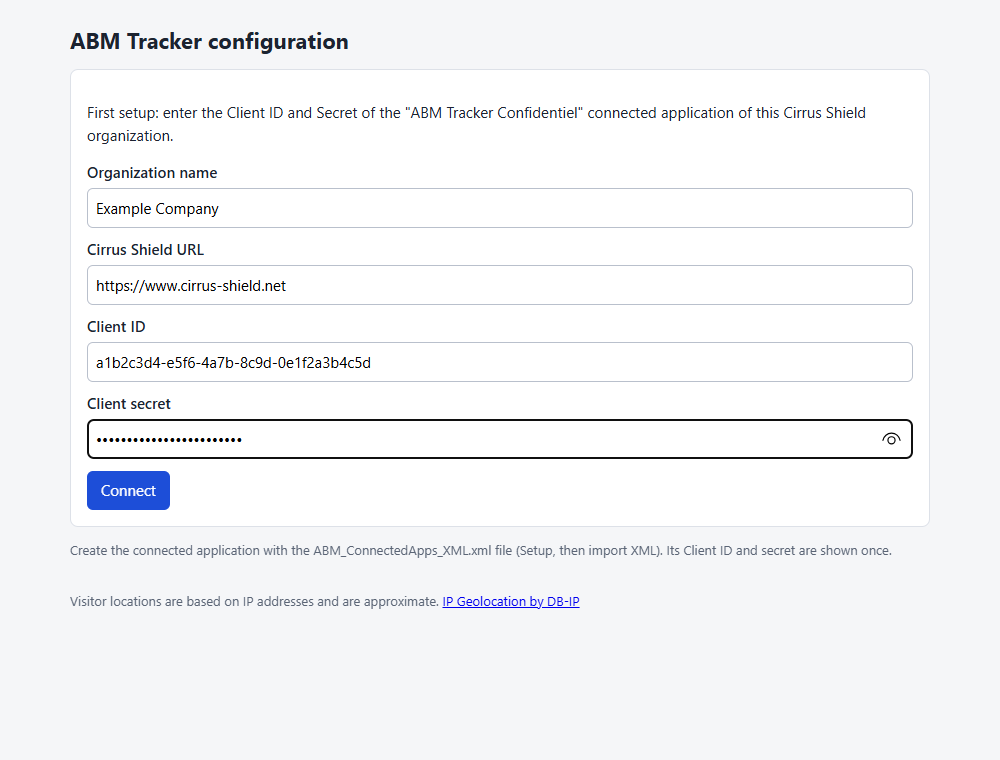
Open ABM Tracker from Setup > Extensions (see section 3). On first use, enter the Client ID and Client secret of the connected application ABM Tracker Confidentiel (in Setup, then Applications connectées), then select Connect. The page checks them against Cirrus Shield and confirms that they belong to your organization.
Accept the terms of use
The page lists everything the tracker collects. Tick both boxes, type your full name and work email, and select I accept and continue. Your name, email, the date and time, and your IP address are kept as a record of the acceptance.
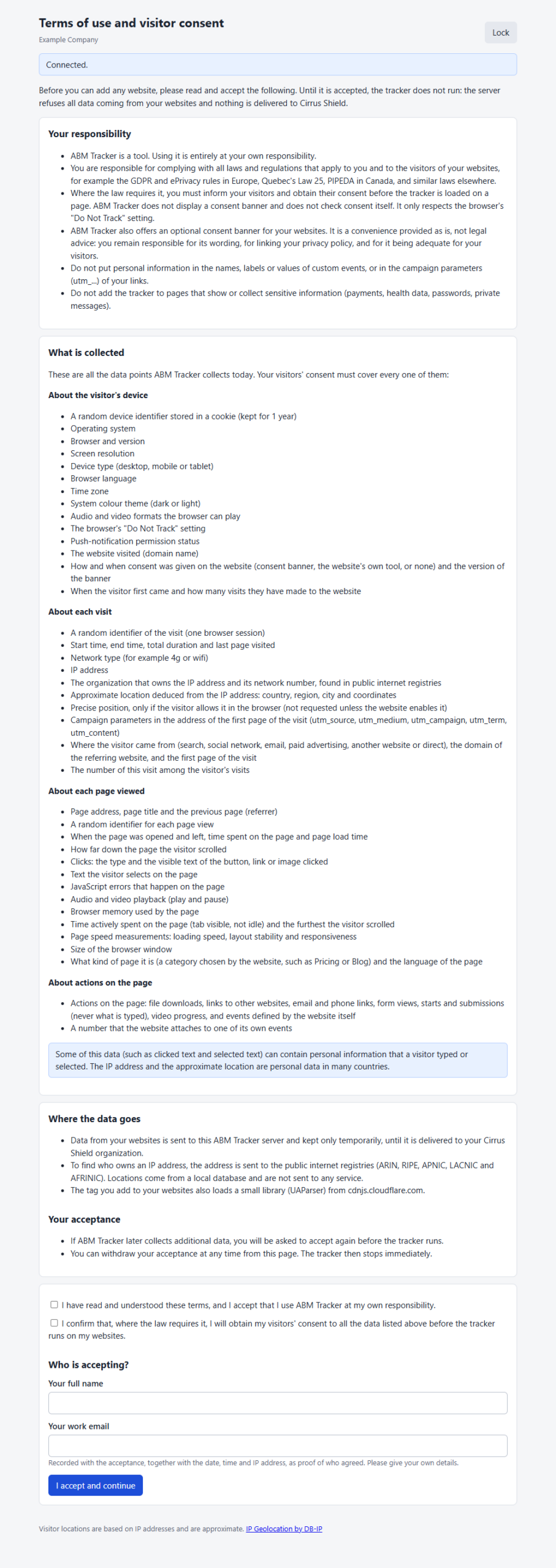
Until the terms are accepted, nothing runs. You cannot add websites, the collector refuses data from your websites, and nothing is delivered to Cirrus Shield.
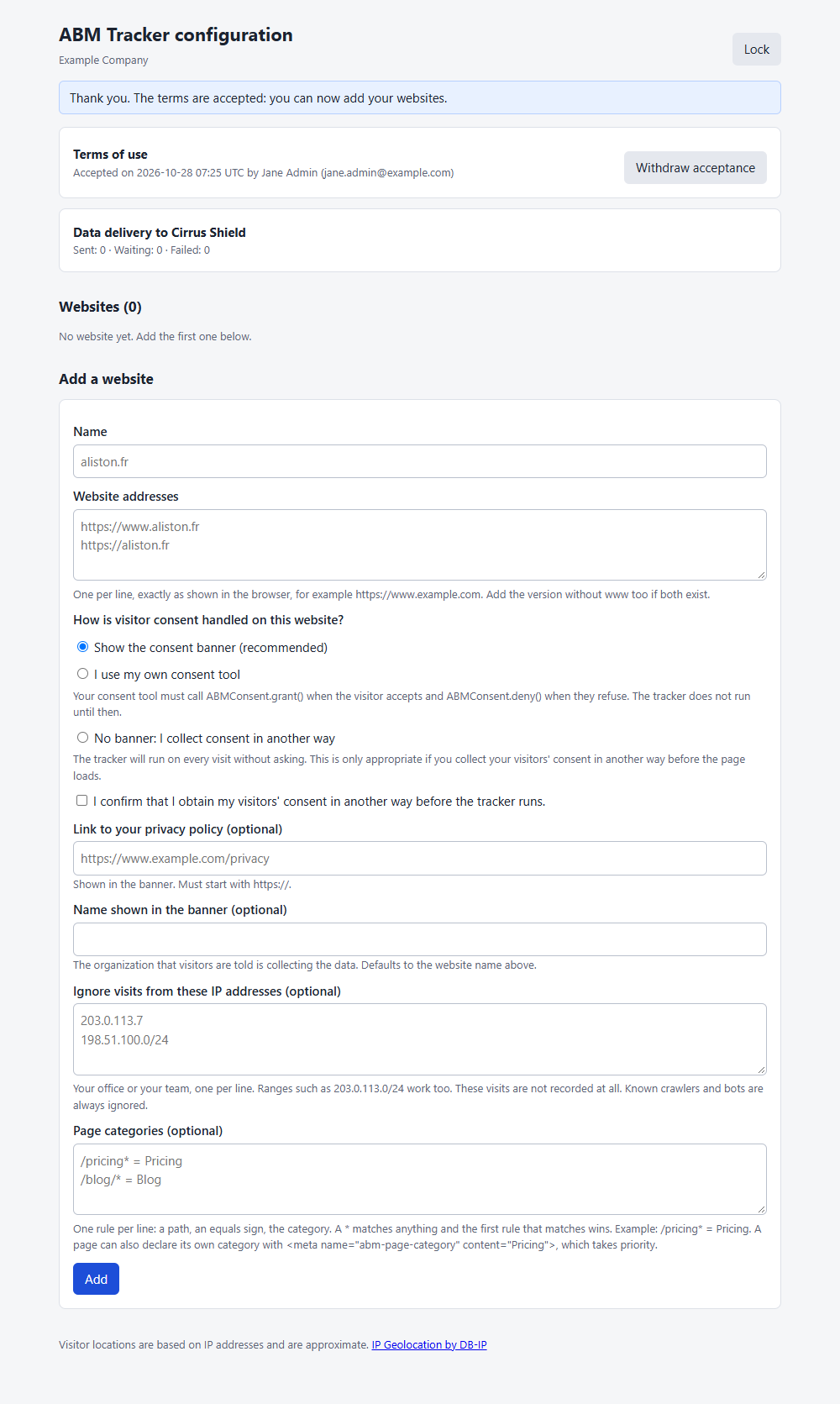
Once accepted, the configuration page shows who accepted and when, and is ready for your first website.
5. Add a website
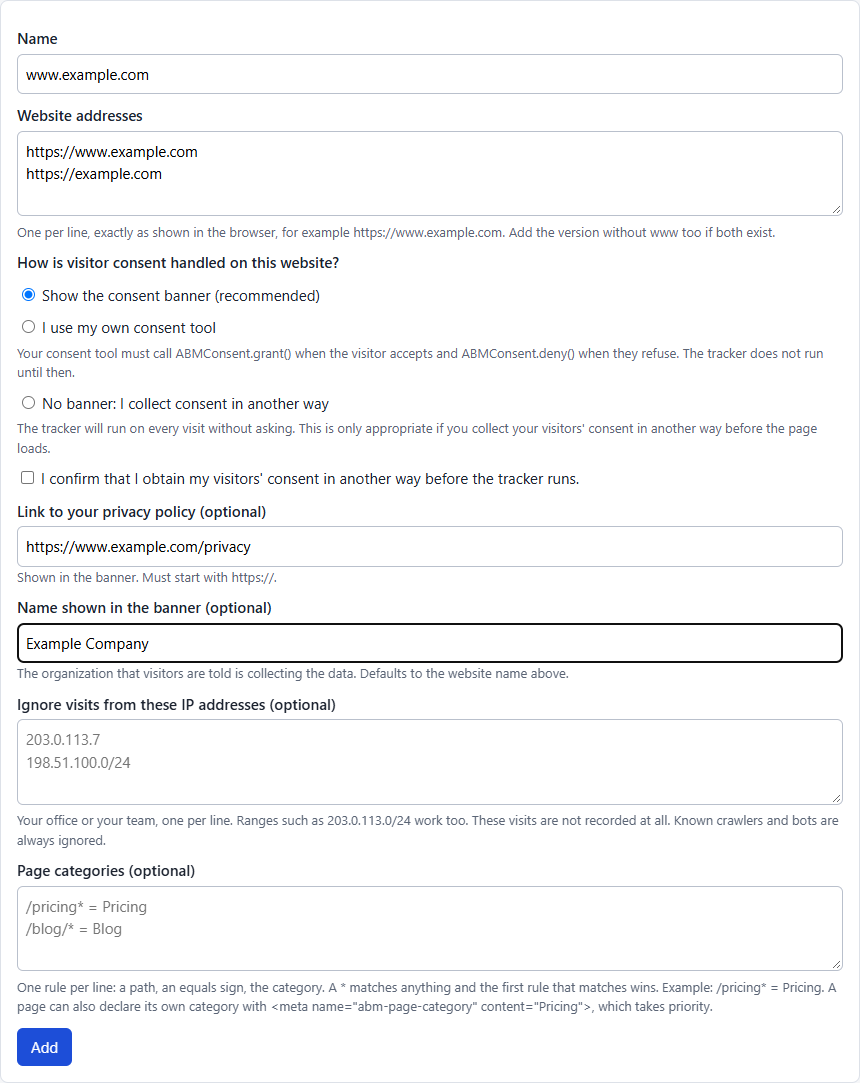
Under Add a website:
- Name: a label for your own use.
- Website addresses: one per line, exactly as they appear in the browser, for example https://www.example.com. If both https://www.example.com and https://example.com exist, add both. Only https addresses are accepted.
- Choose how visitor consent is handled (see section 6). Optionally add the link to your privacy policy and the name to show in the banner.
- Select Add.
The page then shows three lines for that website. Paste them, in the order shown, into the header or footer of every page of the site. The consent line must come before the tracker line.
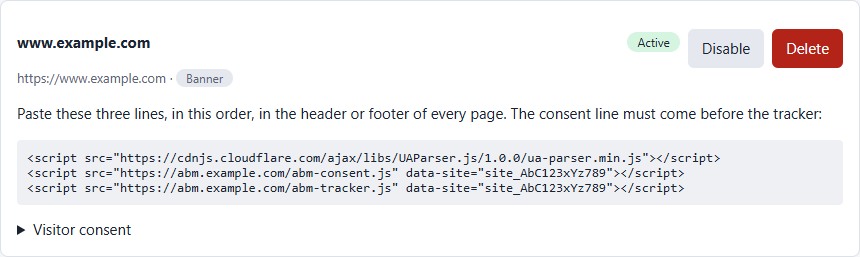
<script src="https://cdnjs.cloudflare.com/ajax/libs/UAParser.js/1.0.0/ua-parser.min.js"></script>
<script src="https://abm.example.com/abm-consent.js" data-site="site_AbC123xYz789"></script>
<script src="https://abm.example.com/abm-tracker.js" data-site="site_AbC123xYz789"></script>
The address and the site key above are examples. Copy the lines from your own configuration page: they carry your own collector address and site key.
An organization can have several websites. Each has its own three lines, and all of them write to the same objects. The Site_web field on Visitor tells them apart.
You can disable a website to pause tracking on it, or delete it, after which its script stops sending data.
WordPress. To avoid counting your own team, skip the tags for logged-in users:
add_action('wp_head', function () {
    if (is_user_logged_in()) return; // do not count the team browsing the site
    // ... paste the three <script> lines here ...
}, 1);
6. Visitor consent
The tracker does nothing until the visitor has agreed. For each website, choose one of three modes.
| Mode | What happens |
|---|---|
| Show the consent banner (default, recommended) | A banner appears. Accept and Decline look the same. The choice is remembered in the visitor’s browser (one year for Accept, six months for Decline) and a Privacy choices button lets the visitor change it. Nothing is sent and no cookie is set before the visitor accepts. |
| I use my own consent tool | No banner. Your own consent tool calls ABMConsent.grant() when the visitor accepts and ABMConsent.deny() when the visitor refuses. |
| No banner: I collect consent in another way | The tracker runs on every visit. You can only choose this after ticking a confirmation that you collect consent another way, before the page loads. |
In every mode, a browser that sends Global Privacy Control or Do Not Track is treated as having refused.
What the visitor sees
The banner names your organization, links to your privacy policy and lets the visitor accept or decline.
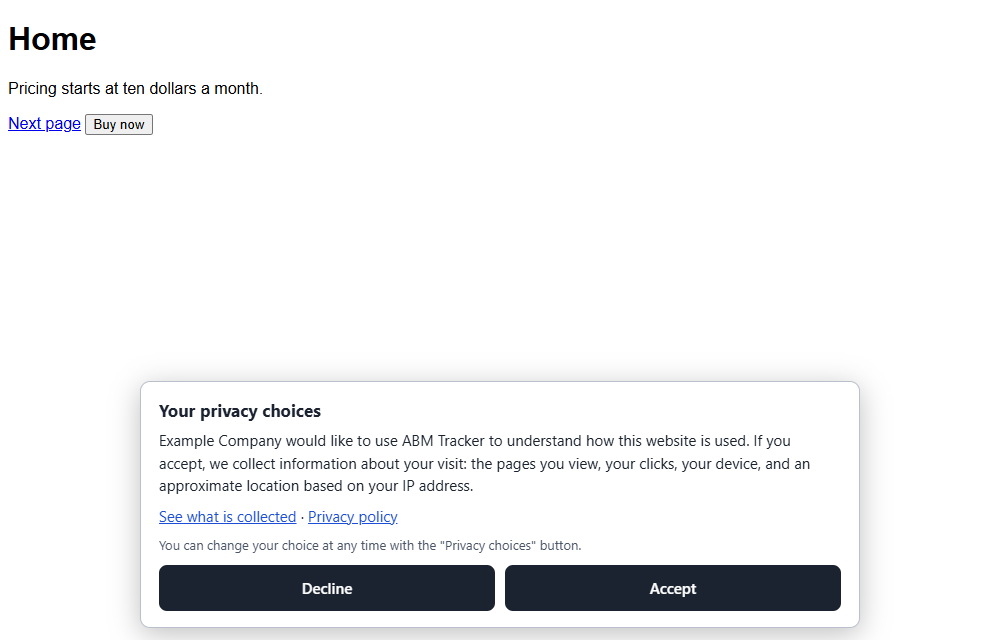
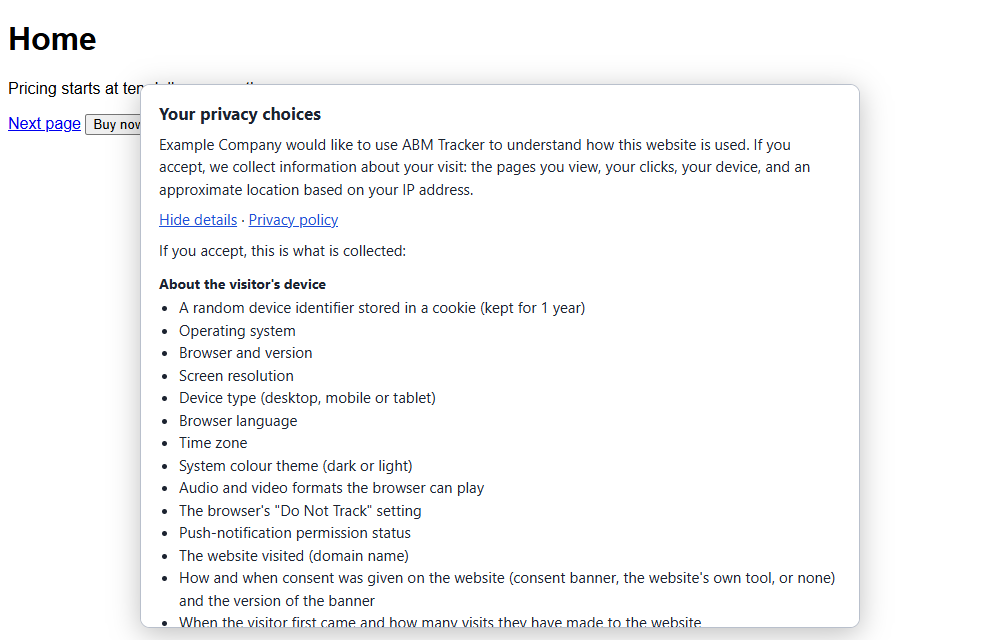
See what is collected opens a list of exactly what you accepted in the terms.
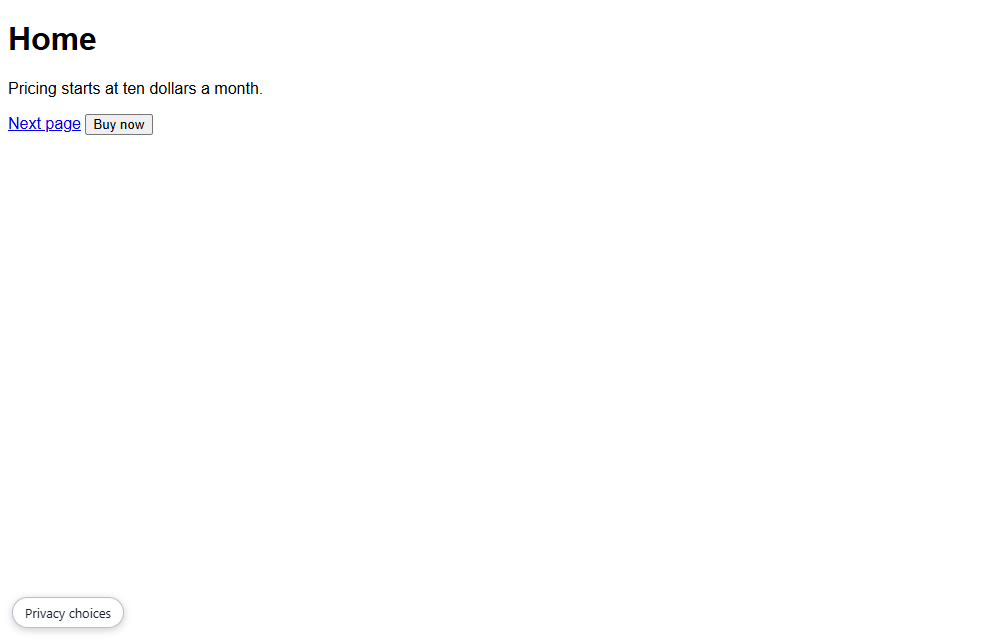
After the visitor chooses, a small Privacy choices button stays in the corner so they can change their mind.
Reopening the banner from your own page. For example from a link on your privacy page, call ABMConsent.show().
Consent evidence. Each Visitor record stores Consent_source (banner, external or none), Consent_date and Consent_version. You can use them to prove consent later and to filter visitors in the CRM.
The banner is provided as a convenience and is not legal advice. You remain responsible for making sure it is adequate for your visitors and your country. Have its wording reviewed by a lawyer.
7. Website settings
Open Visitor consent under a website to change its settings, then select Save.
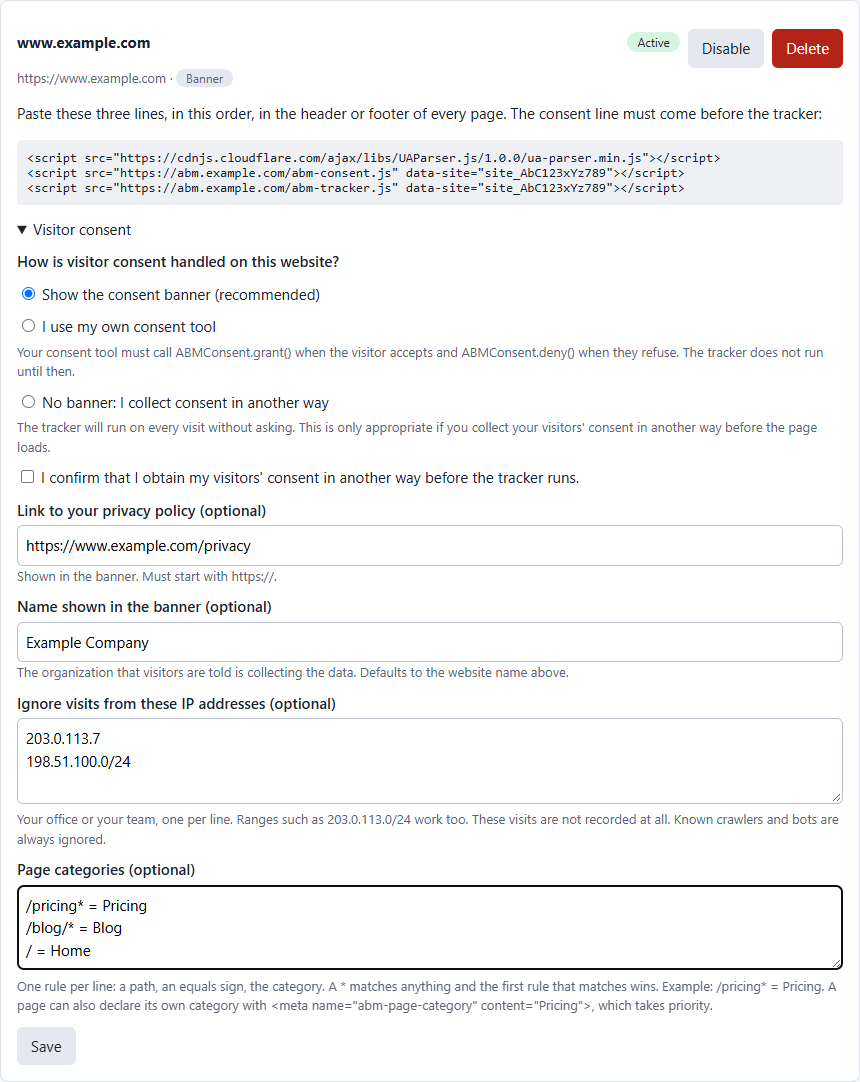
Link to your privacy policy and name shown in the banner
Both are optional. The name defaults to the website name.
Ignore your own visits
List your office or team IP addresses, one per line. Ranges work, for example 203.0.113.0/24. Visits from these addresses are accepted and dropped, so they never reach Cirrus Shield. Known crawlers and bots are always ignored.
Page categories
Group pages into categories such as Pricing or Blog. Write one rule per line: a path, an equals sign, then the category.
/pricing* = Pricing
/blog/* = Blog
/ = Home- A * matches anything.
- The first rule that matches wins.
- A category is 1 to 60 characters, and you can have up to 50 rules.
A page can also declare its own category, which takes priority over the rules:
<meta name="abm-page-category" content="Pricing">Your own events
Track any action you care about, with no code, by marking an element:
<button data-abm-event="demo_requested" data-abm-label="Pricing page" data-abm-value="1200">Book a demo</button>Or from your own code, for example after a form succeeds:
ABMTracker.event('demo_requested', { label: 'Pricing page', value: 1200 });Events are discarded until the visitor has consented, and a page sends at most 50.
Do not put personal information in event names, labels, values or in the utm_ parameters of your links.
8. What is collected
The exact list is shown in the terms you accept and in the banner’s See what is collected panel. In summary:
| Area | What is recorded |
|---|---|
| The visitor’s device | a random identifier stored in a cookie (kept for 1 year), operating system, browser and version, screen resolution, device type, language, time zone, light or dark theme, media formats, the “Do Not Track” setting, push-notification permission status, the website visited, consent evidence, date of first visit and number of visits |
| Each visit | a random visit identifier, start and end time, duration, last page visited, network type, IP address, the organization that owns the IP address, and the approximate location (country, region, city, coordinates) |
| Campaign source | the utm_source, utm_medium, utm_campaign, utm_term and utm_content of the link, the type of source (search, social, email, paid, referral or direct), the referring website’s domain, the first page of the visit and the visit number |
| Each page | the address, time actually spent active on the page, furthest scroll, window size, loading speed (LCP, FCP, TTFB), layout stability (CLS), responsiveness (INP), a page category and the page language |
| Actions | file downloads, links to other websites, mailto: and tel: links, a form being viewed, started and submitted, video progress at 25 / 50 / 75 / 100 %, and your own events |
What is never collected: what a visitor types into a form (only that a form was started or submitted, never a field name or a value), passwords, and street-level addresses.
A few things to know:
- Location is approximate. It comes from the IP address, which is accurate to the city at best, and is wrong for VPNs, mobile networks and company networks routed through another city. The Geolocation field only ever holds a position the visitor agreed to share in the browser.
- The organization behind an IP address is found in public internet registries. For a company’s own network this is the company. For a home or mobile visitor it is their internet provider.
- Crawlers, headless and automated browsers are not recorded.
- Campaign values that look like an email address are dropped.
The location data is provided by DB-IP.com under licence CC BY 4.0. If you show these fields on a web page of your own, add the credit “IP Geolocation by DB-IP”.
9. Monitoring delivery
The configuration page shows how many records are Sent, Waiting and Failed for your organization.

- Waiting records are delivered in the background. If Cirrus Shield is unavailable they are retried automatically.
- Failed records were rejected and are not retried, for example because a field is missing in your Cirrus Shield objects. See section 12.
10. Viewing the data in Cirrus Shield
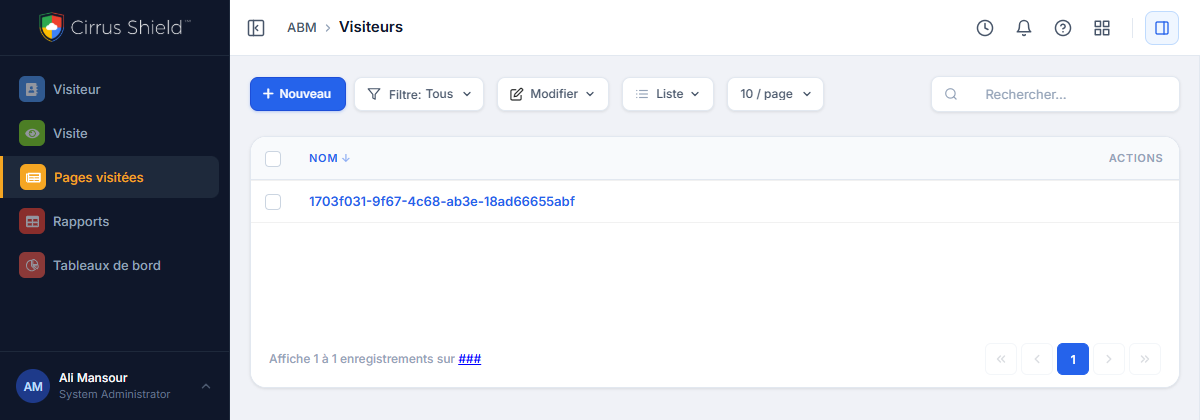
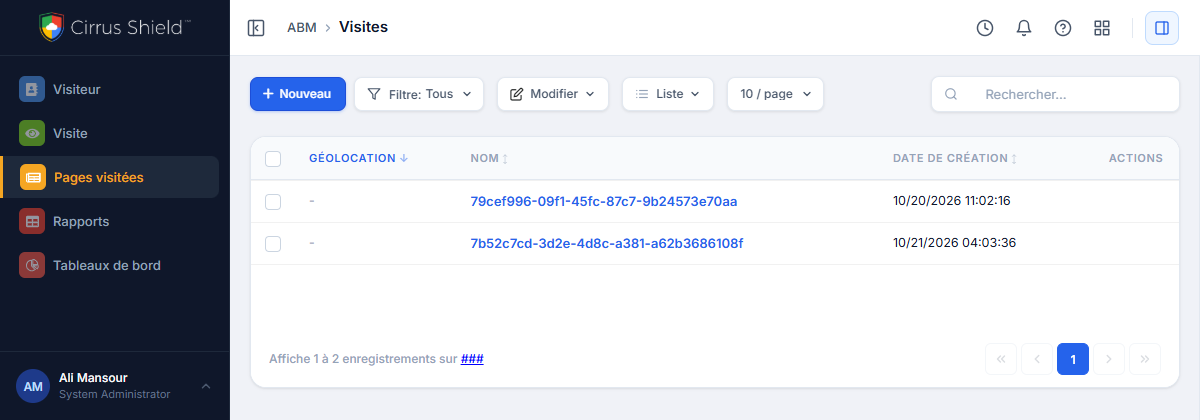
Once visitors accept tracking, records appear in three tabs. The screenshots below use the French interface of Cirrus Shield.
Visiteurs (Visitor): one record per browser, named by its random identifier.
Visites (Visit): one record per browser session.
Pages visitées (Visited_Page): one record per page view, named by the page title.
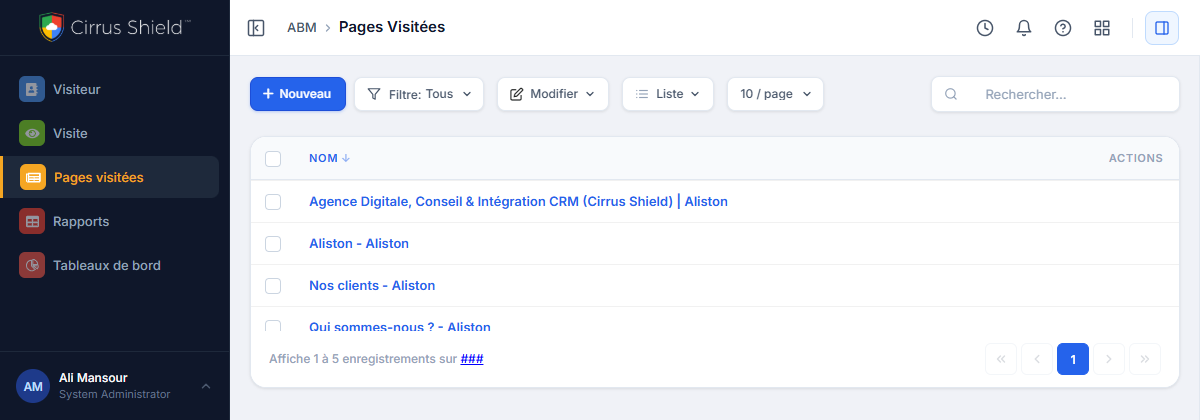
Open a Visitor to see its visits and pages in the related lists.
11. Terms, withdrawing and changes
- Withdraw. Select Withdraw acceptance on the configuration page. The tracker stops at once.
- When the terms change. If the list of collected data changes in a new version, your organization must accept the terms again before tracking resumes, and visitors are asked for their choice again.
- Lock. Select Lock to close your session on the configuration page.
12. Troubleshooting
The page refuses my Client ID and secret
| Message | What to check |
|---|---|
| Cirrus Shield does not recognise this Client ID and secret | Copy the Client ID and secret of ABM Tracker Confidentiel again, without spaces. Make sure the application is enabled, its secret has not been regenerated since, and the Cirrus Shield URL is your organization’s. |
| The connected application is not allowed the api:write scope | Add api:write to the application’s allowed scopes in Cirrus Shield. |
| Cirrus Shield refused this connected application | The application may not be enabled for client credentials, or this server’s IP address is not in its allowed list. |
| Cirrus Shield could not be reached from this server | Check the Cirrus Shield URL and the server’s internet access. |
| These credentials belong to a different Cirrus Shield organization | You opened the plugin from one organization but entered the credentials of another. |
No data appears in Cirrus Shield
- Check that the terms are accepted and the website is Active.
- Check that the three script lines are present, in order, on the page (view the page source).
- Check that the page address is listed in the website’s addresses, exactly as it appears in the browser. www and non-www are different addresses.
- Accept the banner in the browser you are testing with. Nothing is sent before the visitor accepts. If your browser sends Global Privacy Control or Do Not Track, tracking stays off.
- Visits from your own IP addresses may be on the ignore list.
- Wait a little and refresh. Delivery happens in the background, so records can arrive after the visit.
The count of Failed records grows
A record carrying a field that your Cirrus Shield object does not have is rejected. This usually means your objects are not up to date. Contact Cirrus Shield support so they can update them.
A field called Latitude_IP or Longitude_IP is missing on Visit
Early versions of the objects could be installed without these two fields. Contact Cirrus Shield support so they can add them.
The banner does not appear
- Check that the consent script line is present and comes before the tracker line.
- Check that the website’s consent mode is Show the consent banner.
- A visitor who already chose will not see the banner again until the choice expires. They can use the Privacy choices button.
- The tracker does not start at all if abm-consent.js is blocked or missing.
13. Frequently asked questions
Does ABM Tracker create Contacts or Prospects? No. It records visits, pages and actions on Visitor, Visit, Visited_Page and Visit_Event records only. It does not create Contacts or Prospects and does not link a visitor to a named person.
Does it record what visitors type into forms? No. It records that a form was viewed, started or submitted, and never a field name or a typed value.
Can I run it on several websites? Yes. Add each website separately and paste its own three script lines on its pages.
Does it set cookies before consent? No. With the consent banner, nothing is sent and no cookie is set before the visitor accepts.
Is the interface available in French? Yes. The configuration page and the banner are available in English and French.
Who is responsible for legal compliance? Your organization. You accept this in the terms of use. The banner wording is a convenience and should be reviewed by a lawyer.
14. Glossary
| Term | Meaning |
|---|---|
| Collector | the ABM Tracker server that receives data from your websites and writes it to Cirrus Shield |
| Connected application | the Cirrus Shield credentials that let the collector write records into your organization |
| Visitor | one browser, identified by a random cookie |
| Visit | one browser session |
| Consent source | how consent was given: banner, your own tool, or none |
| UTM parameters | the utm_… values added to links to identify a campaign |

