This guide explains, step by step, how a Cirrus Shield organization administrator creates and publishes their e-commerce site with the CS-Ecommerce extension.
Overview
CS-Ecommerce turns the data of a Cirrus Shield object of your choice (e.g. « Product ») into a public online store, with no code required. Cirrus Shield remains the single source of truth for your product data: this extension only manages the presentation (site identity, field mapping, catalog and product-sheet layout, action buttons).
This guide follows the 4 steps of the configurator (the « Builder »), in the order they appear:
- Identity — site name, logo, colors and font
- Mapping — which Cirrus Shield object and which fields feed the site
- List — the appearance of the product catalog
- Product Sheet — the appearance of a product’s page, and its action buttons
then publishing the site and its day-to-day management.
Prerequisites — you must be an administrator of your Cirrus Shield organization to access the Setup page.
Accessing the Builder
- In your organization, open Setup (profile menu, top right).
- In the configuration menu, click Extensions.
- In the extensions list, find Ecommerce Website and click Details. If you did not find it, install it without changing anything in its settings.
- The first time, the organization connects to Cirrus Shield automatically. Click Go to Builder to open the site configurator.
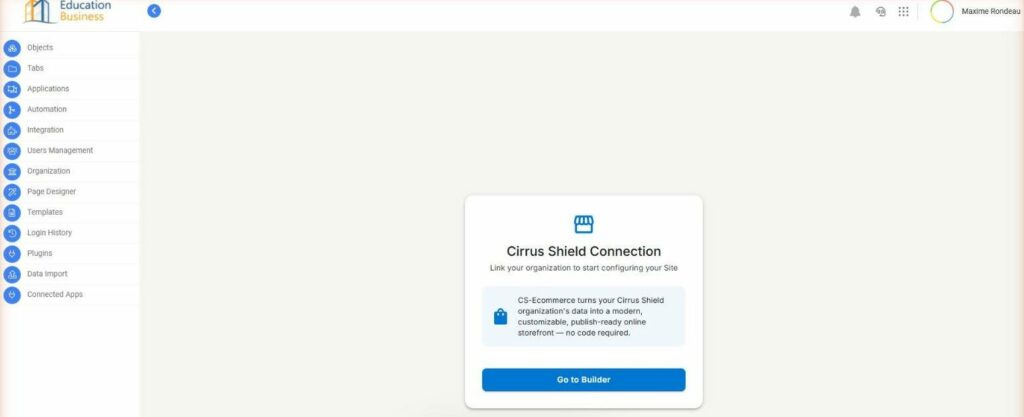
The Builder opens embedded in this same page (as an iframe) and shows the 4 configuration steps at the top.
Step 1 — Site Identity
At the top of the Builder, a step bar (Identity → Mapping → List → Product Sheet) lets you navigate freely between the 4 steps at any time — you don’t need to finish them in order to revisit them.
| Element | Meaning |
|---|---|
| Draft / Published badge | Shows whether a version of the site has already been published. See the Publishing section below. |
| Active / Inactive switch | Visible only after a first publish. Turns the public site’s display on or off without unpublishing the configuration. |
| Save draft | Saves your changes without making them visible on the public site. |
| Publish draft | Makes your changes visible on the public site. |
| Live preview | On the right, updates instantly with every change — no save needed to see the result. The icons at the top right of the preview switch between desktop, tablet and mobile views. |
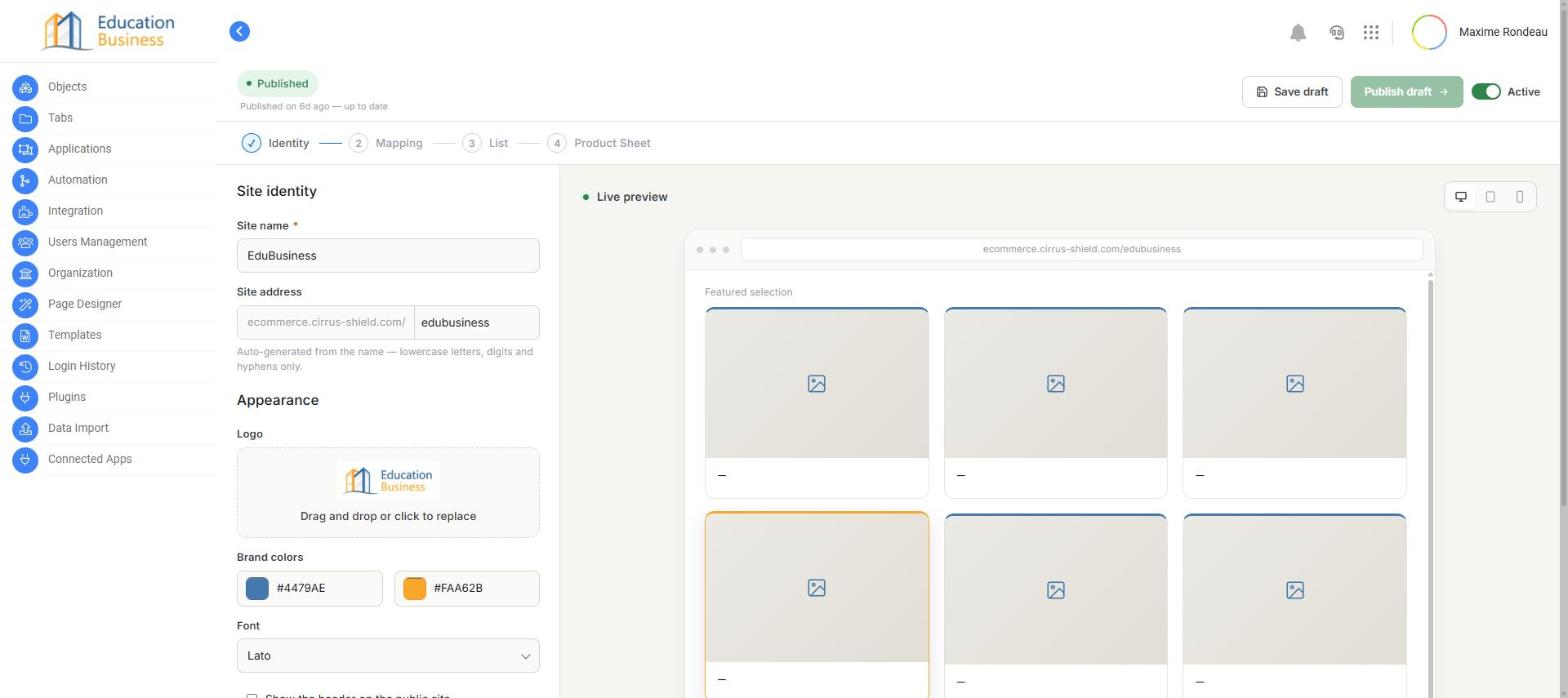
The form above lets you configure:
| Field | Meaning |
|---|---|
| Site name | Name shown in the header and browser tabs of the public site. |
| Site address | The public URL’s final slug (ecommerce.cirrus-shield.net/your-slug). Auto-generated from the name (lowercase letters, digits and hyphens), editable. |
| Logo | Drag and drop an image, or click to choose one. Shown next to the site name, never in its place. |
| Brand colors | Primary color (header, main buttons) and secondary color (accents, hovers). Reused automatically across the whole public site. |
| Font | Typeface used across the whole public site. |
| Show the header on the public site | Uncheck to completely hide the header band (logo + name) on the public site. |
Once you’re happy with it, click Next: Mapping at the bottom left to move to step 2.
Step 2 — Field Mapping
This step connects your site to real Cirrus Shield data: which object represents a « product », and which fields of that object feed each part of the site.
Source object
At the top of the page, Source object shows the Cirrus Shield object currently used (here, « Price List Item »). The Change object link opens a search across every object in your organization — careful: changing object resets the whole existing mapping.
Field mapping
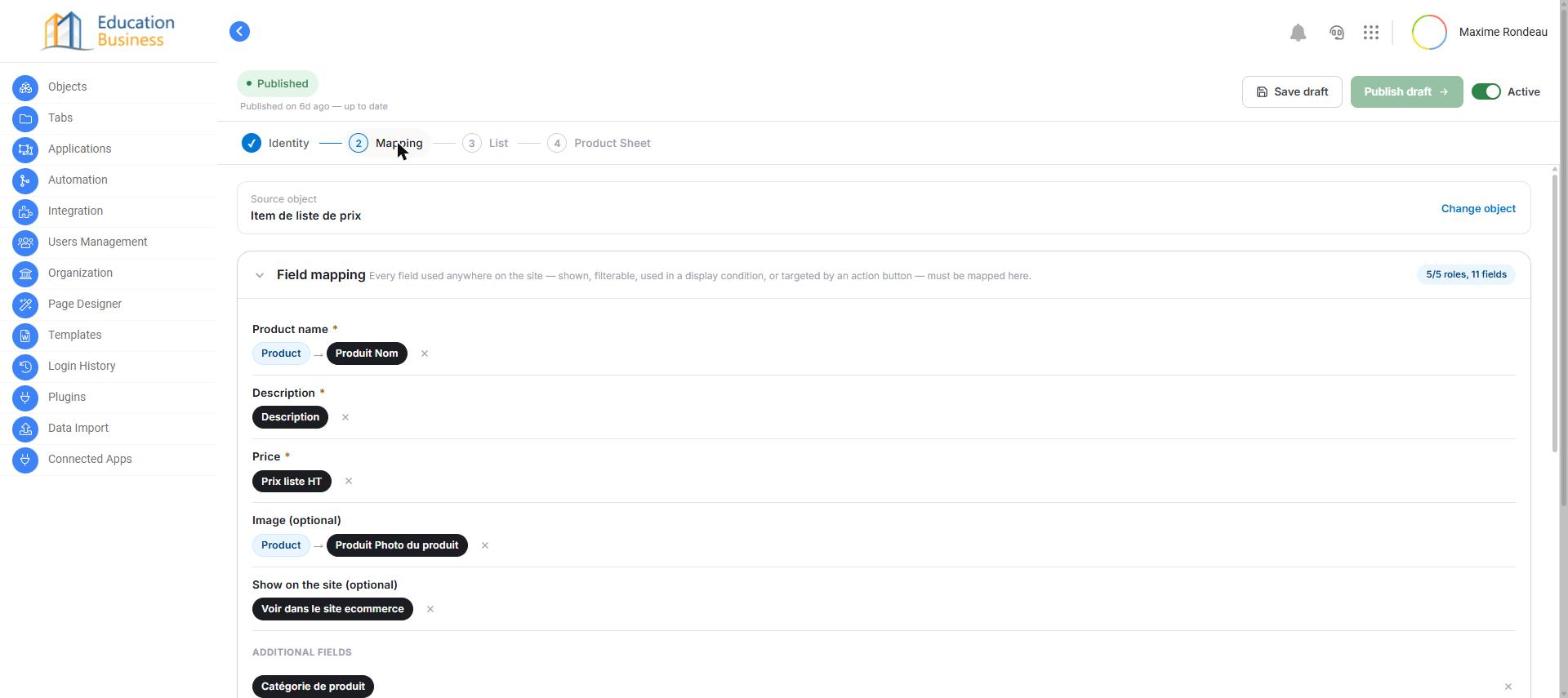
For each role, click + Choose a field and select the matching Cirrus Shield field (a lookup-type field, like « Product → Produit Nom » above, lets you pull a field from a related object).
| Role | Required | Used where on the site |
|---|---|---|
| Product name | Yes | Title shown on the product card and product sheet. |
| Description | Yes | Descriptive text shown on the product sheet. |
| Price | Yes | Amount shown, automatically filterable by price range in the catalog. |
| Image | No | Photo shown at the top of the product card and product sheet. |
| Show on the site | No | Cirrus Shield boolean field deciding whether a record appears on the public site. Not mapped = every record is visible. |
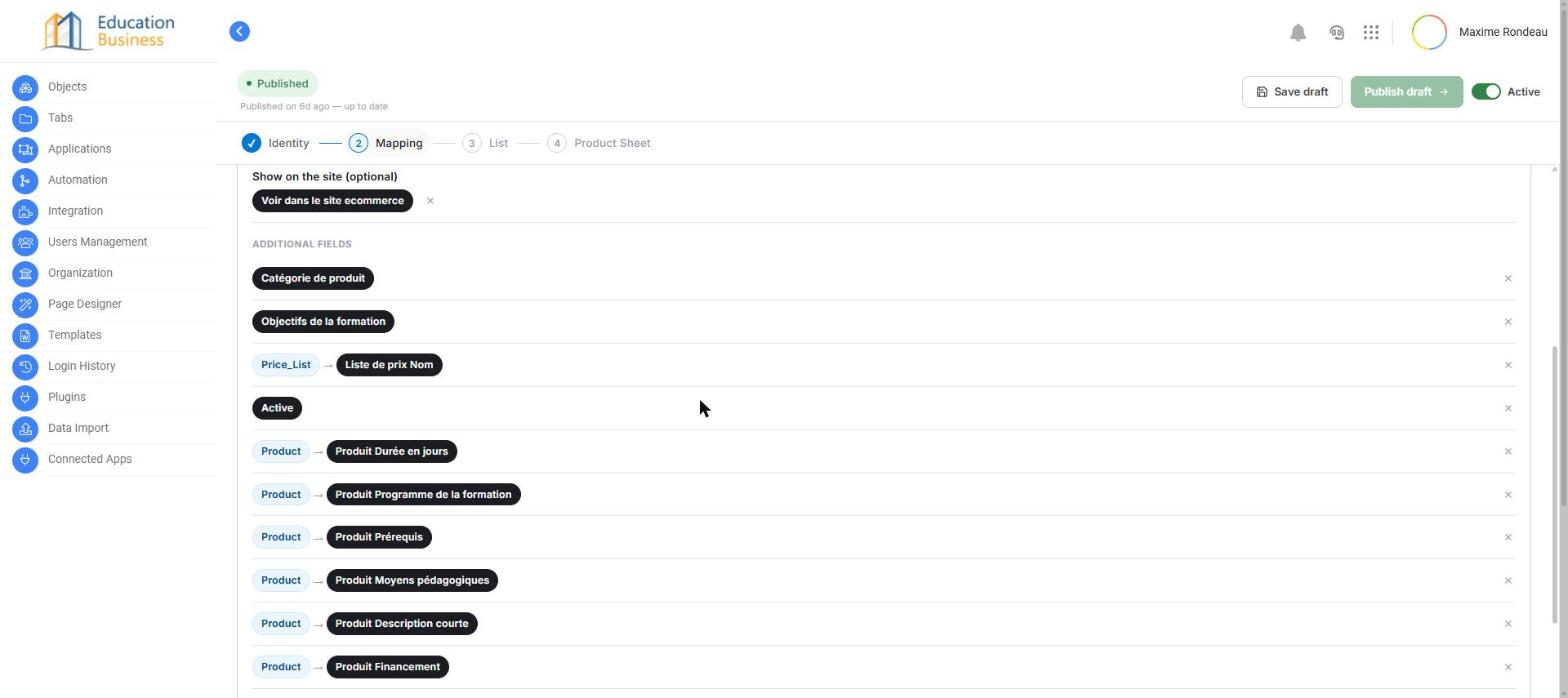
Additional fields: any other field you need elsewhere on the site (list, product sheet, action button, display condition) is mapped with + Add a field, at the bottom of this section.
Related lists and display conditions
- Related lists — shows records from a related object (e.g. « Session ») directly on the product sheet. + Add a related list opens a 2-step wizard: choose the relationship, then the fields to display. Edit filters then restricts which records are shown.
- Display conditions — only products meeting all conditions defined here appear on the public site (e.g. « Status = Active »). The fields offered are only those already mapped above.
Important: every field used in a display condition must first be added to the mapping with + Add a field (« Additional fields » section). A field that isn’t mapped won’t be offered when you build a condition.
How display conditions work
A display condition is a filtering rule: only records that satisfy it appear on the public site — catalog and product sheet (a filtered-out product is never reachable, even by direct URL). Each condition has three parts:
| Part | Role |
|---|---|
| Field | The field to test — only among fields already mapped in step 2 (Mapping). |
| Operator | = (equals), ≠ (not equal), > (greater than), < (less than), or « contains » (text only — unavailable on a Date/DateTime field). |
| Value type | See below. |
The 3 possible value types:
- Fixed value — you type the value to compare against (e.g. Status = « Active »). The most common case.
- Parameter (GET/POST) — the expected value comes from the visitor’s request rather than fixed text you type (e.g. a parameter carried in the link that brought the visitor to the site). Advanced usage. If the expected parameter is missing from the request, only that condition fails — the rest of the expression still evaluates normally. This lets you filter price list items by price list, or by the visitor’s region, by passing that information in the request.
- Relative date — only available on a Date/DateTime field: compares to « today », « this week », « N days ago », etc. instead of a fixed date you’d have to update yourself — the result recalculates automatically every day.
Worth knowing for your own testing: if you open the public site yourself by typing the address directly in the browser (rather than clicking a real link), any Parameter-type condition won’t have the value a real link would normally carry in the URL — you’ll then see fewer products (or none) than a real visitor would. That’s not a bug: it’s expected whenever a URL is tested by hand without the parameters a real visit would have added.
Combining multiple conditions — AND / OR
Each condition added after the first shows an AND / OR connector linking it to everything before it. Important: there’s no grouping or parentheses — evaluation is strictly left to right. With 3 conditions A, B, C linked by AND then OR, the result is (A AND B) OR C, never A AND (B OR C). If your conditions aren’t giving the expected result, try reordering them rather than changing the connectors.
Concrete example: say a boolean field named Active is mapped as an additional field. A simple display condition — Field = Active, Operator = = (equals), Value type = Fixed value, Fixed value = True — means only records where Active = True appear on the public catalog and product sheet; anything marked inactive (discontinued, not yet launched) stays invisible to visitors even though it still exists in Cirrus Shield. Adding a second condition linked by AND — Active = True AND Category = "Featured" — narrows this further to active records that are also in the chosen category.
Click Next: List to move on to the catalog layout.
Step 3 — Catalog Layout
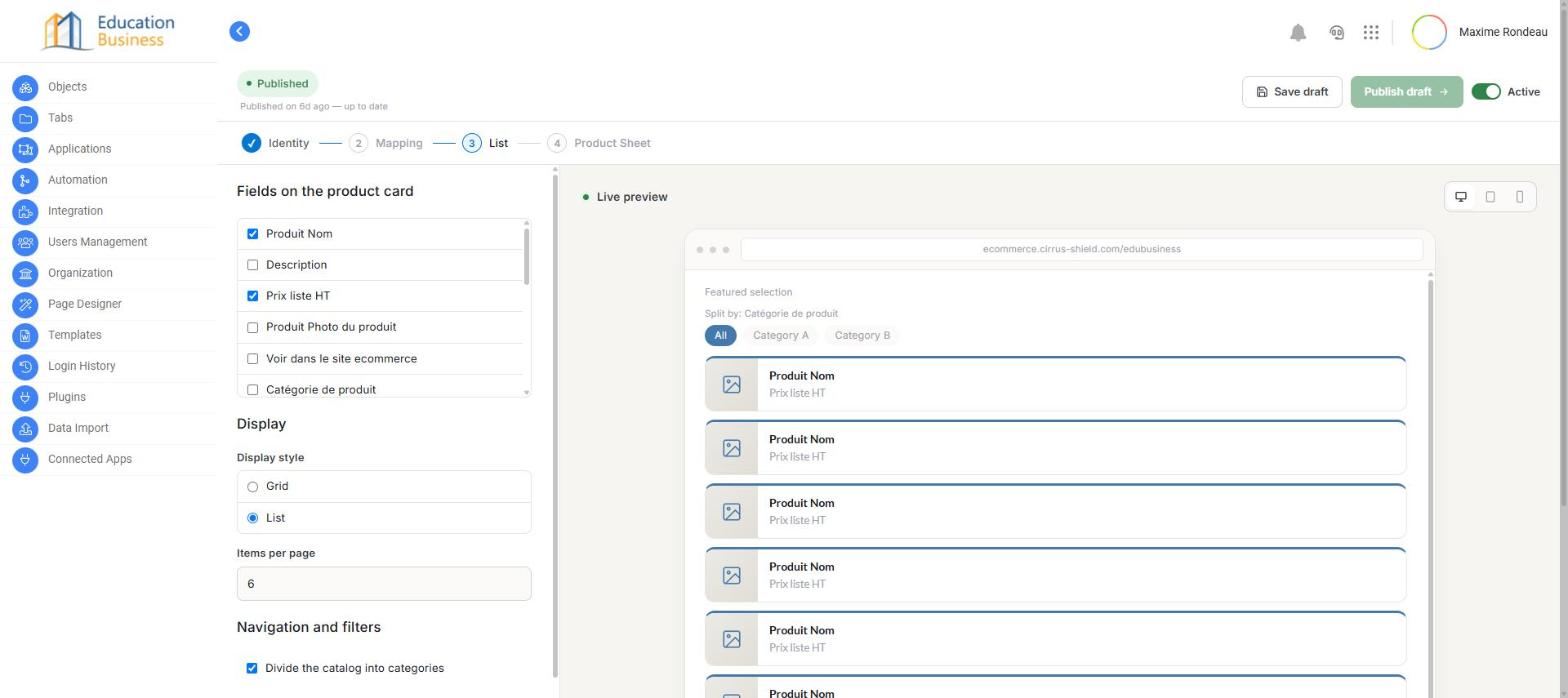
This step defines the appearance of the public catalog, the page that lists all your products.
| Section | Meaning |
|---|---|
| Fields on the product card | Checks the fields (among those mapped in step 2) shown on each product card in the catalog. Name and Price are typically checked by default. |
| Display style — Grid | Product cards aligned in a grid, classic catalog layout. |
| Display style — List | One row per product, more compact. |
| Items per page | Number of products shown before pagination. |
| Divide the catalog into categories | Splits the catalog into tabs by a chosen field (e.g. Category of product), rather than one flat list. |
The field mapped to the Price role automatically becomes a price-range filter on the public catalog; no extra configuration is needed here.
Click Next: Product Sheet to move to the last step.
Step 4 — Product Sheet
This last step organizes a product’s detail page (its « sheet ») and its action buttons.
Fields and lists to place
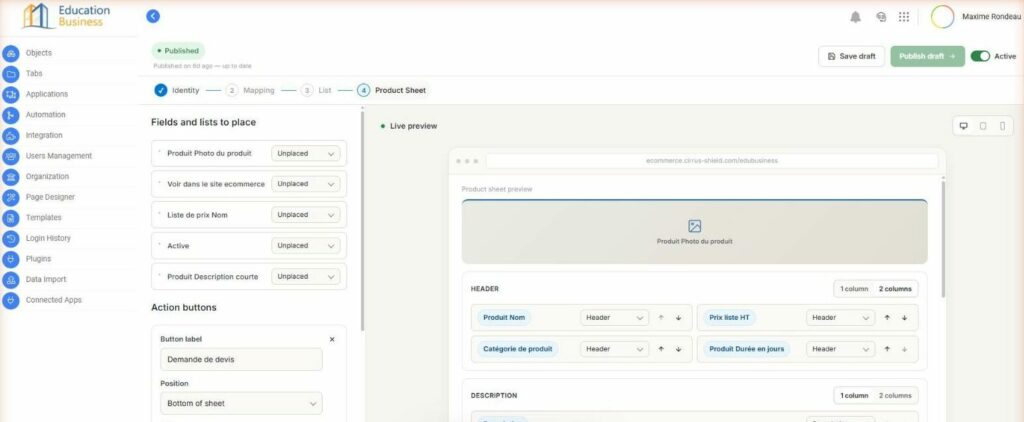
Any field or related list mapped in step 2 but not yet placed appears here, marked Unplaced. The product sheet has 3 fixed zones: Header, Description, Characteristics. Two ways to place an item:
- Drag and drop the item directly in the live preview, into the zone you want.
- Or choose the zone from the dropdown next to its name (as in the screenshot above) — the keyboard-accessible equivalent.
Action buttons
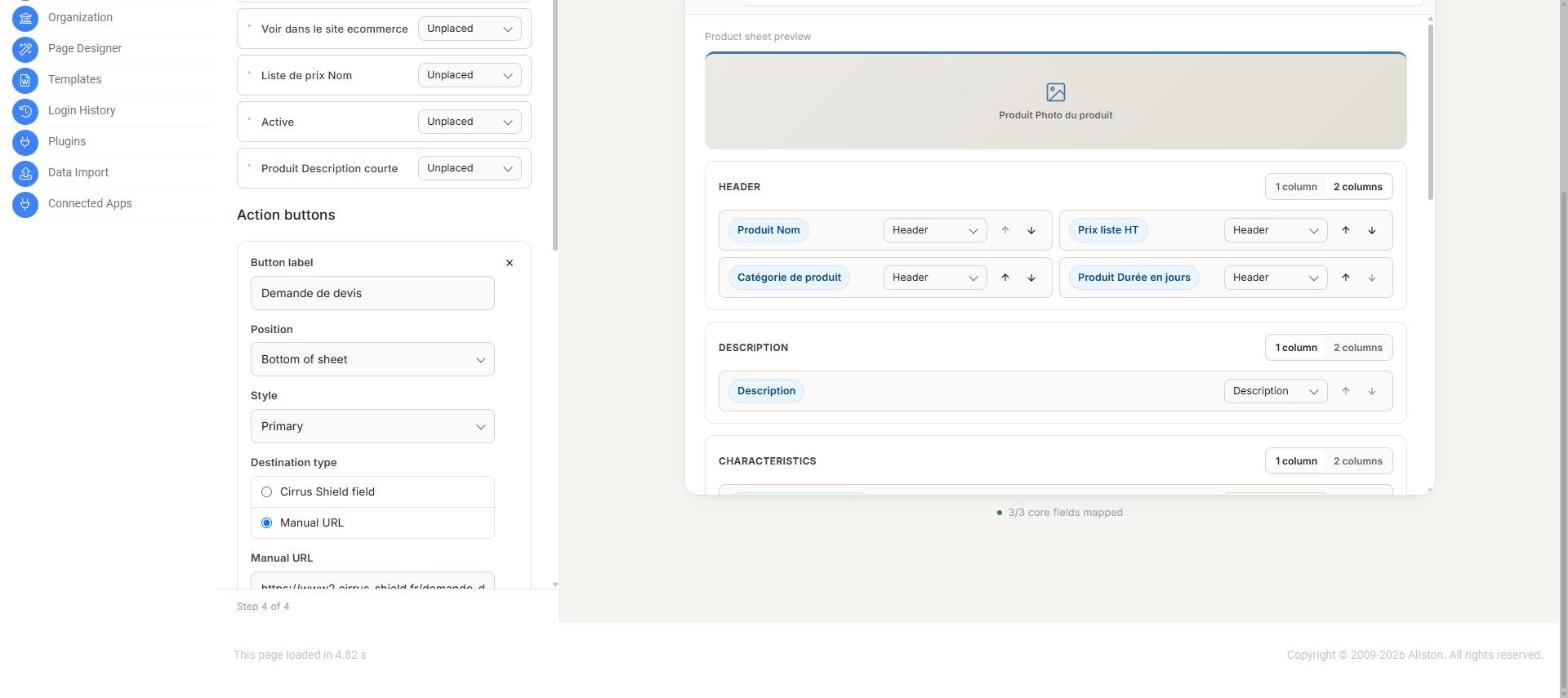
+ Add a button creates a new action button on the product sheet, with:
| Field | Meaning |
|---|---|
| Button label | Text shown on the button (e.g. « Request a quote »). |
| Position | Top of sheet, Below description, or Bottom of sheet. |
| Style | Primary, Secondary or Subtle — reuses the brand colors set in step 1. |
| Destination type — Cirrus Shield field | The button points to the value of a mapped product field (e.g. a link stored in Cirrus Shield). |
| Destination type — Manual URL | A fixed URL you type, which can include merge tokens like {!RecordId} or {!FieldName} — replaced by the real value of the product shown on the public site (e.g. https://my-form.com/{!RecordId}). The « Insert token » menu adds these tokens without retyping them. |
Once every step is configured the way you want, move on to the next section to publish your site.
Publishing Your Site
Editing a Builder step changes nothing on the public site until you publish. Two distinct actions, visible at the top of every step:
- Save draft — saves your changes to the database, without making them public. You can close the Builder and come back later without losing anything.
- Publish draft — copies the saved configuration to the public site; your visitors then see the changes.
The status banner, top left, always shows whether the saved draft differs from the published version — shown in the Step 1 screenshot above as « Published — up to date » once the draft matches what’s live. After saving a change that hasn’t been published yet, the banner instead reads « modifications not yet published » and the Publish draft button becomes active (green).
First publish: before any publish, the badge shows Draft unpublished, and the site address (set in step 1) isn’t publicly reachable yet.
Managing a Published Site
The Active / Inactive switch, visible at the top right from the first publish onward (see the screenshots above), controls the site’s display without touching its configuration:
| State | Effect |
|---|---|
| Active | The public site is reachable normally at its address. |
| Inactive | The public site is suspended (visitors can no longer reach it); the published configuration is kept as-is. Switch back to Active to restore it instantly, with no need to republish. |
Changing an already-published site: come back into any Builder step (Setup > Extensions > Ecommerce Website > Details > Go to Builder), make your changes, then Save draft and Publish draft as described above — the site stays live with the previous version until you publish.
This guide covers the full configuration journey. For any question about a field or a behavior not described here, contact support: support@cirrus-shield.com.

