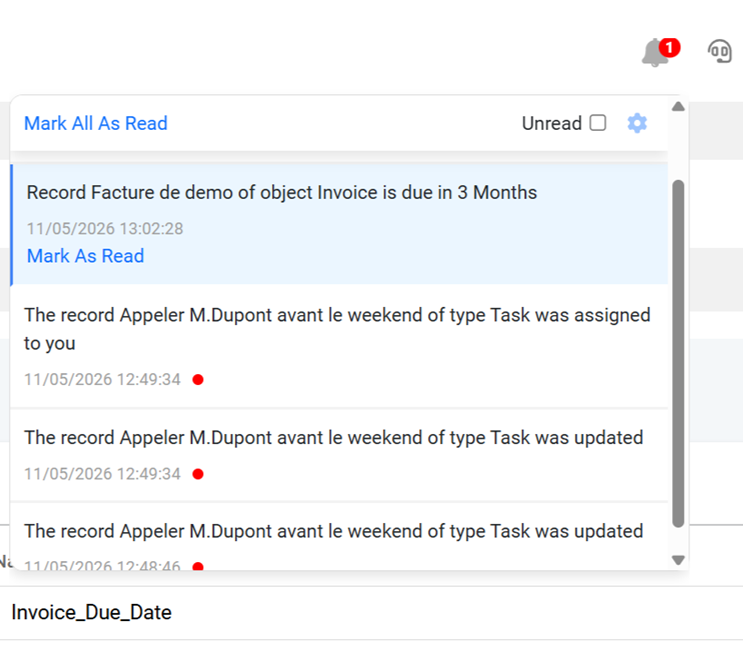
This feature keeps you informed in real-time of critical activities within Cirrus Shield through a flexible rule engine.
1. Introduction to Rule Types
The system is built upon two distinct types of alerts:
- Notifications: Triggered by a specific event (e.g., record creation, field update, or case assignment).
- Reminders: Time-based alerts triggered by a date/time field (e.g., 2 hours before an appointment, 1 day after a deadline).
2. Managing Reminder and Notification Rules
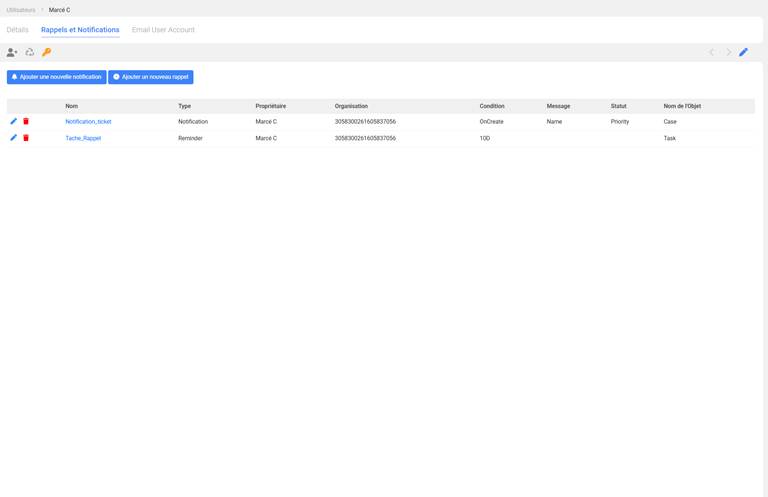
To access the reminder and notification management interface, navigate to your Profile in Cirrus Shield and click on Reminders and Notifications. This will display the list of rules you have configured:
Creating a Notification
1. Rule Information
- Label: The display name of the notification as it appears in your list (e.g., “Urgent Ticket Alert”).
- Name: A unique system identifier (usually auto-populated).
- Object Name: The Cirrus Shield record type involved (e.g., Ticket, Task, Prospect…).
2. Field Configuration
- Message: Select which field from the object will be displayed as the notification text (e.g., the Name or Subject).
- Status: Choose a picklist field (such as Priority) to define the visual importance of the alert. The notification will take the color of this field.
3. Conditions
- Conditions: Select at least one trigger condition: On Creation, On Update, or Assigned to Me.
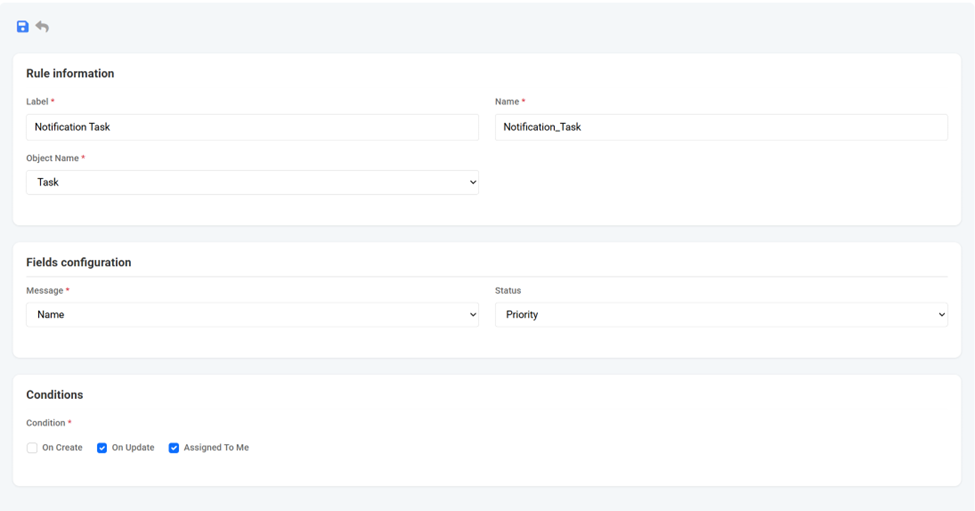
In the example above, the “Tache Notification” rule is configured on the Task object. The Name field is used as the displayed message, and the Priority field is selected as the Status. The “On Update” and “Assigned to Me” conditions are active: the notification will fire whenever a task is updated or assigned to you
Creating a Reminder
1. Reminder Information
- Label: The display name of the reminder as it appears in your list (e.g., “Invoice Due Date”).
- Name: A unique system identifier (usually auto-populated).
- Object Name: The Cirrus Shield record type involved (e.g., Invoice, Task…).
2. Field Configuration
- Trigger Field (Date/Time): Select the date field that will serve as the reference for the reminder (e.g., Due Date, Last Modified Date).
- Message: Select the object field displayed in the notification text.
- Status: Choose a picklist field to define the visual importance of the alert.
3. Offset
- Before / After: Specify whether the reminder should trigger before or after the reference date.
- Value: Enter the numerical duration (e.g., 3).
- Unit: Select the unit: Minute, Hour, Day, or Month.
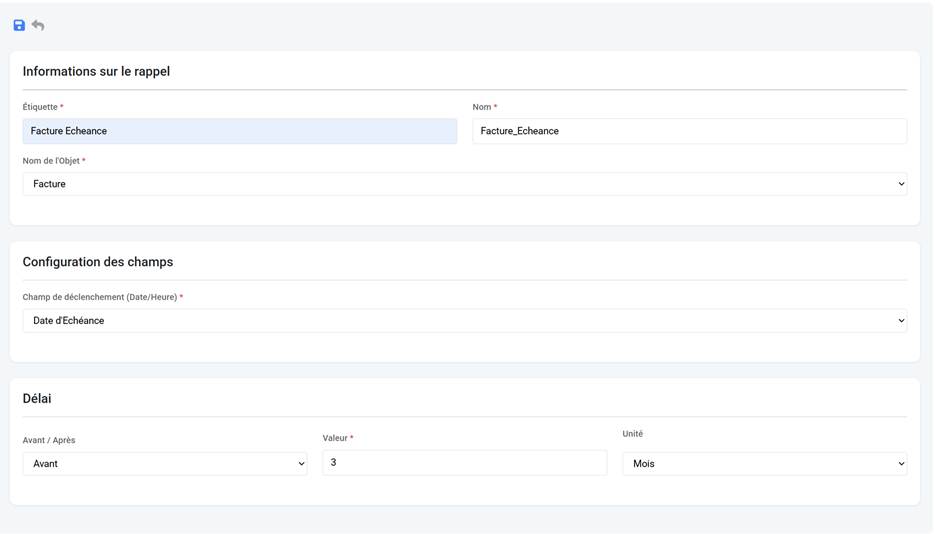
In the example above, the “Facture Echeance” reminder is configured on the Invoice object. The trigger field is the Due Date. The offset is set to 3 Months before that date: the reminder will fire exactly 3 months before the invoice due date.
Real-Time Notification Center
Using the Interface:
- The “Bell” Icon: Located in your navigation bar, it displays a badge showing the number of unread notifications.
- Dropdown List: Click on the bell to view your recent alerts.
- Reading Alerts: New notifications are marked as “Unread”.
- Click on a notification to be automatically redirected to the corresponding record page in Cirrus Shield.
- Quick Management: Use the “Mark all as read” button to clear your notification count.
- Use the filter to display only unread items