This guide explains how to use the planner to efficiently manage resources and assignments in Cirrus Shield.
1. Viewing a Resource’s Schedule
- Go to the resource’s detail page.
- Click the Planner button to open that resource’s calendar.
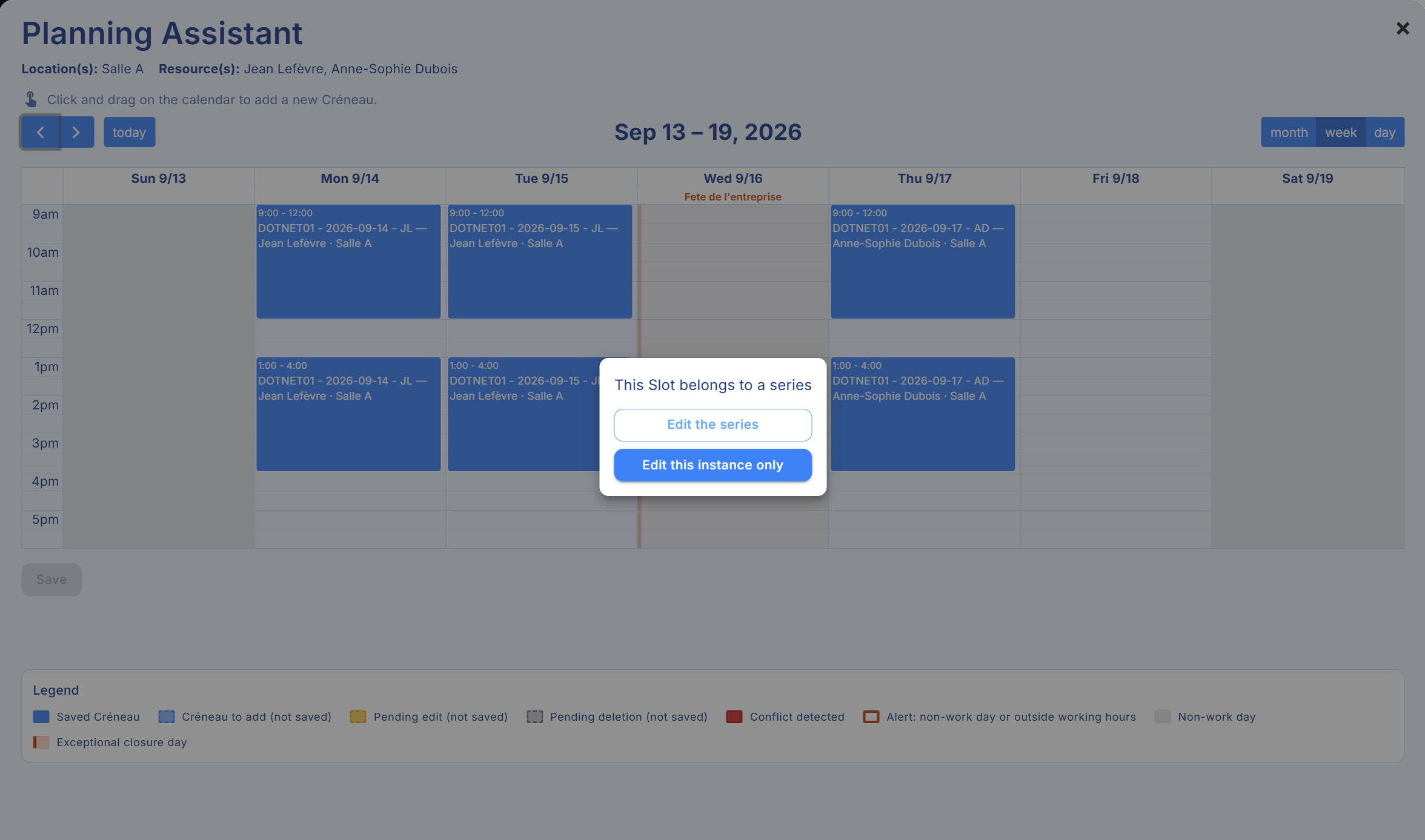
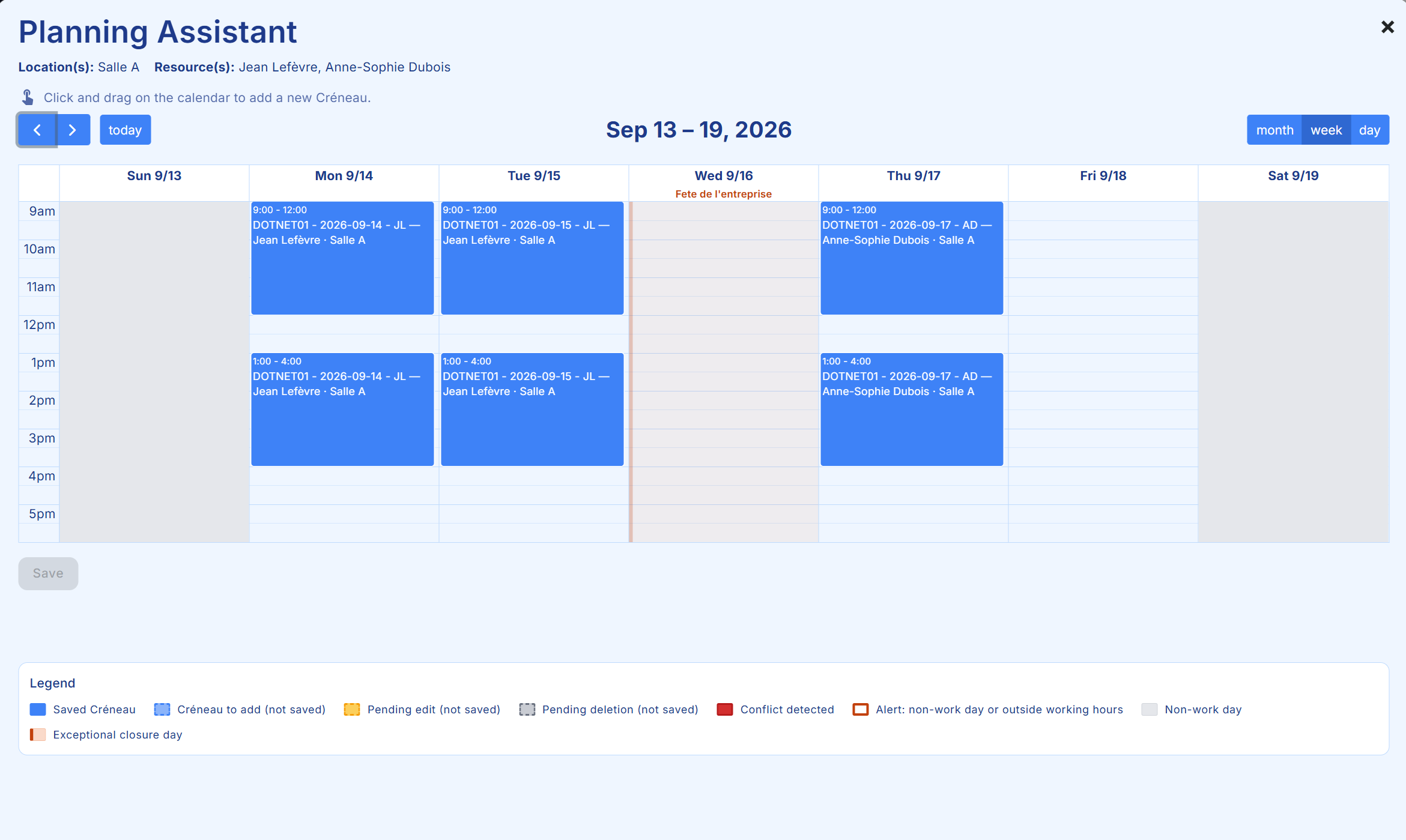
- View the absences and time slots during which the resource is busy, along with the calendar’s color legend (Image 1).
2. Adding an Absence
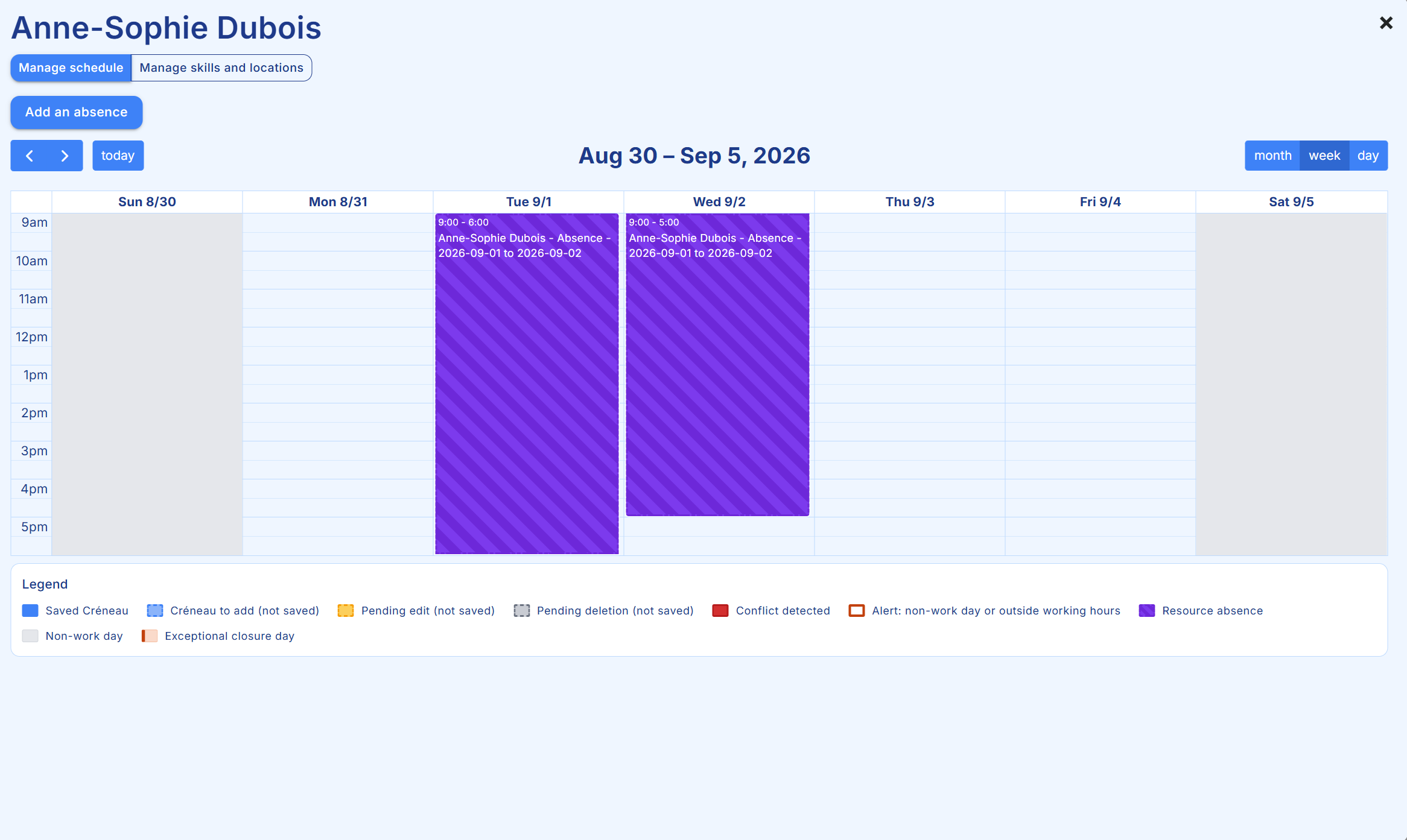
- Click Add an absence.
- Specify the start and end date and time of the absence in the window that appears (Image 2).
- Click Save.
3. Managing Skills and Locations
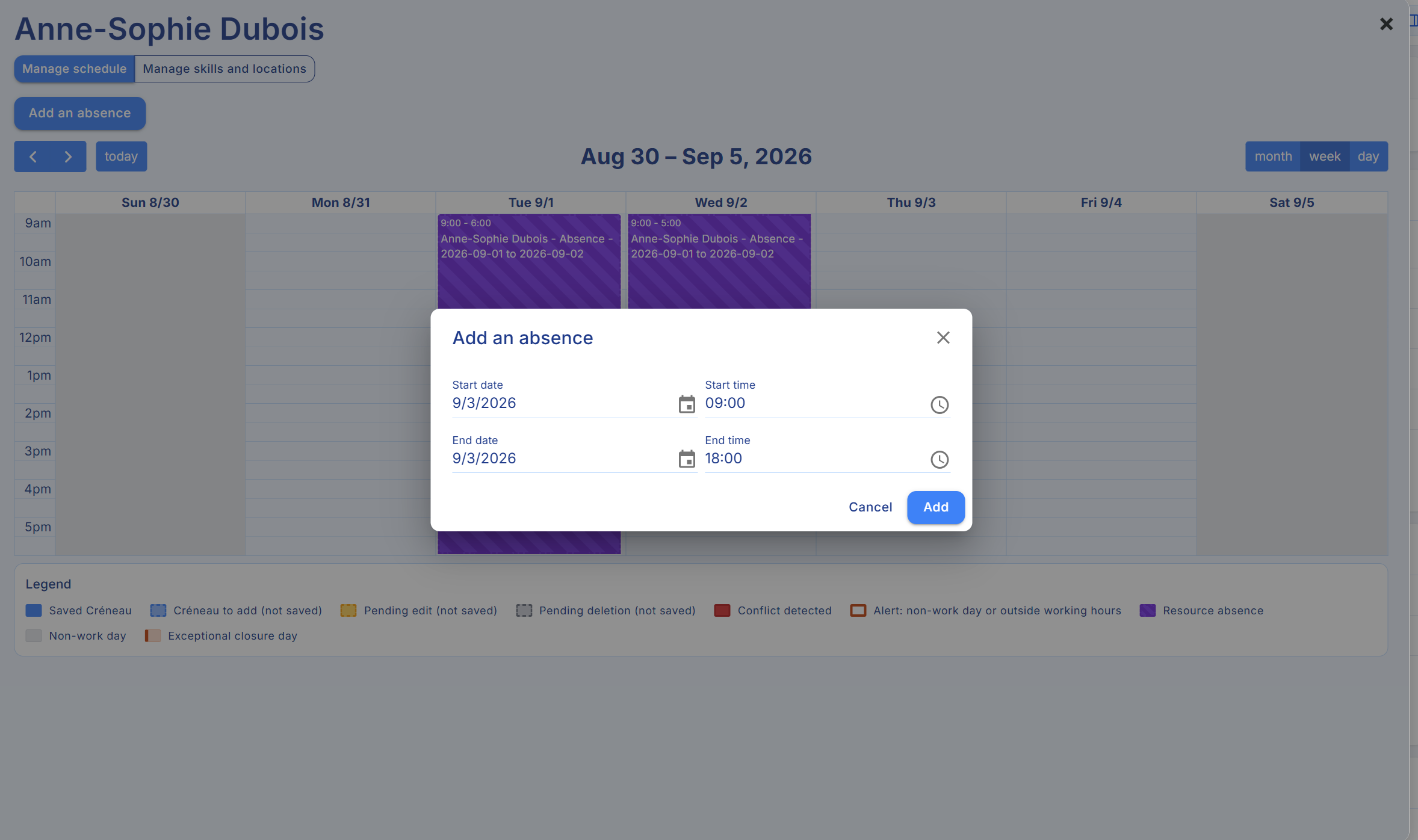
- Click Manage skills and locations.
- Add skills from the list of services offered by your organization, shown in the left-hand column (Image 3).
- Specify which locations the resource has access to, in the panel below (Image 3).
- Use the Add all button to select all options, or Remove all to clear them (Image 3).
- Click Save.
4. Creating and Organizing Mission Time Slots
- Go to the mission record and open the Planner button, which shows the existing time slots for that mission (Image 4).
- View the schedule in week, month, or day view.
- To create a time slot, click and drag on the calendar at the desired time, then click Add a time slot in the scheduling assistant that opens (Image 5).
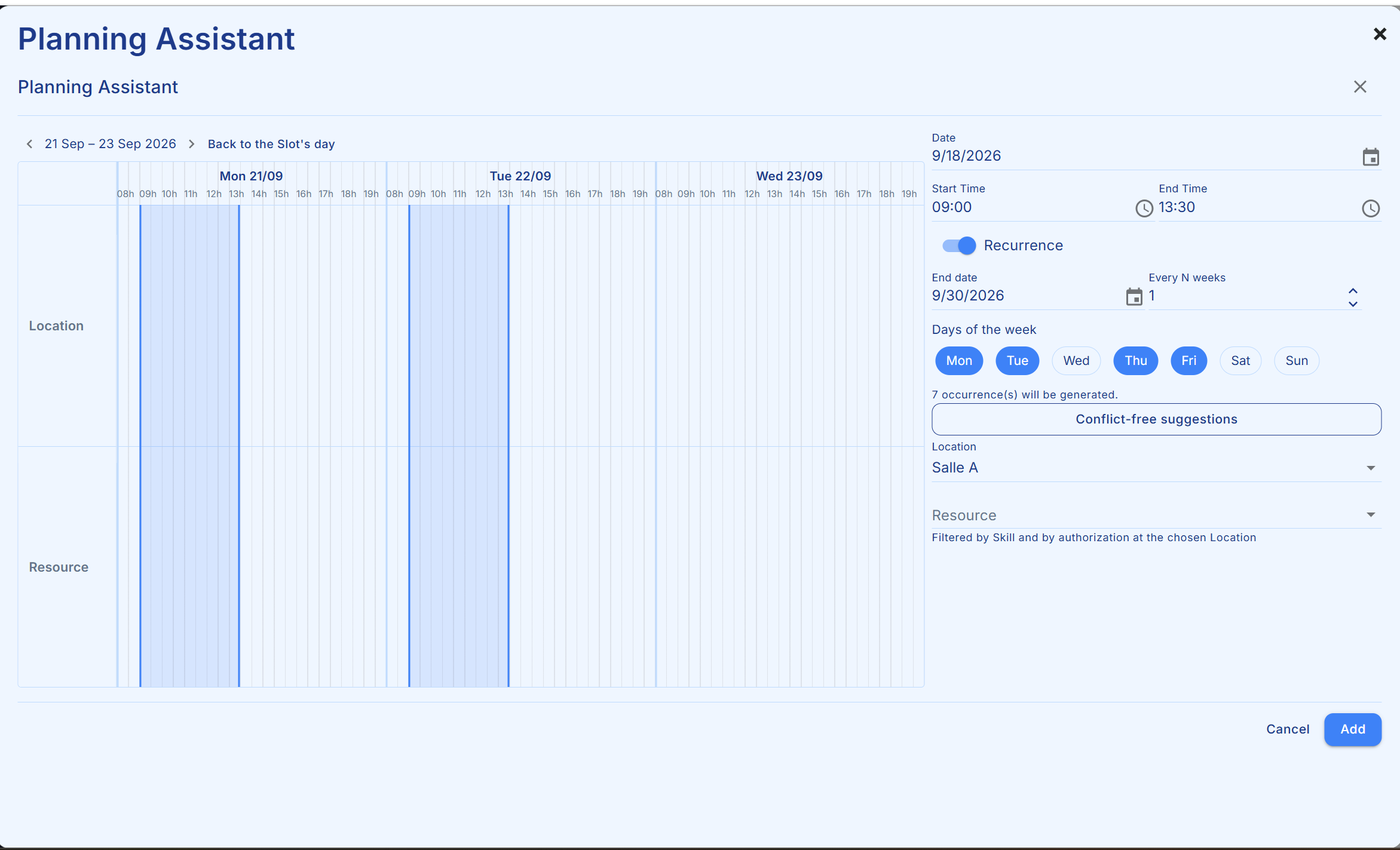
- Adjust the start and end times in the scheduling assistance panel (Image 5).
- Use the Recurrence option to schedule recurring dates and set an end date (Image 5).
- Choose the day or days of the week for the recurrence (Image 5).
- Select the relevant resource (e.g. trainer) in the Resource field and verify that they are qualified for the mission (Image 5).
- Resolve any conflicts by choosing conflict-free suggestions or accepting conflicting time slots.
- Click Save to save the time slots in Cirrus Shield.
5. Editing Time Slots
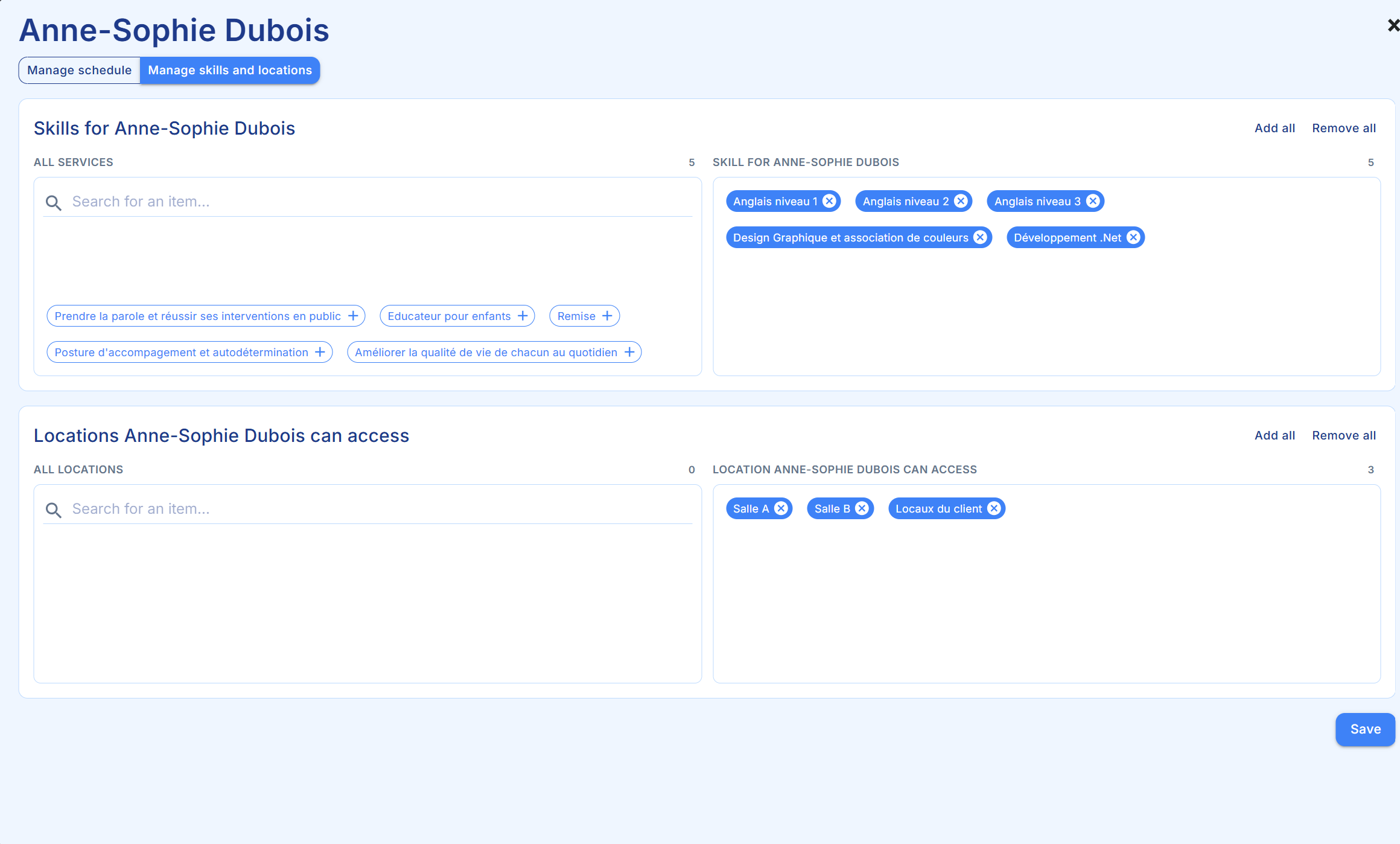
- To edit a time slot, click on it in the schedule.
- If the time slot is recurring, a window lets you choose to edit the entire series or only the selected occurrence (Image 6).
- Resolve conflicts by choosing another resource or another location if necessary.