This guide walks through the Client Company Portal screen by screen: how a company Contact uses it. All screenshots come from the Beta environment, with the portal in English.
Signing in to the portal
The Contact opens the portal address sent by the training provider. They are redirected to the Cirrus Shield sign-in page, enter their username and password, then click Login.
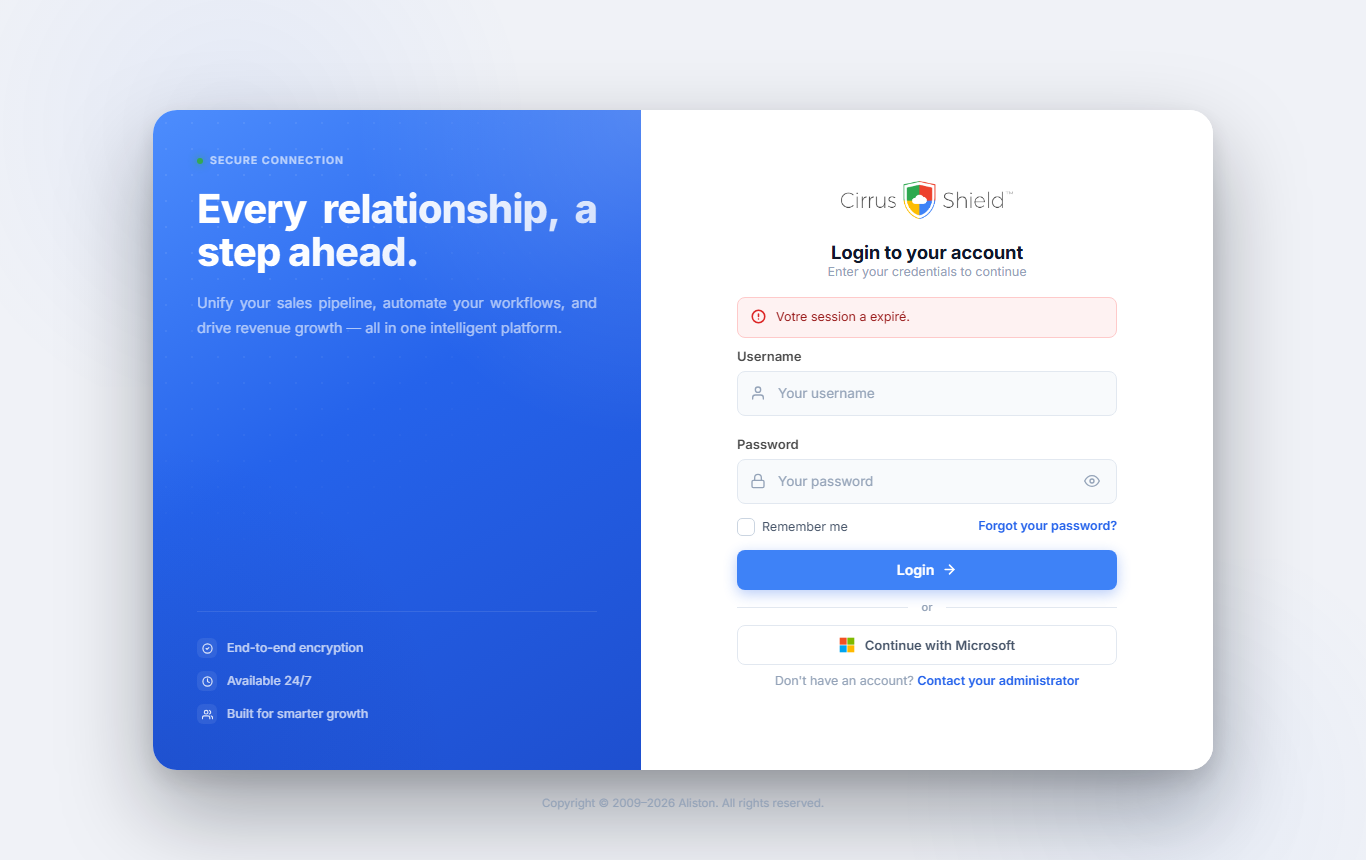
On a first visit, a red “Votre session a expiré.” (your session has expired) banner may appear even though no session was open. Sign in normally.
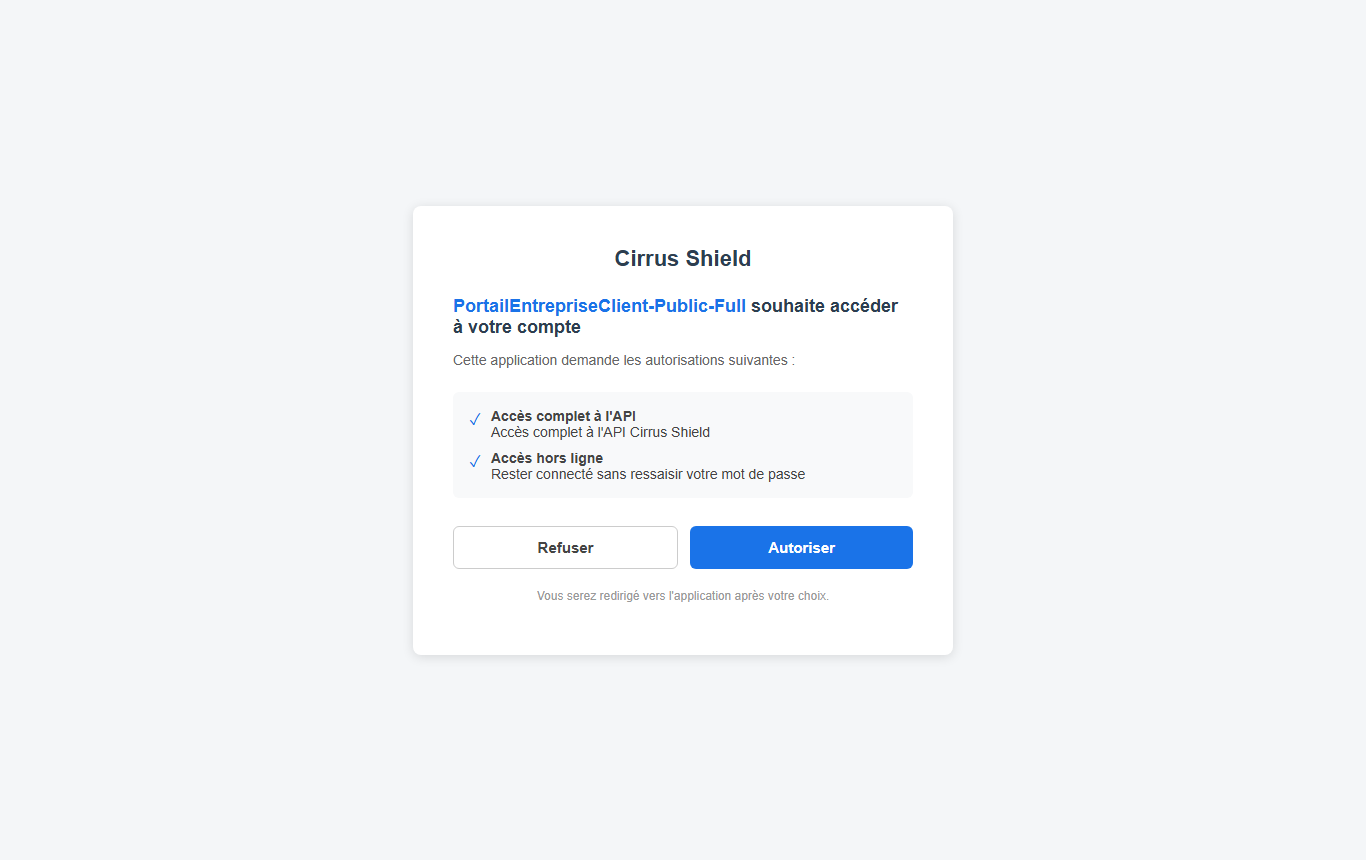
On the first sign-in, Cirrus Shield asks the Contact to authorize the portal application. This screen is in French: the Contact clicks Autoriser (Allow) and lands on the portal dashboard.
Dashboard
The dashboard sums up the company’s activity in five figures: ongoing or upcoming training, registered participants, invoices awaiting payment, available documents, and budget spent this year. Below them, two lists show upcoming training sessions and the latest documents, each downloadable in one click.
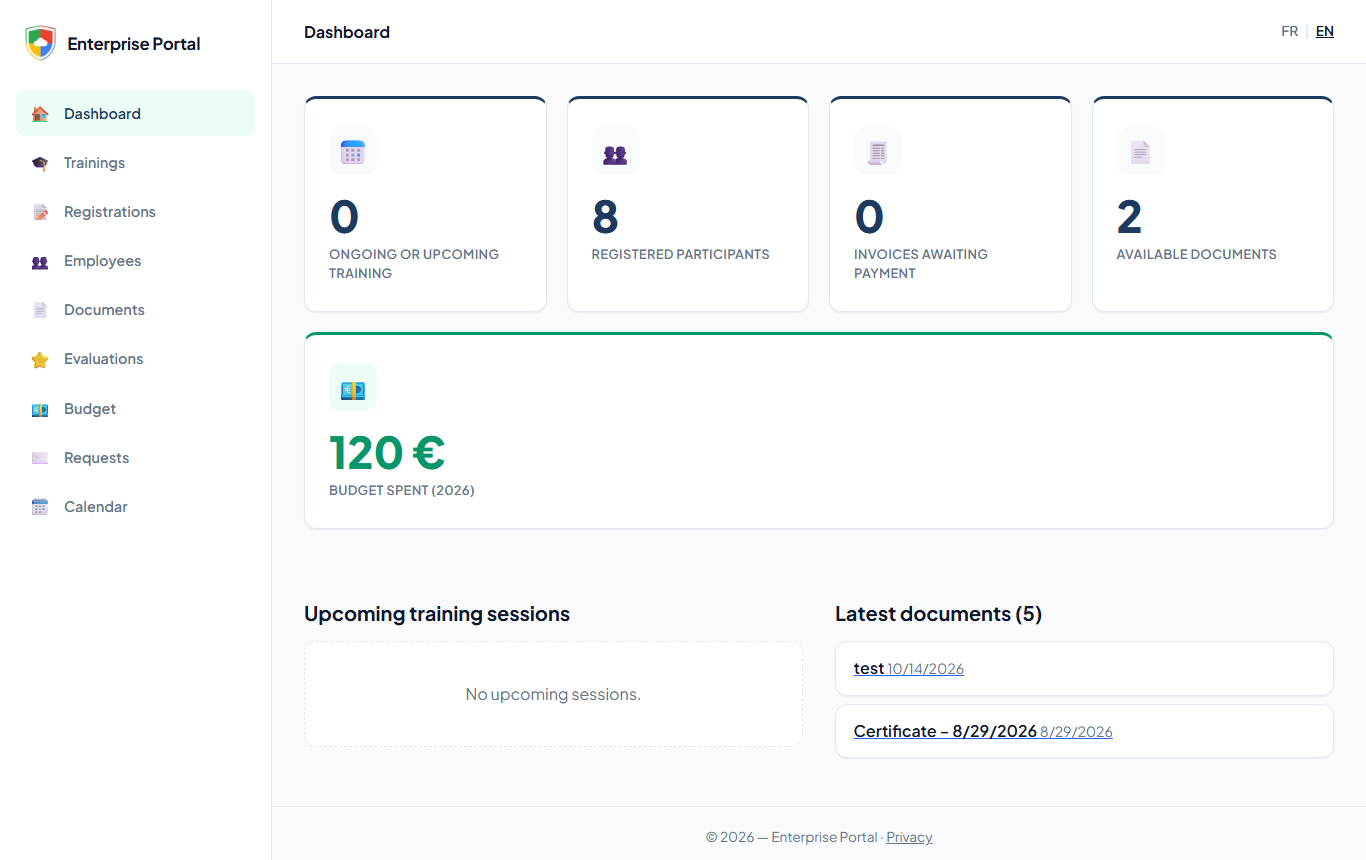
The left menu leads to the portal’s nine sections: Dashboard, Trainings, Registrations, Employees, Documents, Evaluations, Budget, Requests and Calendar. The FR | EN links at the top right switch the language.
Trainings
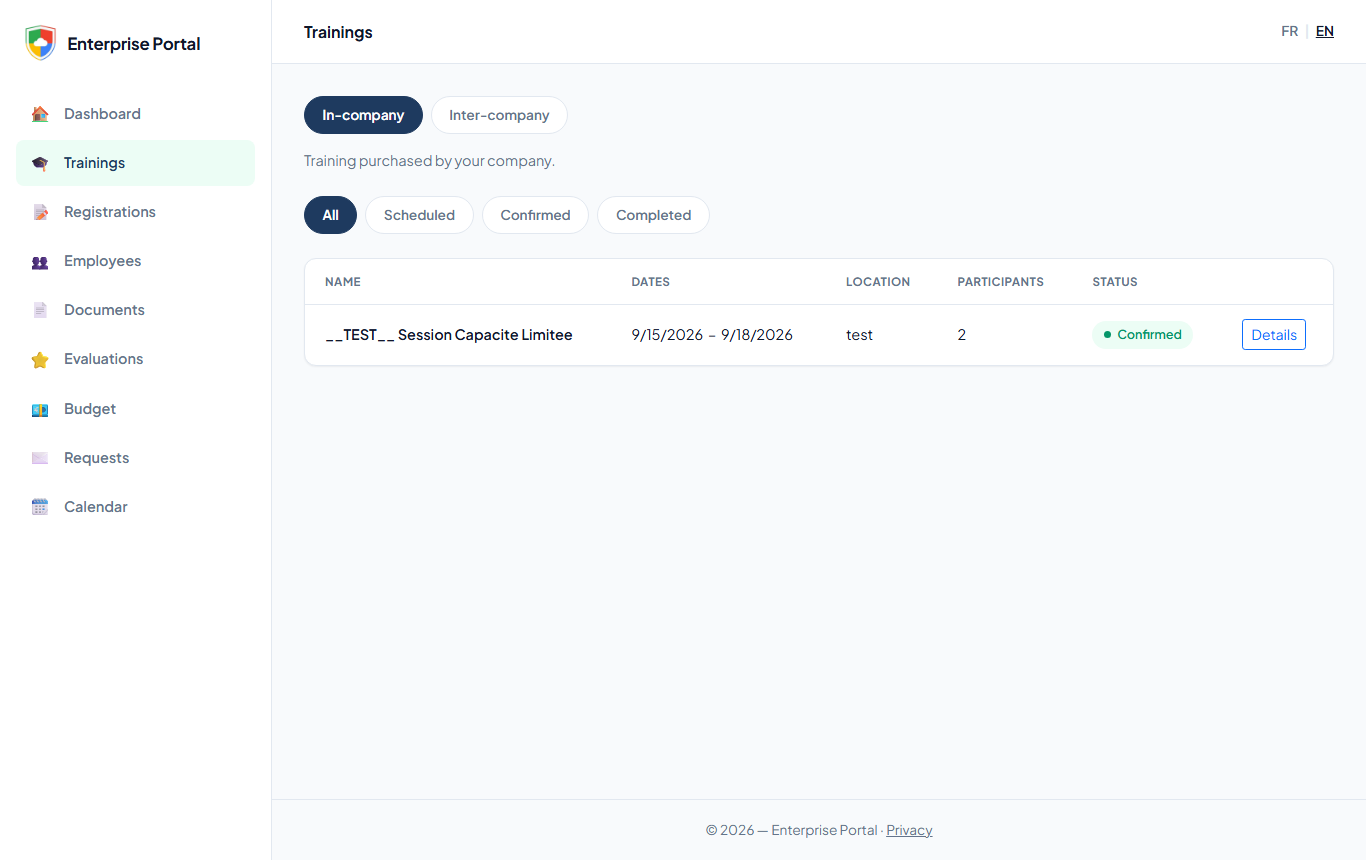
The Trainings section lists the sessions that involve the company, with their dates, location, number of participants and status.
- Pick the In-company tab (training purchased by the company) or Inter-company (shared sessions your employees attend).
- Filter by All, Scheduled, Confirmed or Completed if needed.
- Click Details to open a session.
The session page shows the number of participants and the status, then a table of your company’s participants: job title, registration status, progress and days attended. Each row’s Download certificate button retrieves that participant’s certificate.
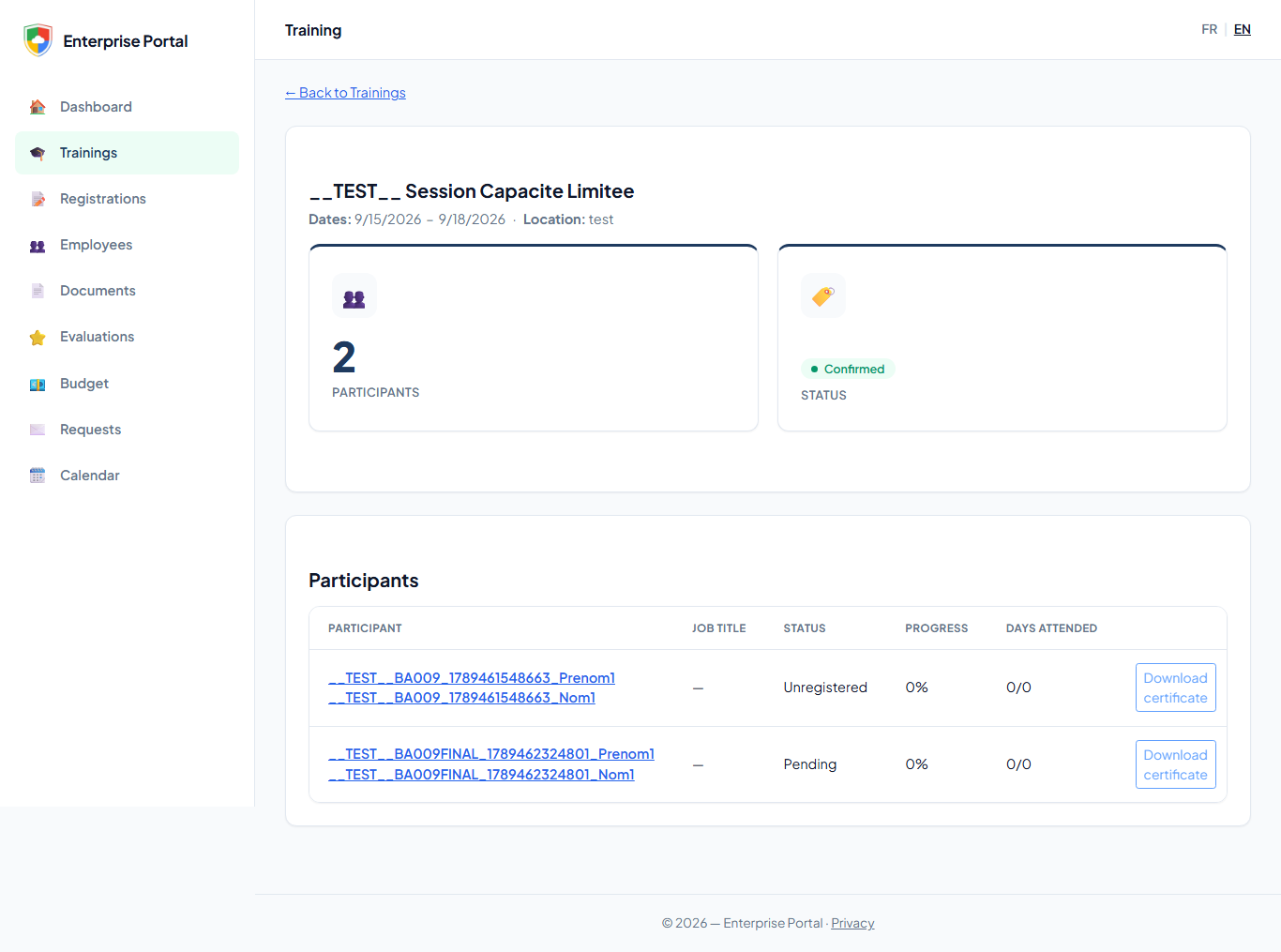
On an inter-company session, only your own company’s participants are shown.
Registrations: requesting a place on an inter-company session
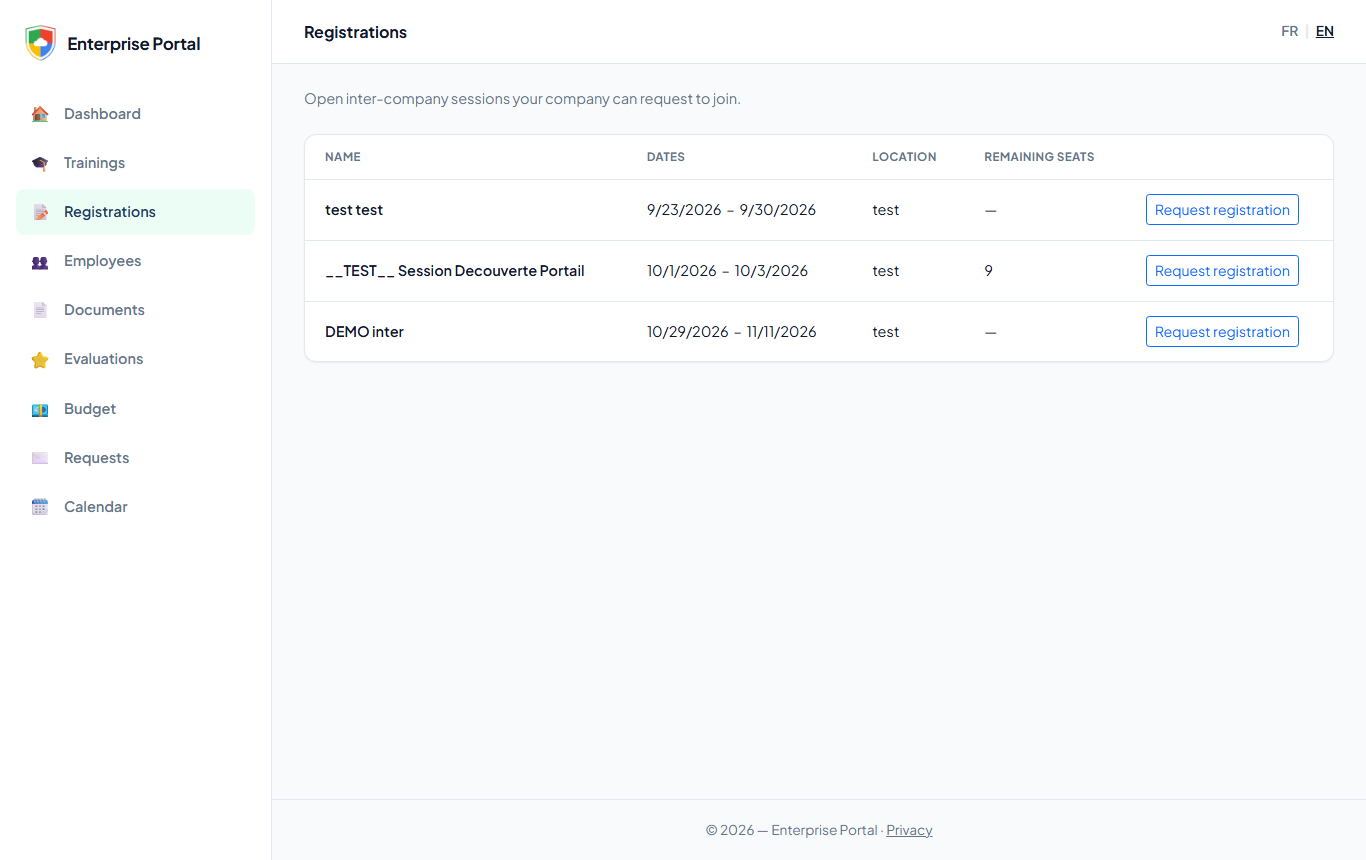
The Registrations section lists the inter-company sessions open to requests, with the remaining seats when the training provider has set them. The portal does not register anyone directly: it sends a request that the training provider processes in Cirrus Shield.
- Click Request registration next to the session you want. The form opens below the list.
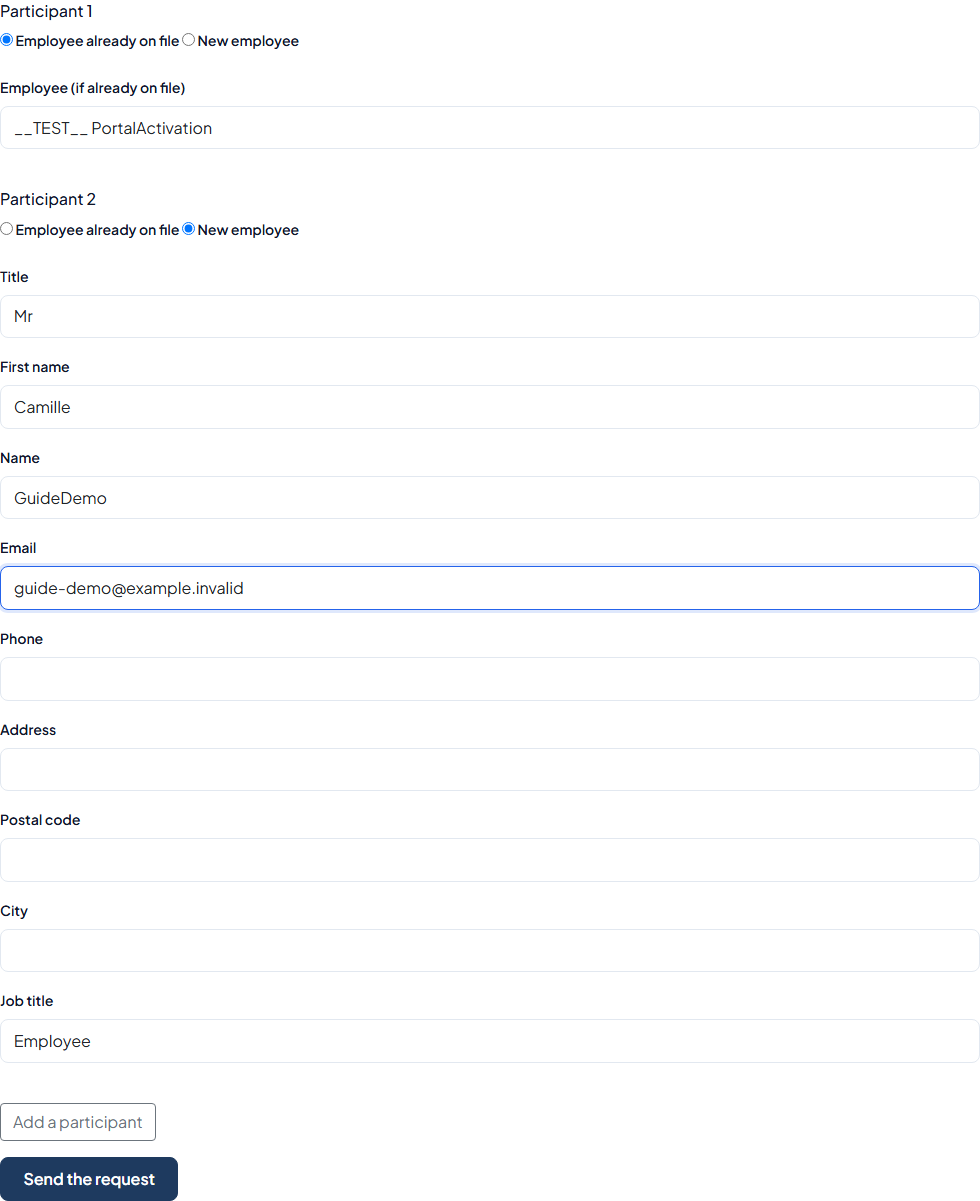
- For each participant, choose Employee already on file and select them, or New employee and fill in title, first name, name, email, phone, address, postal code, city and job title.
- Click Add a participant to add more (up to 5 per request), then Send the request.
The portal then opens the Requests section with a confirmation message. The request appears there with type Registration and status New (see the Requests section below).
Employees
The Employees section lists the company’s employees known to the training provider, with their contact details, last and next session, and attendance. The search box filters by name or email; Sessions expands an employee’s history.
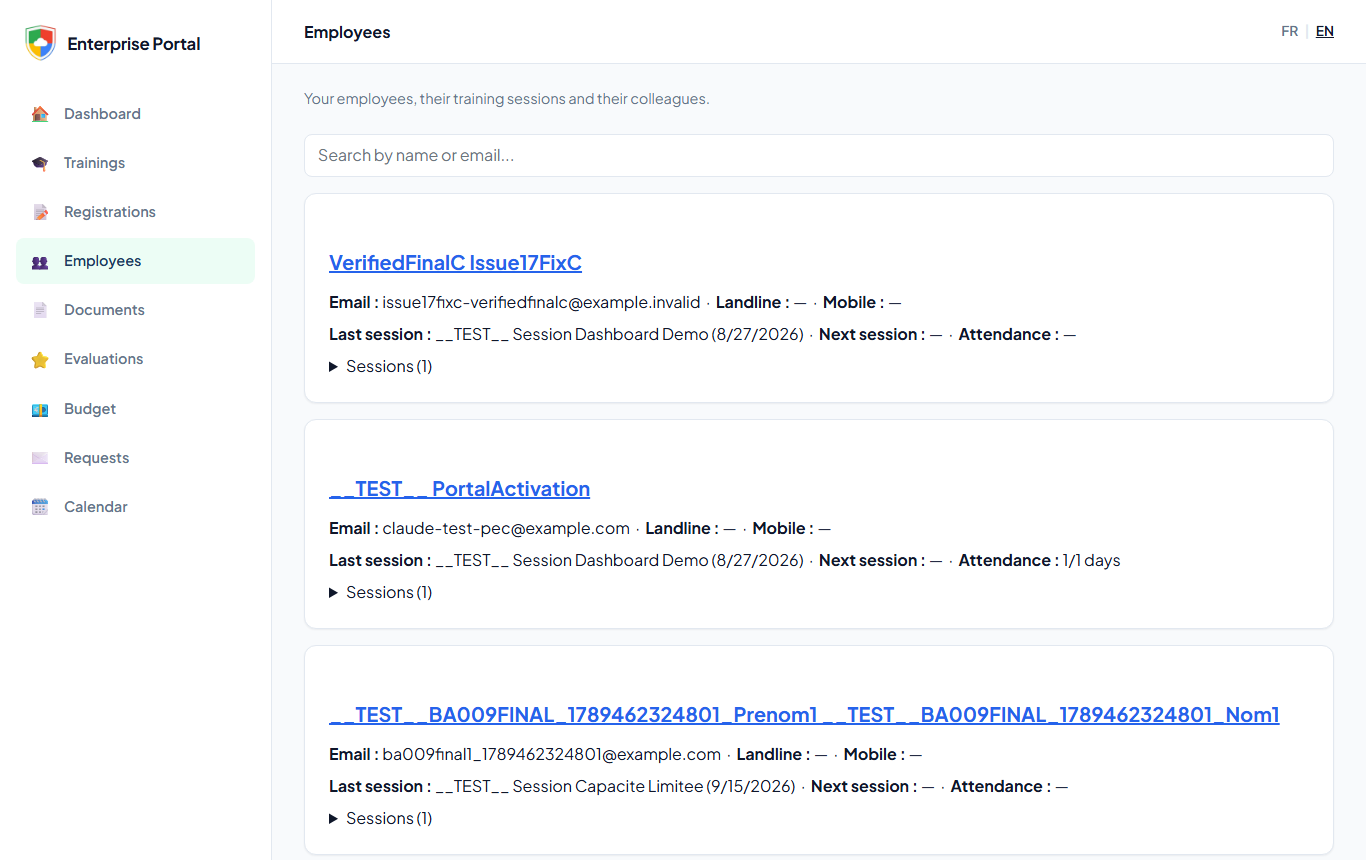
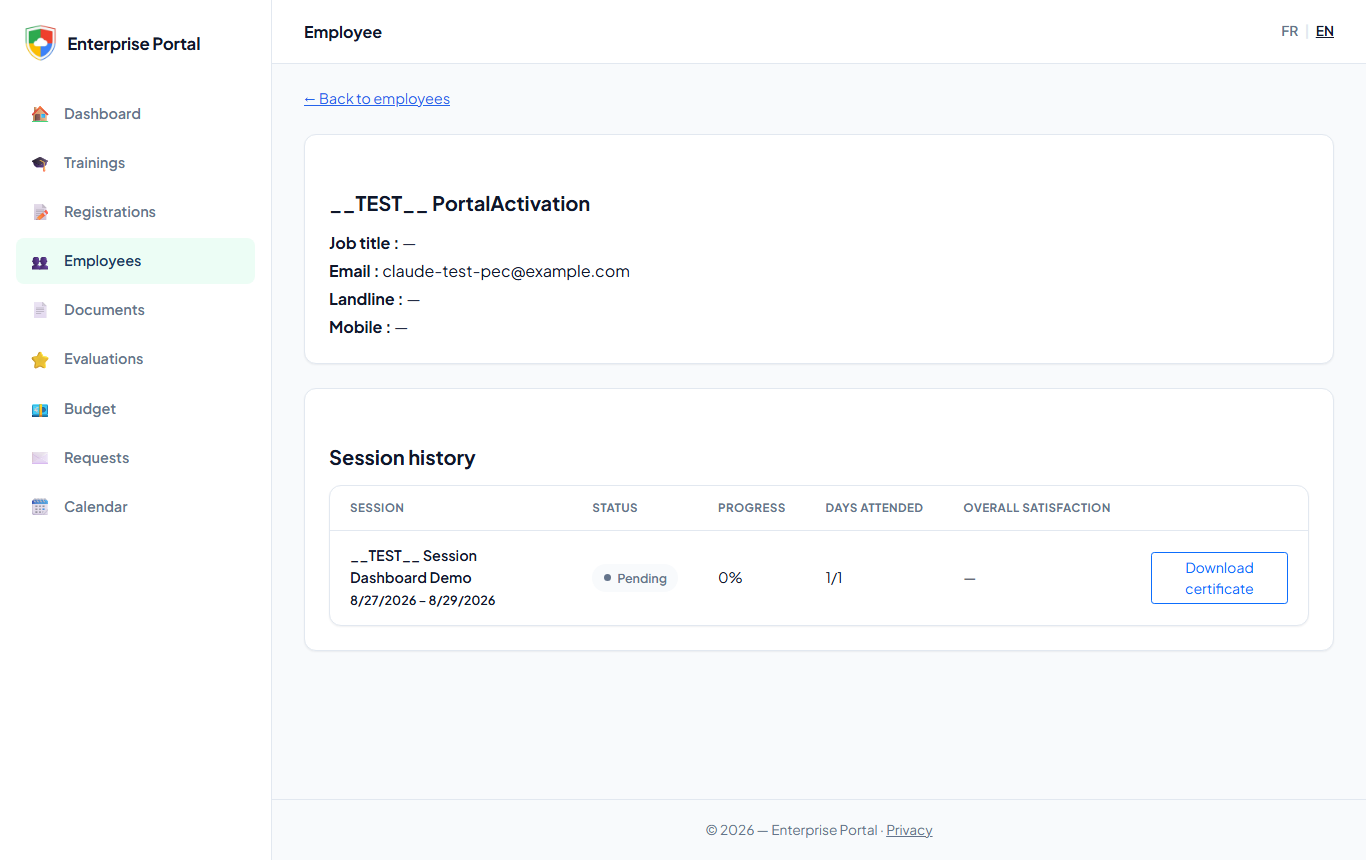
Clicking a name opens the employee’s page: job title, contact details, and session history with status, progress, days attended, overall satisfaction and certificate.
Documents
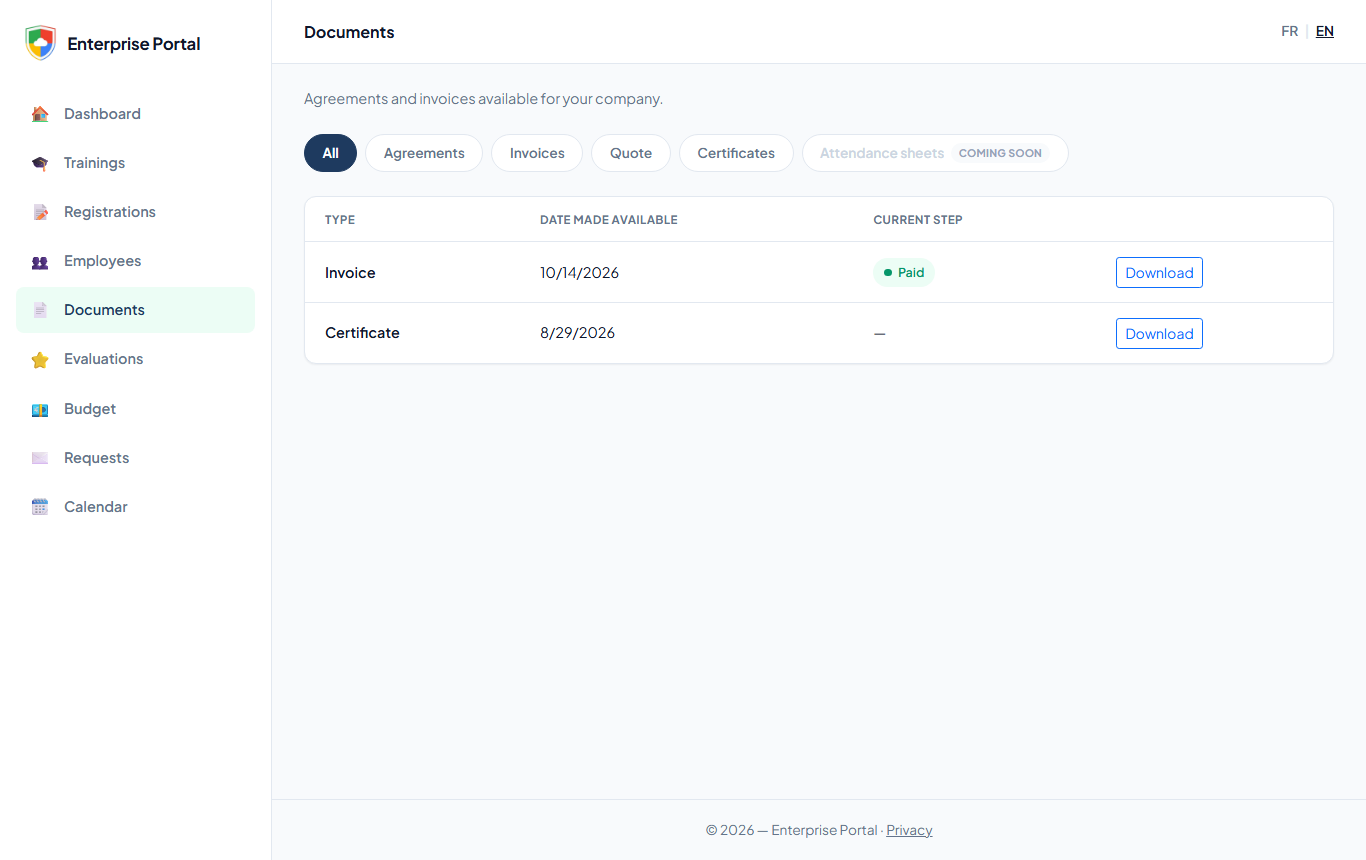
The Documents section gathers the documents made available to the company. Filter by Agreements, Invoices, Quote or Certificates, then click Download. The Attendance sheets tab is marked “Coming soon” and is not active yet.
Evaluations
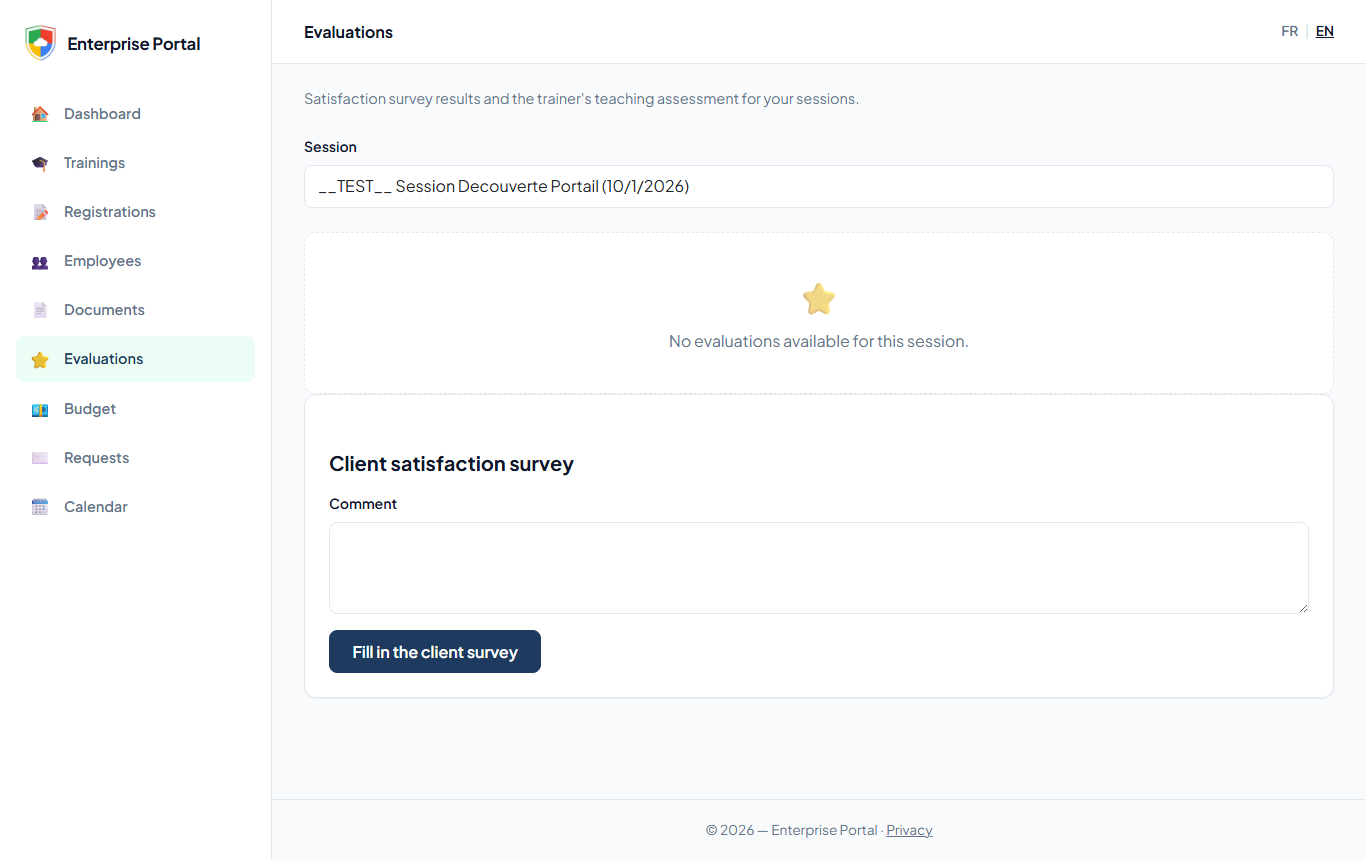
The Evaluations section shows, session by session, the satisfaction survey results and the trainer’s teaching assessment. It is also where the Contact fills in the client satisfaction survey, once per session.
- Pick the session in the Session list.
- If the survey has not been filled in yet, type a Comment and click Fill in the client survey.
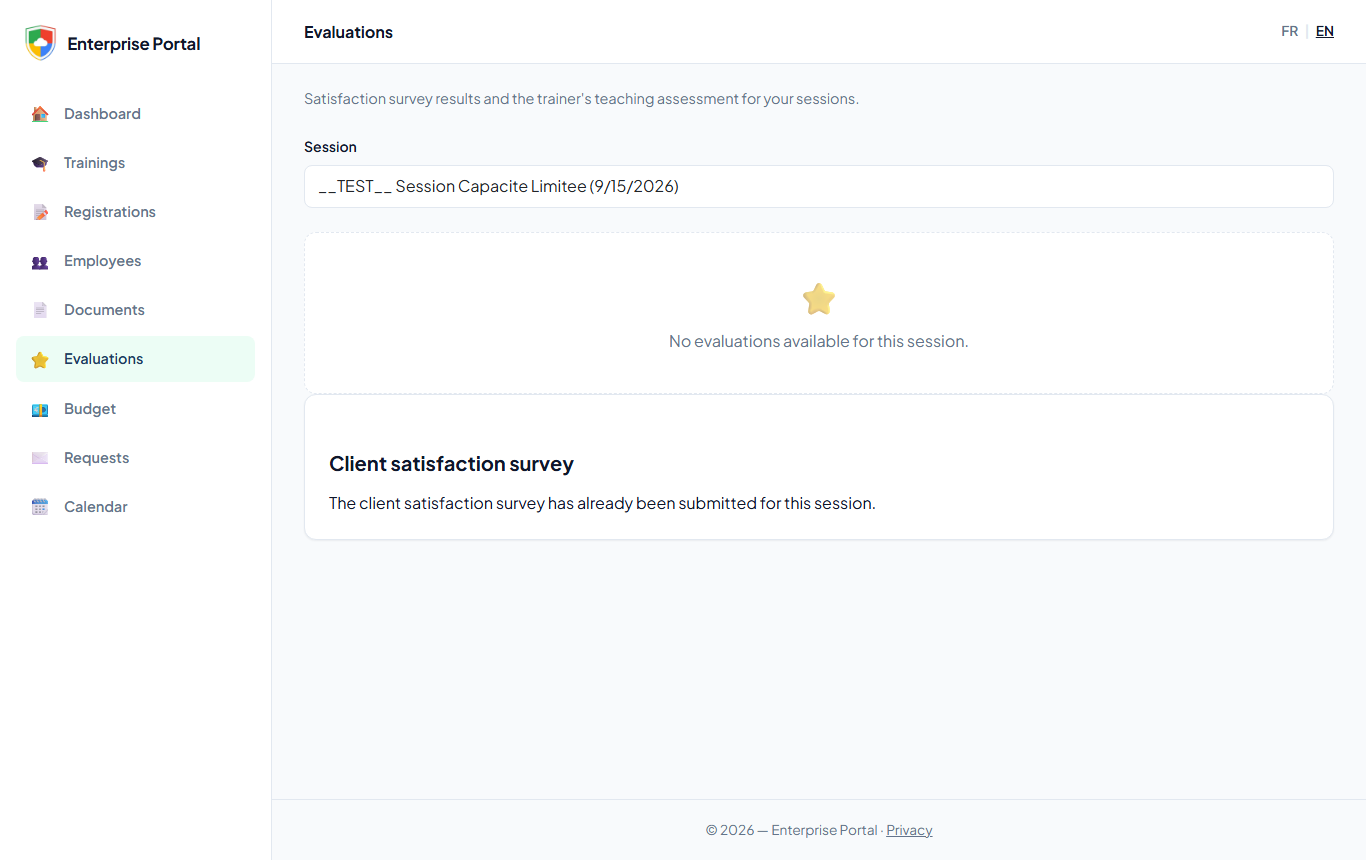
Once sent, the form is replaced by the message “The client satisfaction survey has already been submitted for this session.”
Budget
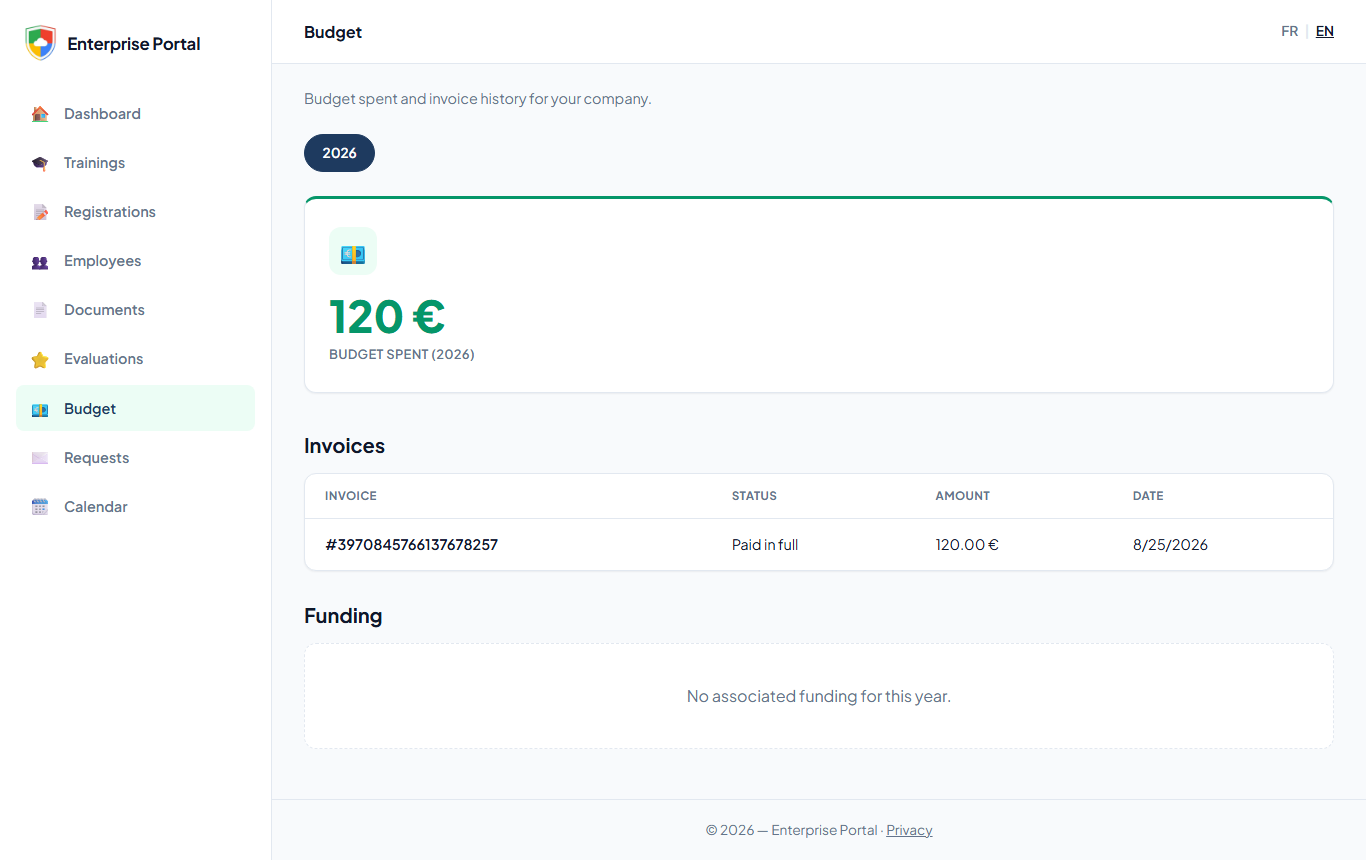
The Budget section shows the budget spent in the selected year, the list of invoices (number, status, amount, date) and any associated funding. The year button at the top of the page changes the year shown.
Calendar
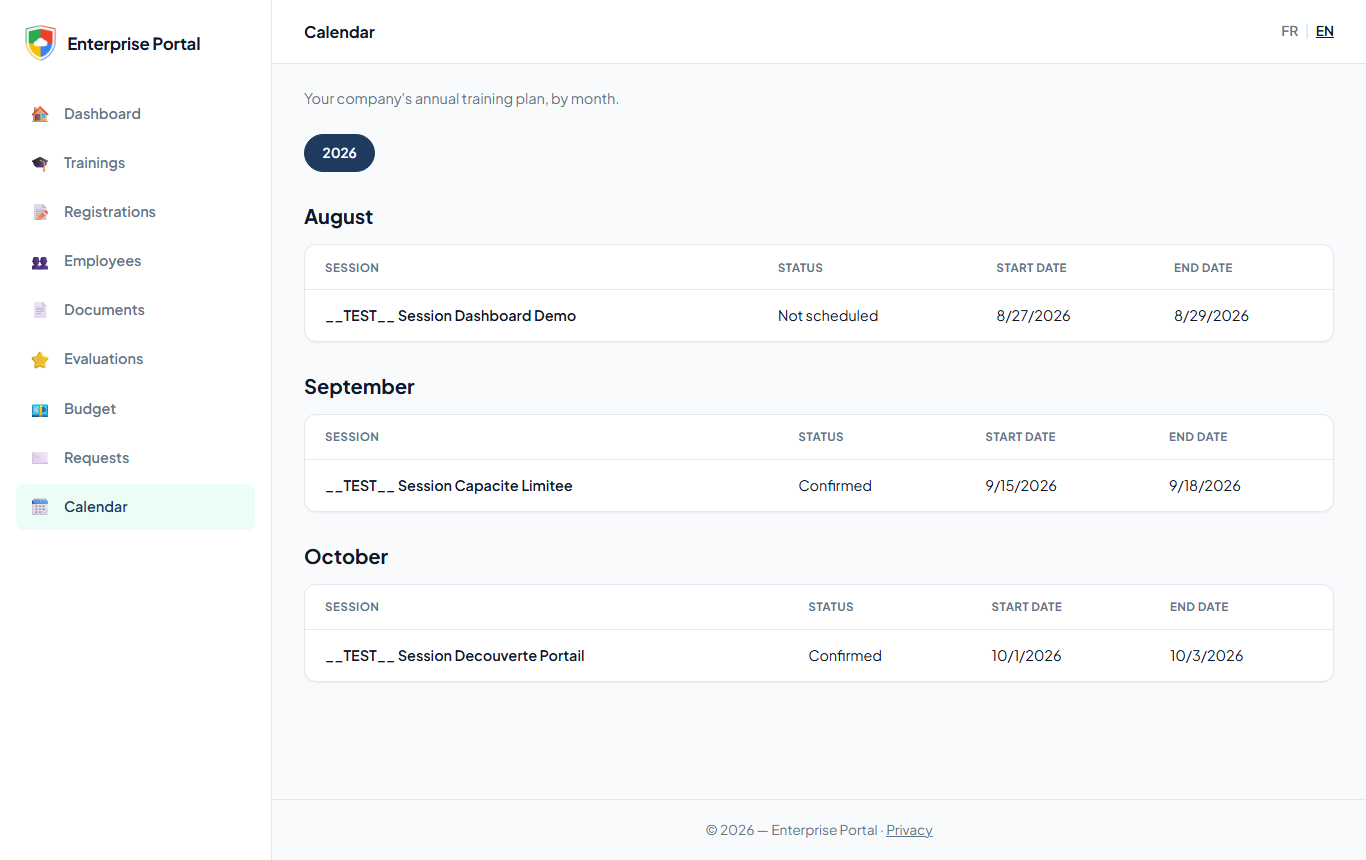
The Calendar section shows the company’s annual training plan, month by month, with each session’s status and dates.
Requests: in-company training and tracking
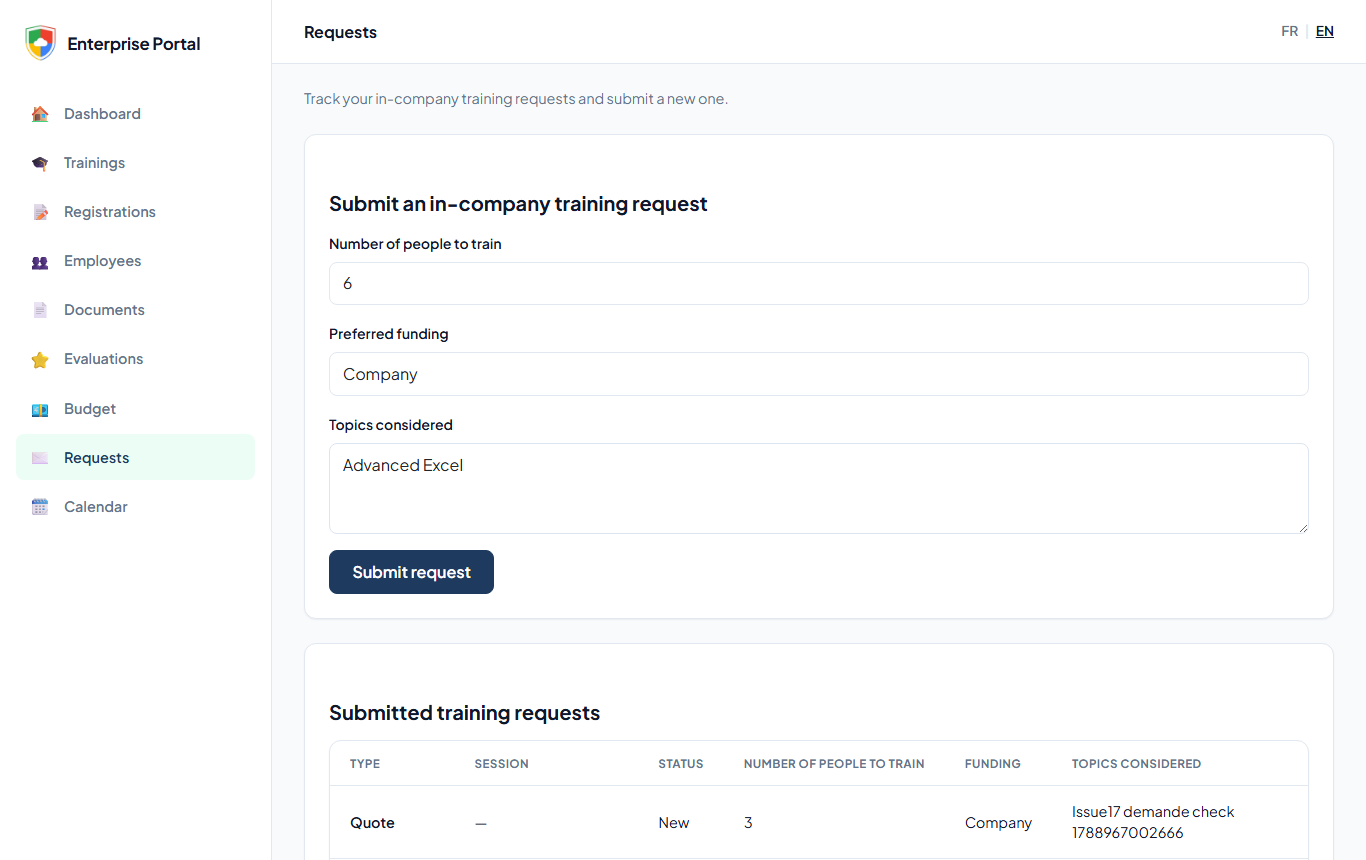
The Requests section does two things: it lets the Contact ask for an in-company training, and it tracks every request sent (in-company and registrations).
- Enter the Number of people to train, the Preferred funding (Company, OPCO, Public authorities or Other) and the Topics considered.
- Click Submit request.
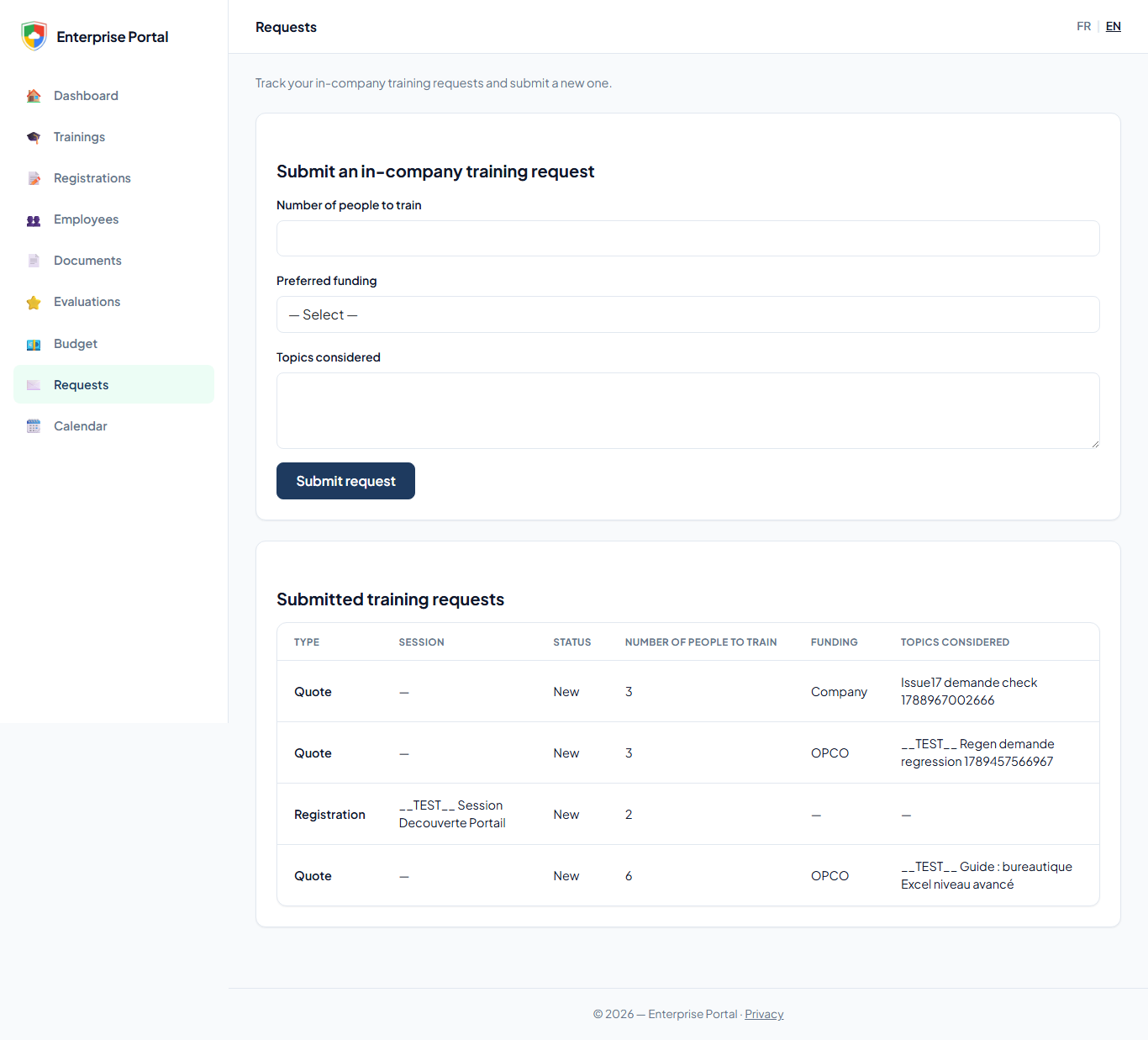
The request joins the Submitted training requests table with type Quote and status New. Its status then changes as the training provider processes it. If it does not appear straight away, reload the page.
Training provider side: processing requests in Cirrus Shield
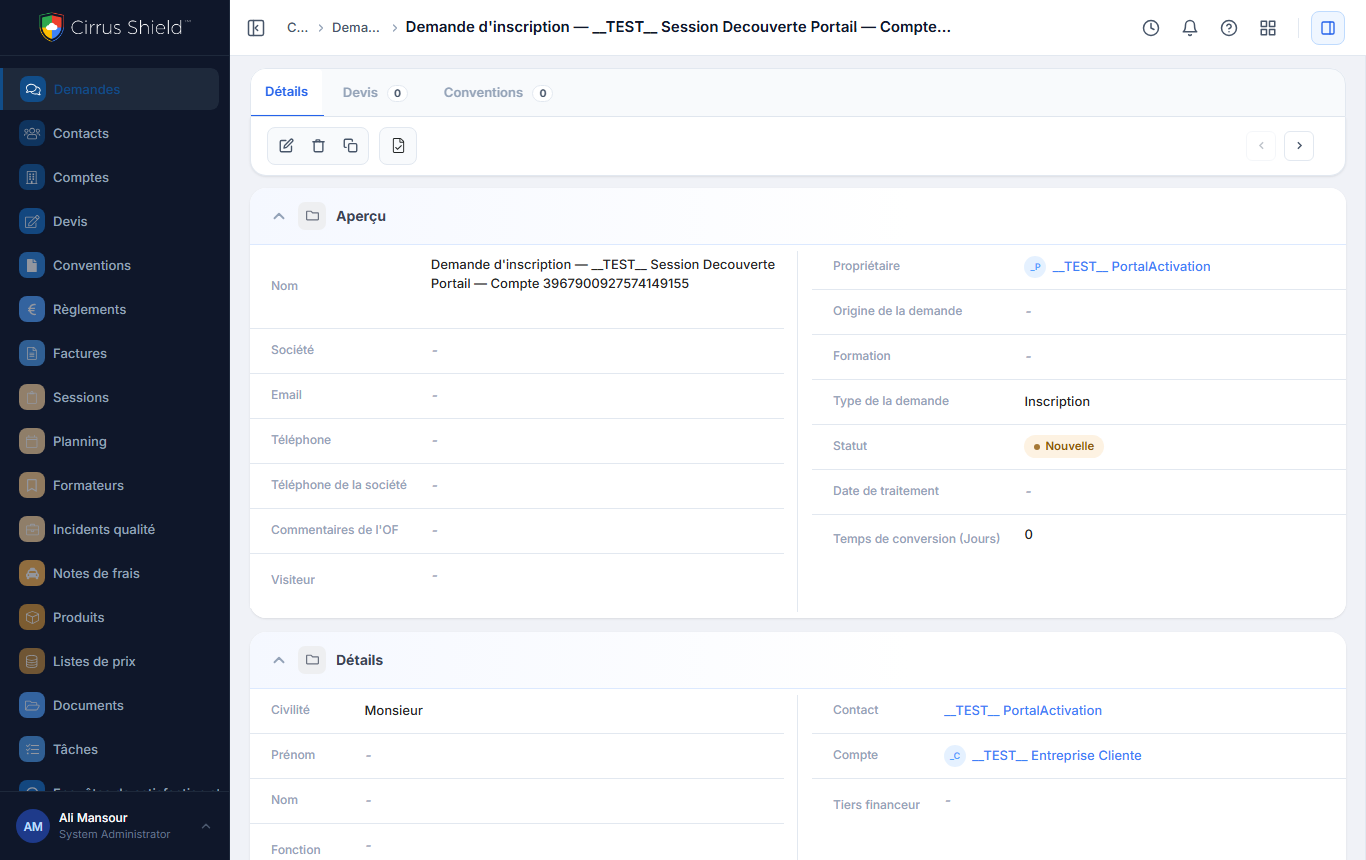
Each request sent from the portal creates a record in the Cirrus Shield Demandes (Requests) menu, in the name of the Contact who sent it.
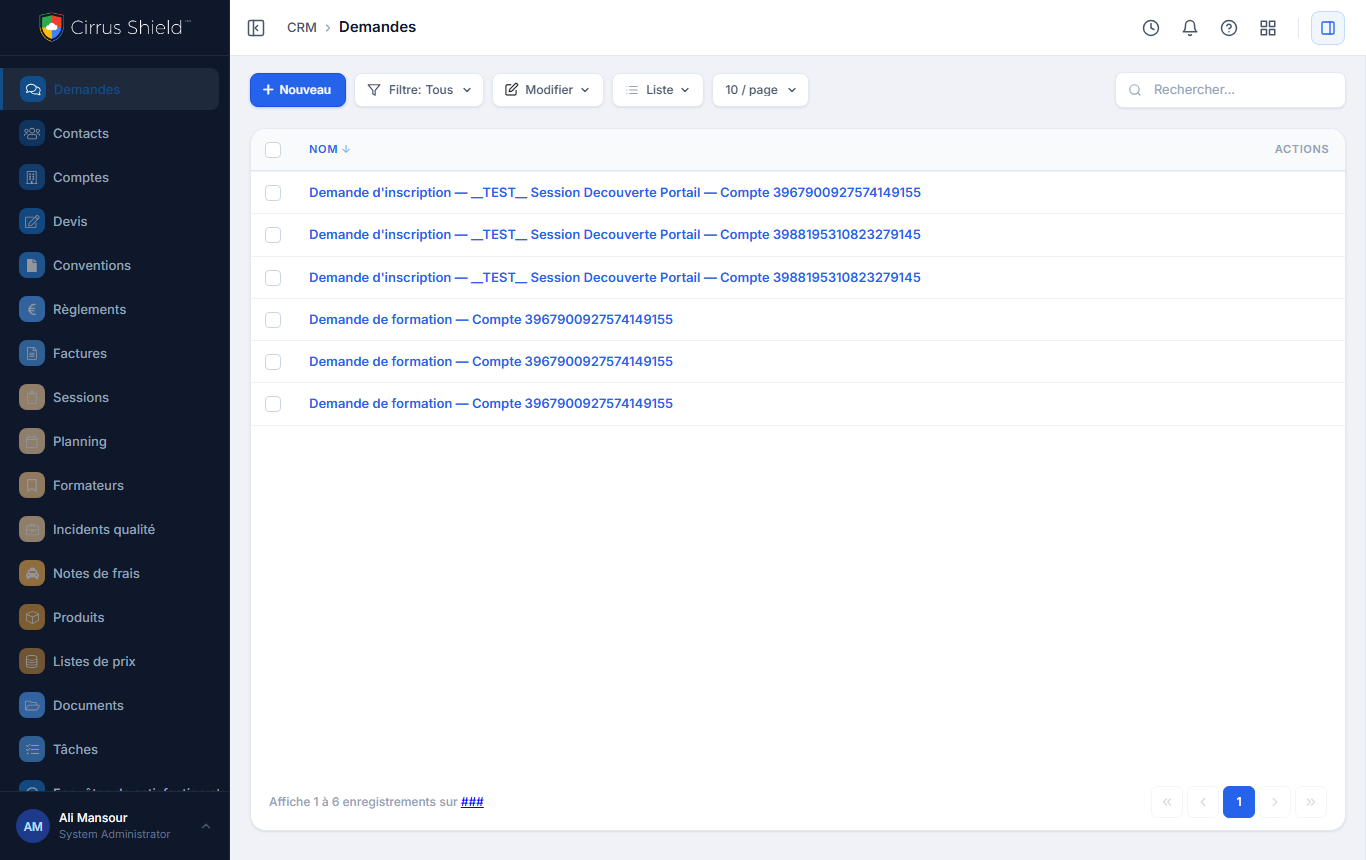
A request record shows its type, status, Contact and Account, the requested session and, further down, the participants entered on the portal. The training provider creates the participants and updates the status; the Contact sees that status in the portal.
Switching language
The FR | EN links at the top right of every page switch the whole portal between French and English. The language is part of the address (/fr/... or /en/...), so a Contact can bookmark the English version directly. Dates follow the language: 9/15/2026 in English, 15/09/2026 in French.
Messaging with the training provider’s manager is not enabled on this environment, so it does not appear in the menu.

