Overview
A lookup filter restricts the records a user can choose when filling in a Lookup Relationship field. Without a filter, the lookup window offers every record of the related object; with a filter, only the records that meet the criteria set by the administrator appear.
Example used in this guide: on the Session object, the Formation (training) field points to the Price List Item object. A filter can offer only the trainings whose list price (excl. tax) is above 2000, or those whose price is above the OPCO Price entered in the current session.
A filter is defined per lookup field: you configure one field at a time, and each field has its own criteria.
Before you start
You need an account with administration rights (access to Setup) and a Lookup Relationship field already created on the object.
Three terms recur in this guide:
- Child object: the object that holds the lookup field (here Session). The record being entered is a session.
- Lookup field: the field that opens the selection window (here Formation).
- Parent object: the object whose record is chosen (here Price List Item).
Where to find lookup filters
The filter is configured on the lookup field’s page, not on the object’s page.
- In Setup, open Objects, then the relevant object (here Sessions).
- Open the Custom Fields tab and click Details next to the Lookup Relationship field (here Formation).
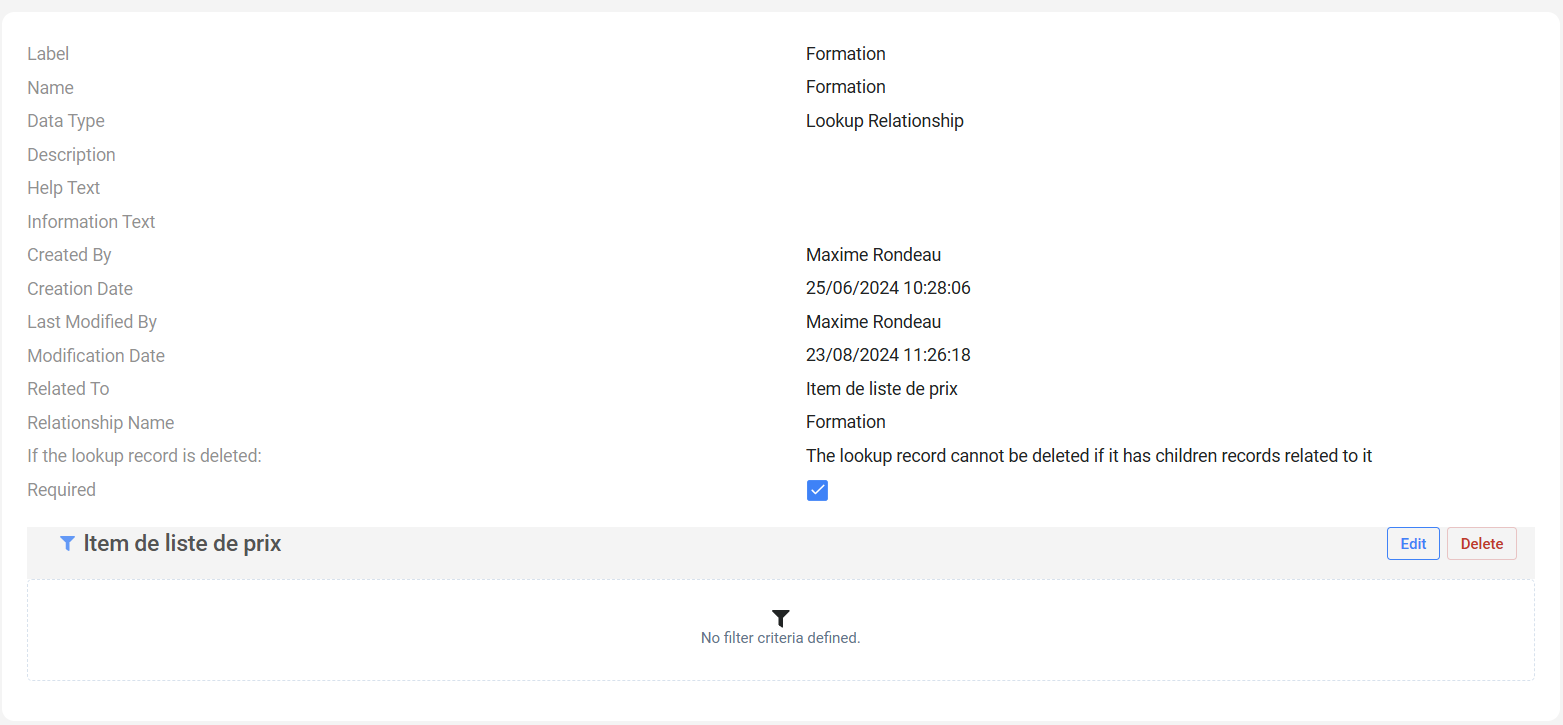
- At the bottom of the page, a section bears the parent object’s name (here Item de liste de prix). As long as no filter exists, it shows “No filter criteria defined.” with the Edit and Delete buttons.
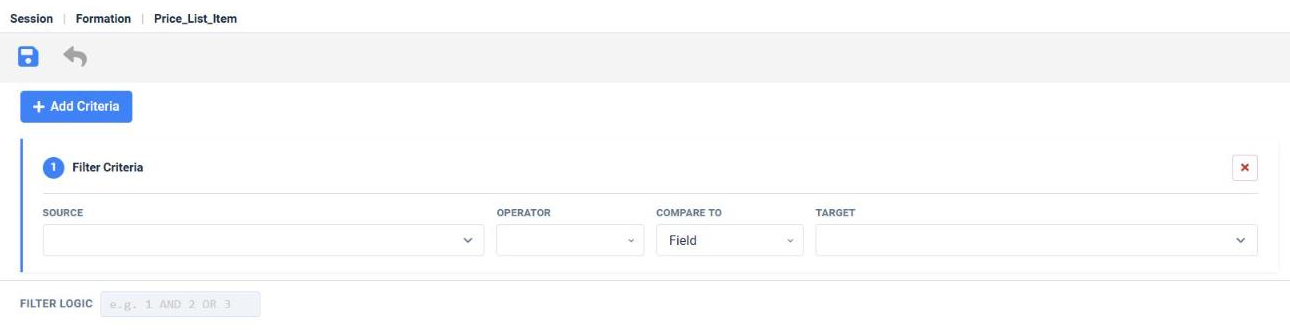
Click Edit to open the editor. Its header recalls the context: child object, lookup field, parent object (the parent is shown here by its technical name, Price_List_Item). The toolbar contains the save icon (floppy disk) and the back arrow; the Add Criteria button creates a new block, and the Filter Logic box sits below the criteria.
Understanding a criterion
A criterion is a condition that every record offered in the lookup window must meet. It reads from left to right: the parent’s field is equal to, greater than… to a value or a field of the session.
| Column | What you choose there | Example in this guide |
|---|---|---|
| Source | The parent field to test. You reach it by drilling down from the lookup field (“Formation (Item de liste de prix) >”), then choosing a field of the parent. | Prix liste HT (list price excl. tax) |
| Operator | The comparison. The list depends on the field type: a checkbox offers Equals and Not Equal To; a number also offers Less Or Equal, Greater Or Equal, Less Than and Greater Than. | Greater than |
| Compare to | Value: a value entered once and for all. Field: a field of the record being entered (the session). | Value |
| Target | Depending on the previous choice: a text box (Value) or a list of the session’s fields (Field). | 2000 |
Step by step: filter with a fixed value
Goal: in the Formation field, offer only the items whose Prix liste HT (list price excl. tax) is greater than 2000.
1. Open the Source list
In the editor, click the Source list. It starts with the session’s fields. Blue entries ending with > lead to another object: this is the case of “Formation (Item de liste de prix) >”.
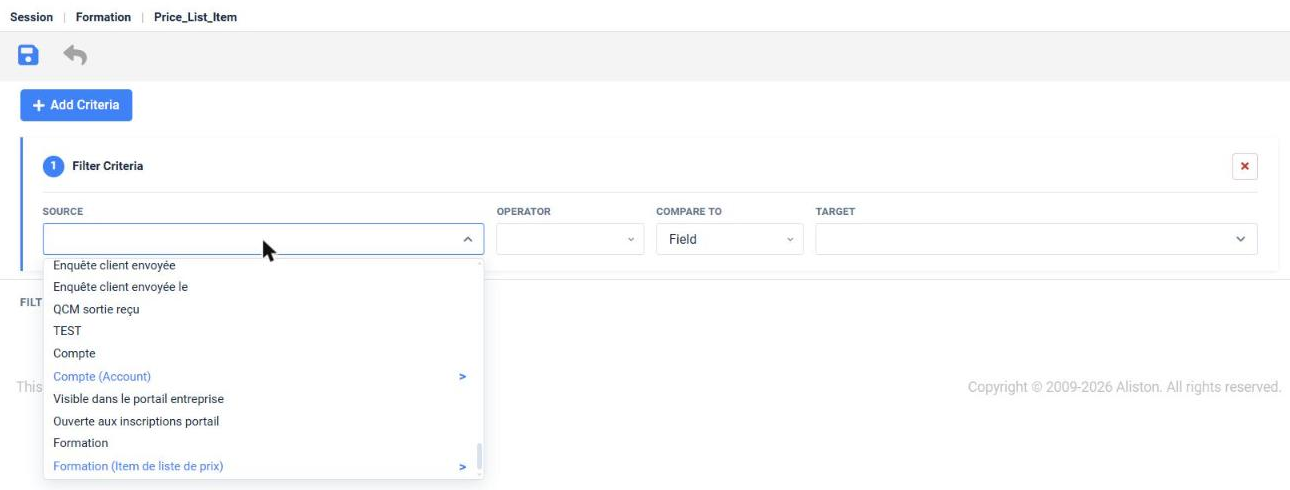
2. Drill down to the parent object
Click “Formation (Item de liste de prix) >”. The list then shows the parent object’s fields under a breadcrumb; the < button takes you back to the previous level.
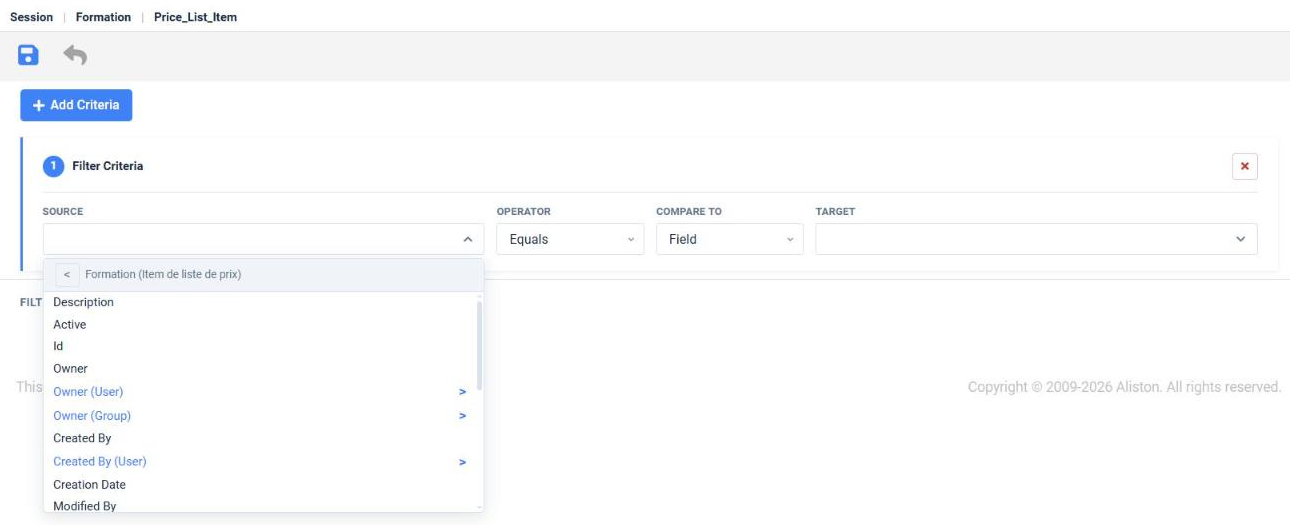
3. Complete the criterion
Choose the Prix liste HT field, then Greater Than in Operator, Value in Compare To, and enter 2000 in Target. An italic line under the Source recalls the chosen path. Note: in a new block, Compare To is set to Field by default; switch it to Value.
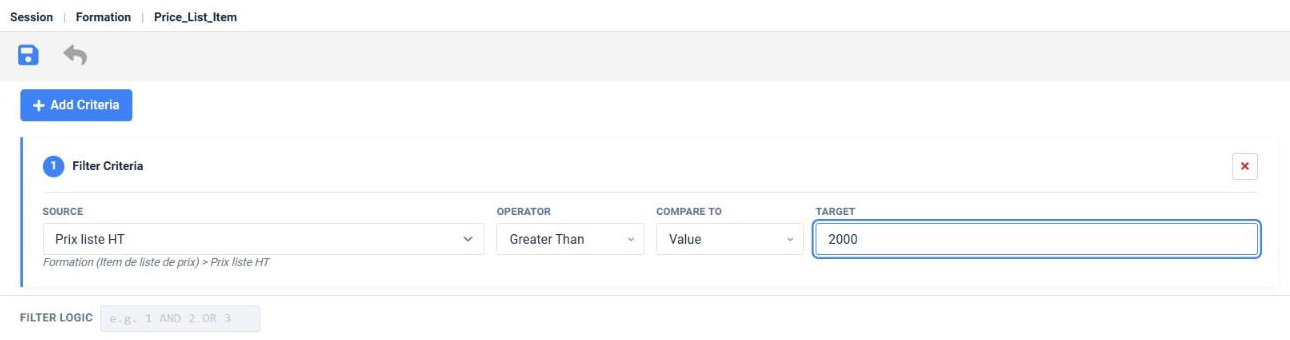
4. Save
Click the save icon. You return to the field page, which summarizes the filter in a table (#, Source Field, Operator, Compare To, Target).

Compare with a field of the current record
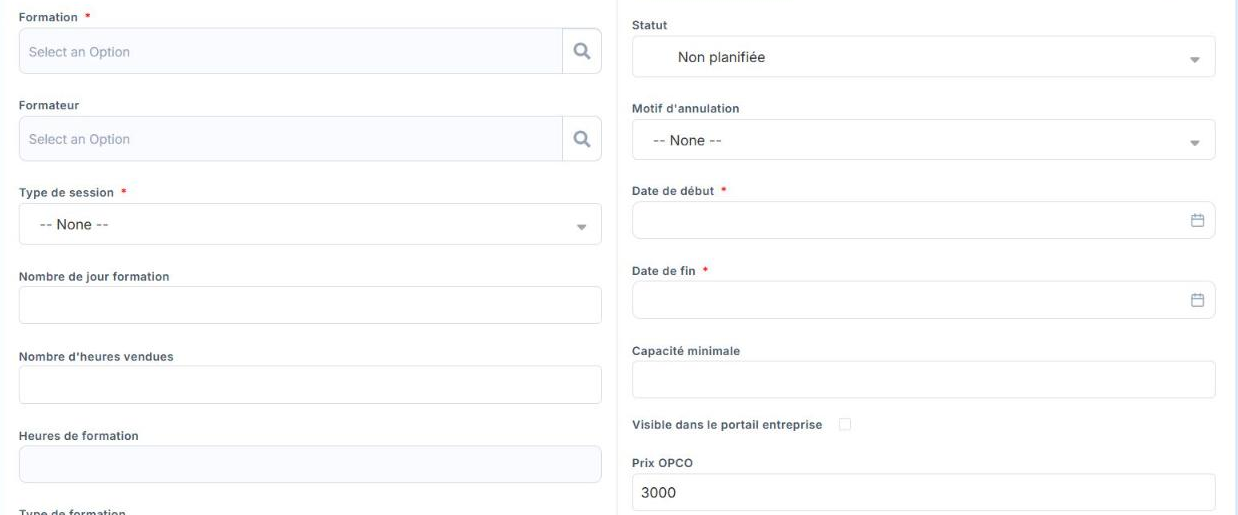
With Value, every user sees the same filter. With Field, the filter adapts to what the user has already entered in the form. Example: offer only the trainings whose list price excl. tax is above the session’s Prix OPCO (OPCO price).
- In the criterion, choose Field in Compare To.
- Open the Target list: it offers the session’s fields (the child object), not the parent’s. Explicitly choose the field you want, here Prix OPCO; the box may display a field name (e.g. the first field of the list) before you have clicked, which is not a selection.
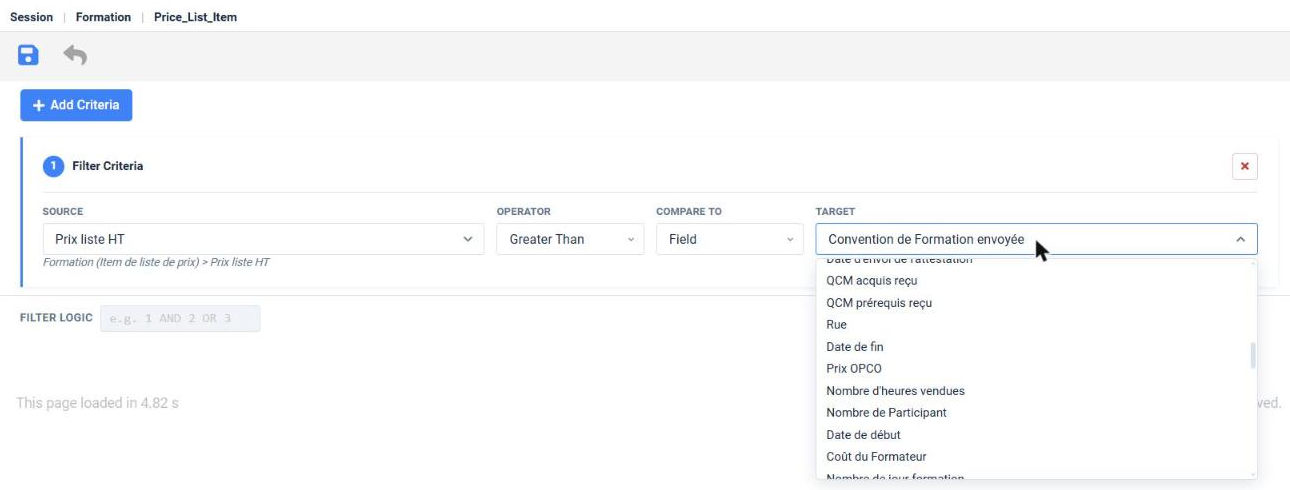
- Once Prix OPCO is chosen, the criterion reads: Prix liste HT, Greater Than, Field, Prix OPCO.
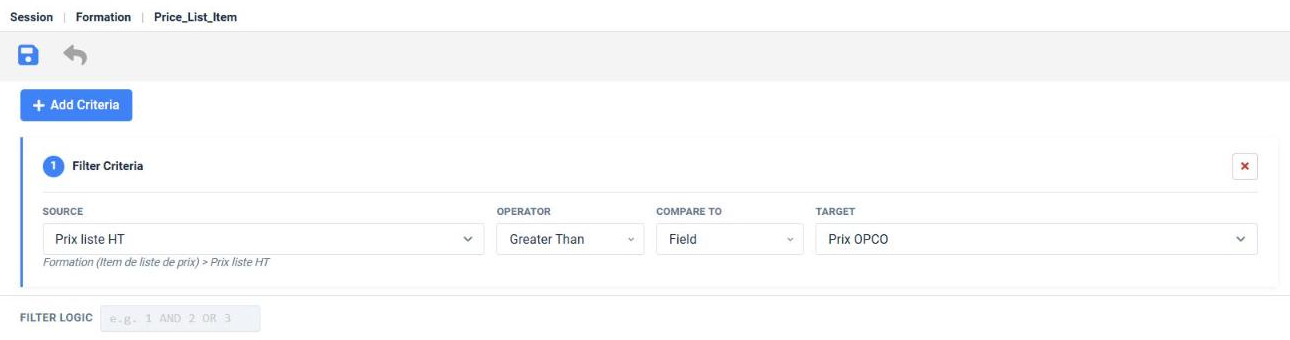
- Save. The table on the field page shows Field in the Compare To column and Prix OPCO in Target.

Navigate several levels of relationships
A parent field can itself be a relationship (“Liste de prix (Liste de prix) >”, “Produit (Product) >”). Each > goes down one level: the breadcrumb shows the path already followed and the < button goes back up one step. Example: test the Name of the price list attached to the item.
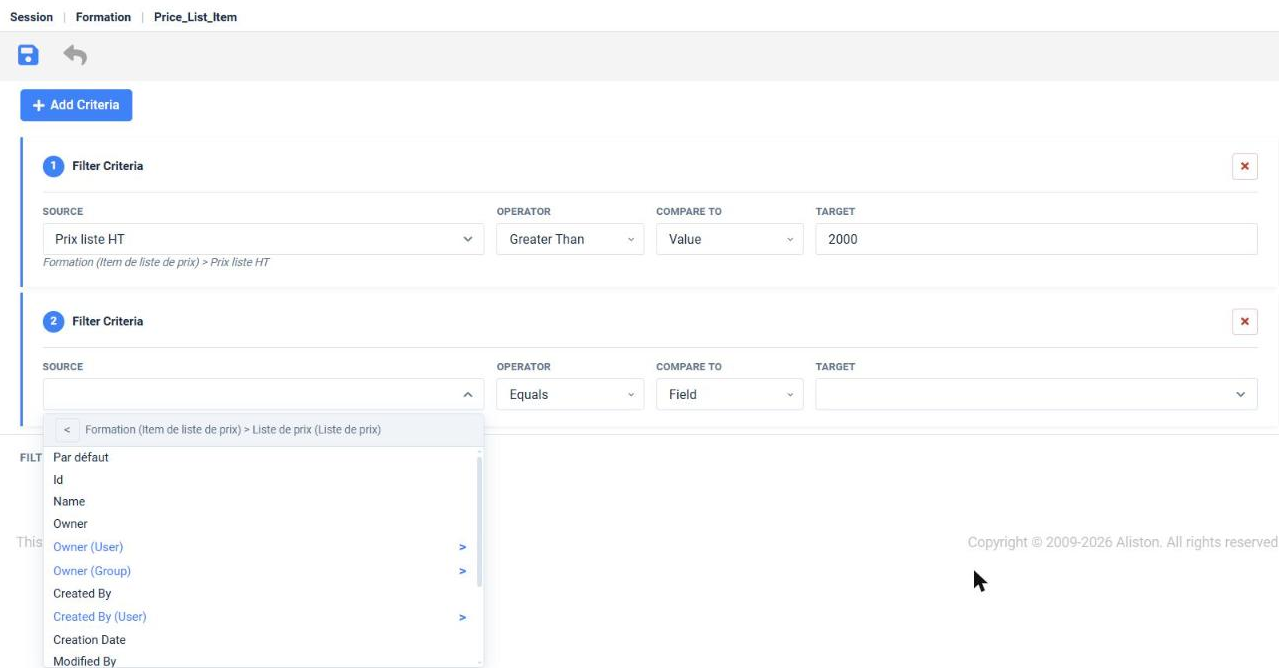
The full path stays visible under the Source once the field is chosen (for example Formation (Item de liste de prix) > Liste de prix (Liste de prix) > Name). On the field page, levels are separated by =>.
Combine several criteria: the filter logic
Click Add Criteria to create an additional block; each block is numbered (1, 2…). The red cross at the top right of a block removes it from the editor. The Filter Logic box states how to combine the numbers.
Example: criterion 1 = Prix liste HT greater than 2000; criterion 2 = price list Name equals 2024-2025, with the logic 1 AND 2.

Keywords: write AND. The grey placeholder of the box shows “e.g. 1 AND 2 OR 3”. The French keyword “ET” is rejected with the message Syntax error near ET; “1 AND 2” is accepted. OR was not tested.

A logic that refers to a criterion number that does not exist is also rejected: with only two criteria, “1 AND 5” displays The ‘Filter Logic’ entered is wrong. In both cases, nothing is saved until the error is fixed.

The field page lists the criteria but does not show the logic entered; reopen the editor to check it.
See the filter in action
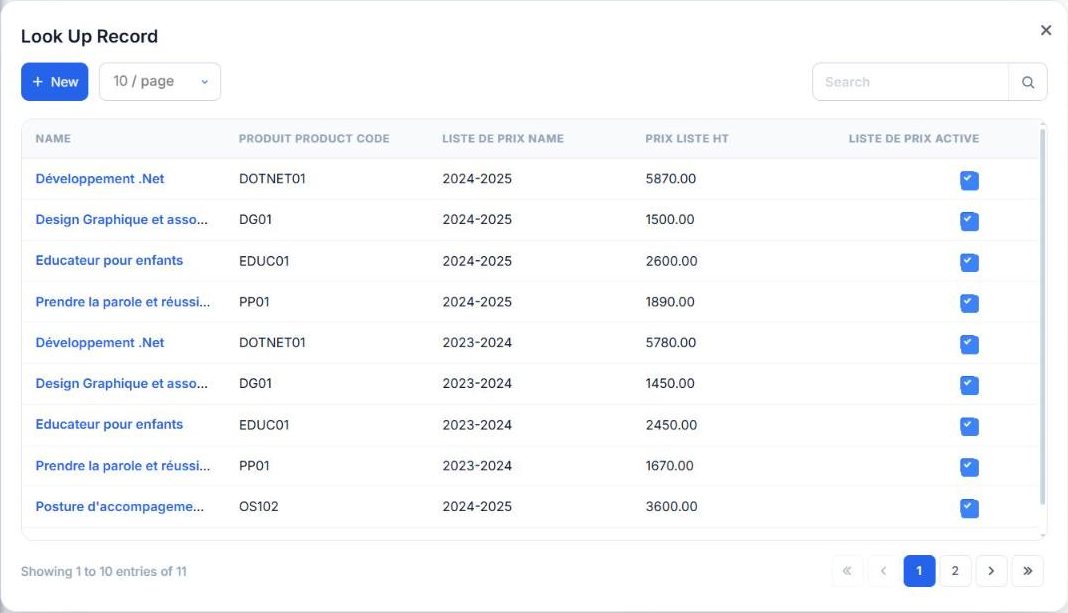
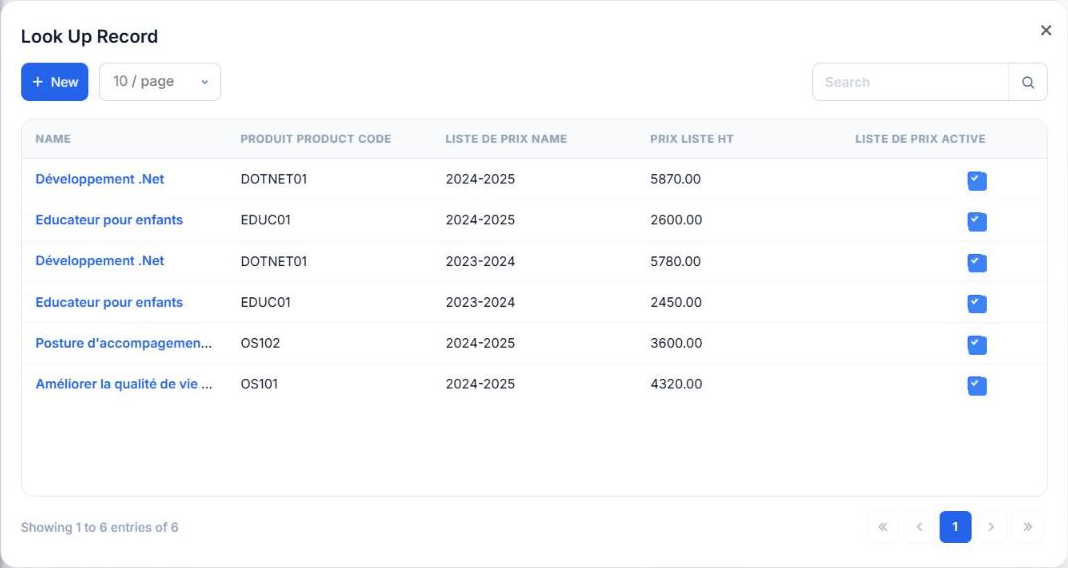
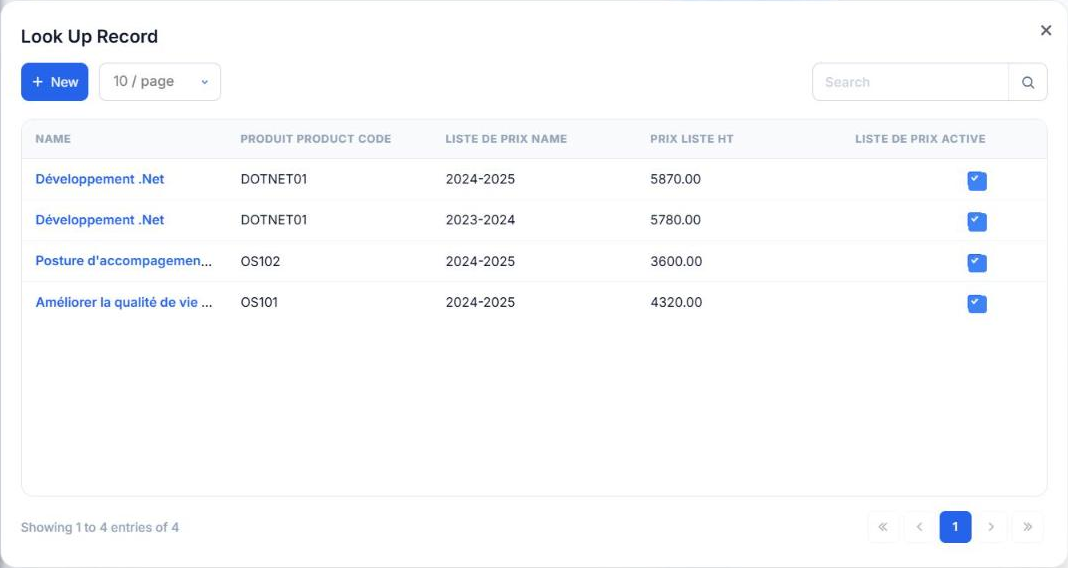
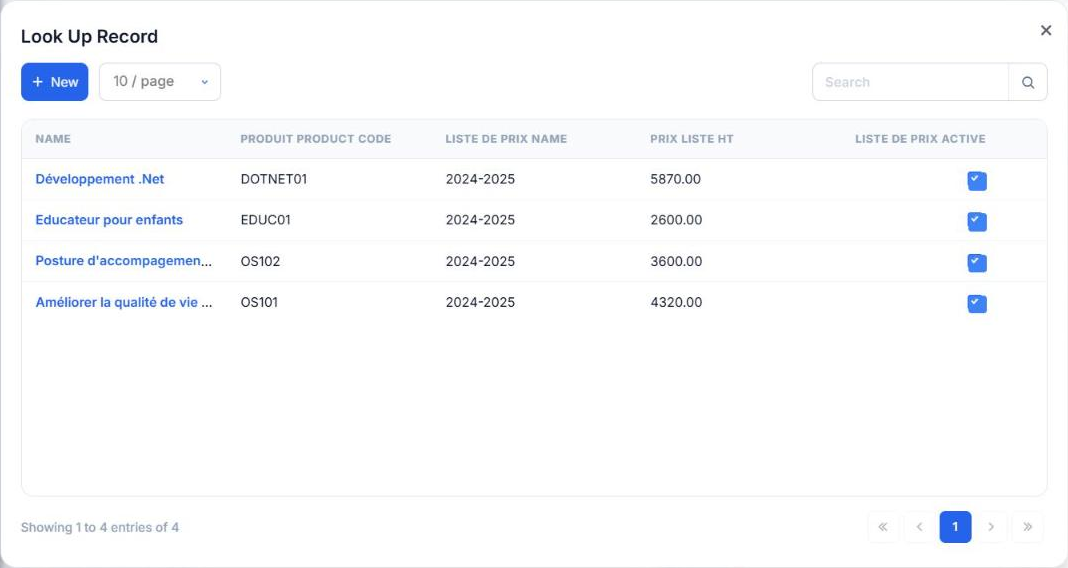
The filter applies when the user clicks the field’s magnifier in a session (new or being edited). The Look Up Record window then shows only the records that meet the criteria, and the footer gives their count.
Without a filter, the Formation lookup offers 11 items (10 per page), some of them below 2000.
With the filter Prix liste HT > 2000 (fixed value), only 6 remain, all above 2000.
With a comparison to a field (Prix liste HT > Prix OPCO), the result depends on what is being entered. Here, the session is not saved yet and its Prix OPCO is 3000.
The lookup then offers only 4 items, all above 3000. The value entered in the form, even unsaved, is what the comparison uses.
With two criteria (1 AND 2: price above 2000 and price list 2024-2025), 4 items meet both conditions.
Edit or delete a filter
- Edit: on the field page, click Edit. The editor reopens with the criteria and logic already saved. Change what needs changing, then save.
- Remove a criterion: click the block’s red cross, then save. The removal only takes effect when you save.
- Delete the whole filter: click Delete in the field’s section. The action is immediate, with no confirmation prompt, and the page returns to the “No filter criteria defined.” state (see the first screenshot in this guide).
A change applies the next time the lookup window is opened: there is no need to reload the form page.
Error messages and troubleshooting
| What you see | Cause | What to do |
|---|---|---|
| “Syntax error near ET” under Filter Logic | The keyword “ET” (or any non-English keyword) is not accepted. | Write the logic with AND (e.g. 1 AND 2). |
| “The ‘Filter Logic’ entered is wrong” | The logic refers to a criterion number that does not exist, or is not a valid expression. | Check the block numbering and correct the entry. |
| “Well, this is embarrassing…” page (unknown error) after saving | A criterion block was left empty (observed when saving with a third block with no Source). | Go back, fill in each block or remove it with its red cross, then save. The previously saved filter is not changed. |
| The lookup window offers nothing | The criteria are too strict, or no record meets them. | Remove one criterion at a time to find the one that excludes everything. |
| The filter changes nothing | The field used is not the one that carries the filter, or the window was already open. | Check the field on the object’s page, then close and reopen the lookup window. |

