Activating the portal for a customer:
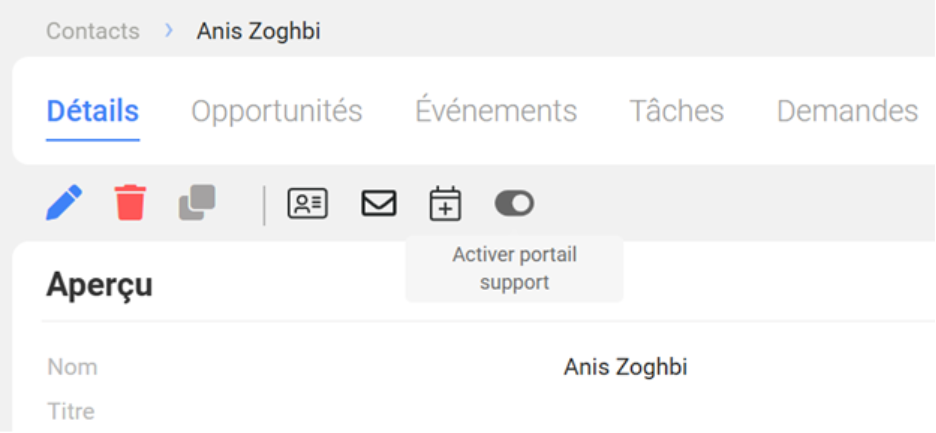
On the Contact record, click on Activate the customer portal.
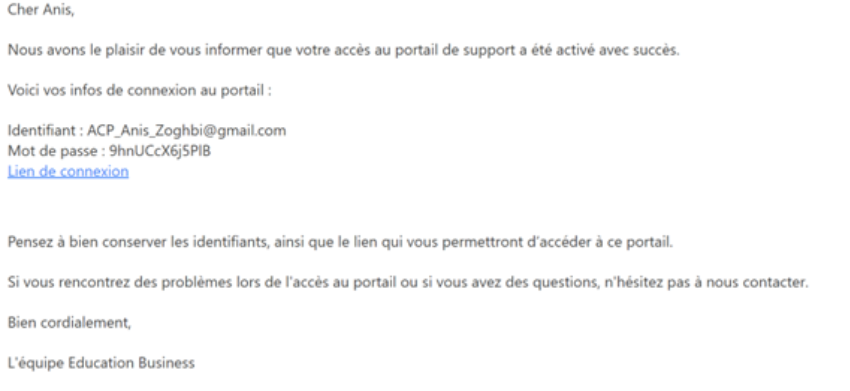
The customer will receive an email based on the configured email template (The name of the email template must match the one indicated in the button’s code) containing:
- Login credentials
- A link to the portal
Ticket tracking:
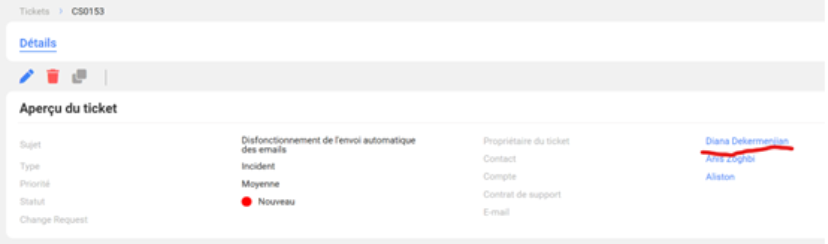
Submitted tickets automatically appear in the Ticket object with the “New” status.
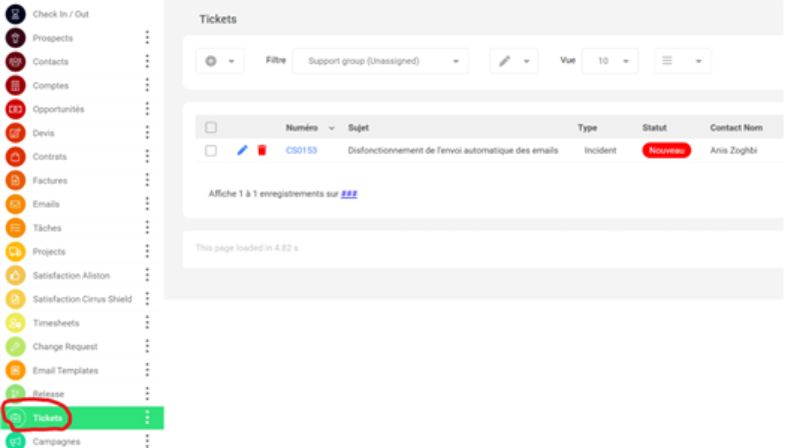
They are assigned to the support group by default.
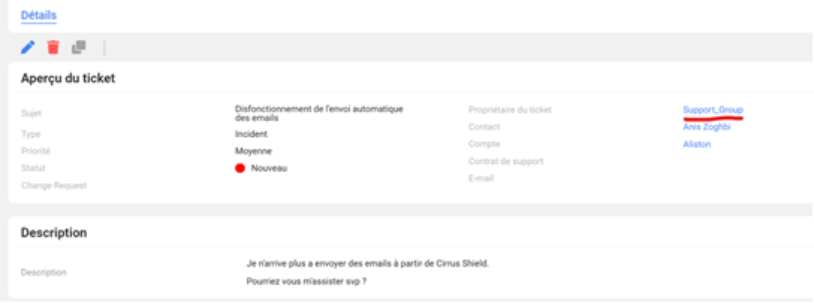
The support team must manually assign each ticket to a specific user.
Interaction tracking:
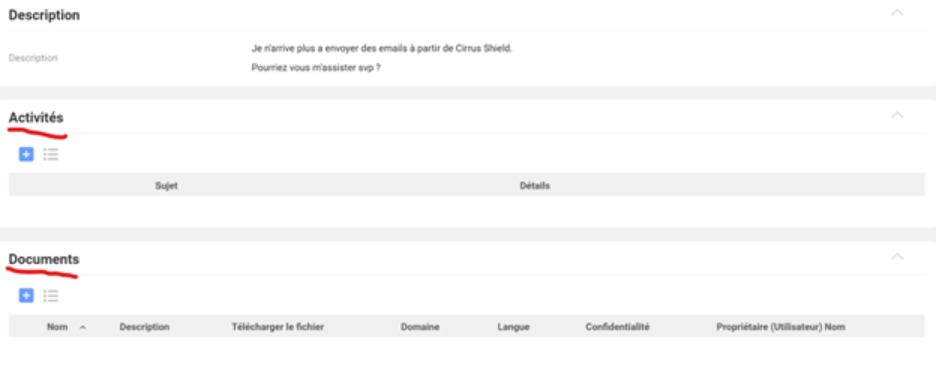
Additional notes and documents are visible in:
- The ticket’s Activities tab
- The Documents tab
Resolution :
Once a solution is proposed, the support team changes the status to “Resolved”.
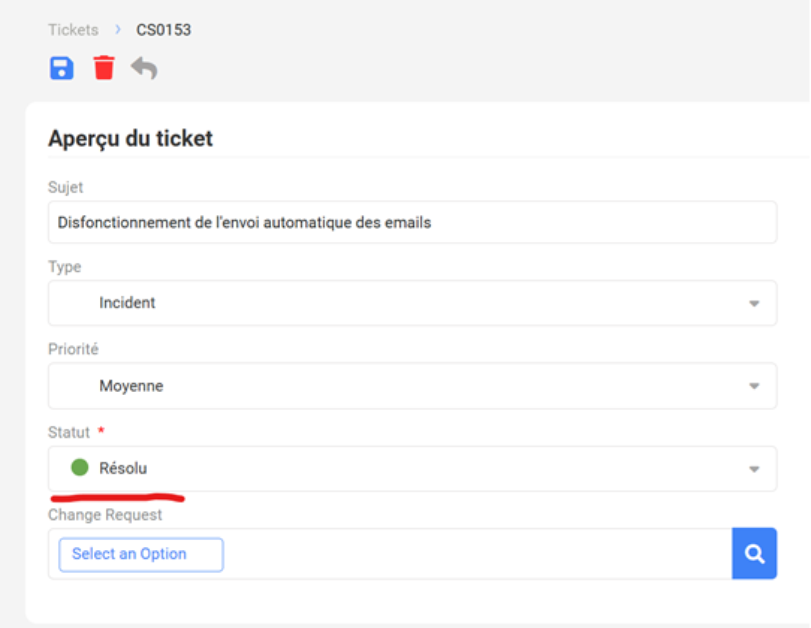
The customer can then accept or reject the solution.

